Extend Feature Guide
Introduction
With the Extend feature on MusicCreator, you can make your song longer and add new ideas without starting from scratch. It helps you build extra sections that match your existing track while leaving room for your own creativity.
Choose the song to extend
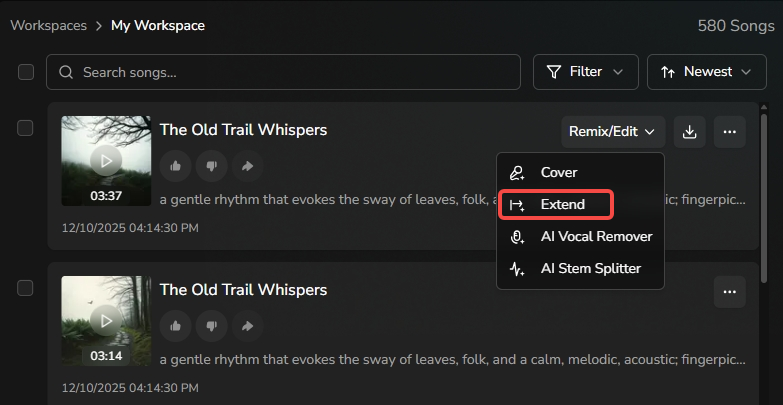
Open the AI Music Generator and, in the workspace panel on the right, select the song you want to extend to open the Extend view. From here you will edit and generate the new extended part of your track.
Set where the extension starts

Use the timeline slider or type in a specific time to decide where the extension should begin. The AI will take your original audio up to that point and start writing new music from the time you select.
Customize the extended section
Use the “Instrumental” option to choose whether the extended part should include vocals or be instrumental only. Then, in the “Extend Style” field, describe the style you want for the new section, such as genre, mood, instruments, or atmosphere.
Fine‑tune with advanced options
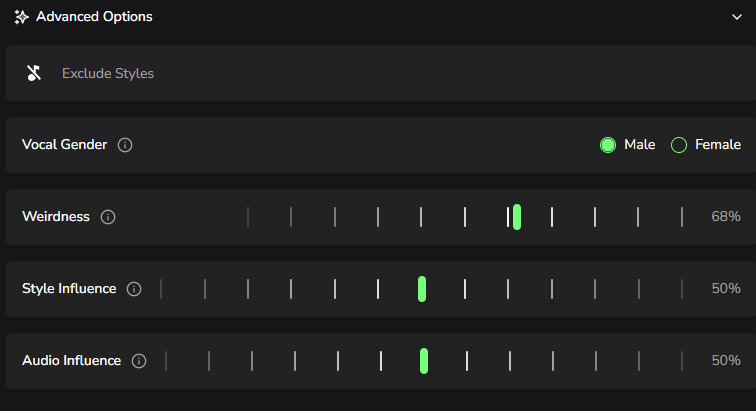
Click “Advanced options” to see five extra controls for deeper customization:
- Exclude Styles: Describe any styles you do not want in the extended part.
- Vocal Gender: Choose the vocal gender for the extended section.
- Weirdness: Controls how experimental the new part is; higher values create more surprising results. A range of 0–30% is a safe zone that keeps the style stable, while values above 30% will gradually introduce more experimental musical elements.
- Style Influence: Controls how strongly the Extend Style guides the new music; higher values make it follow your style description more closely.
- Audio Influence: Controls how similar the new section is to the original audio; higher values keep it closer to the original track.
When you are happy with the settings, click the Generate button and wait for the AI to create the extended part of your song.