MusicCreator Usage Guide
Step 1: Open the AI Music Generator
Go to the AI Music Generator page at Music Generator. This is where you will create, preview, and manage all of your AI-generated songs.
Step 2: Choose generation mode
MusicCreator.ai offers two main modes for generating songs:
Prompt mode
In this mode, you simply describe the song you want. Enter the genre, mood, instruments, atmosphere, and vocal gender, then click the generate button. The AI model will automatically create both the music and the lyrics based on your prompt.
Own lyrics mode
In this mode, you can paste your own lyrics, or click the Auto Generate button to let the system create lyrics for you. If you feel the auto-generated lyrics are too random, you may want to use the AI Lyrics Generator first to craft more tailored lyrics for your song.
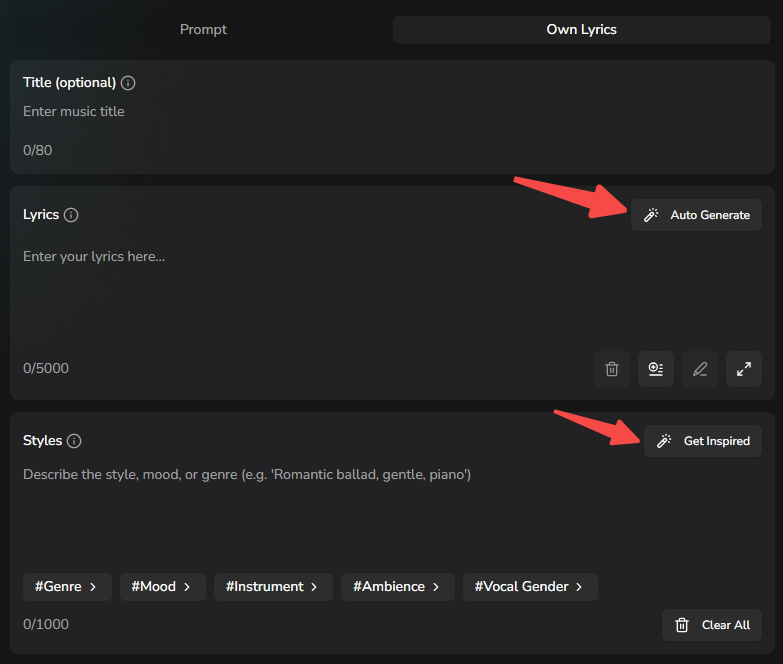
After entering your lyrics, you can still customize the song’s genre, mood, instruments, atmosphere, and vocal gender. If you are not sure what style you want, click the Get Inspired button to explore suggested ideas.
Step 3: Generate your song
Once you have set your mode, filled in the lyrics (if applicable), and chosen the musical style, click the Generate button. The AI will start composing your track, and in most cases your song will be ready within 1–2 minutes.
Step 4: Review your song in the workspace
After generation, your new track will appear in the workspace panel on the right side of the page.
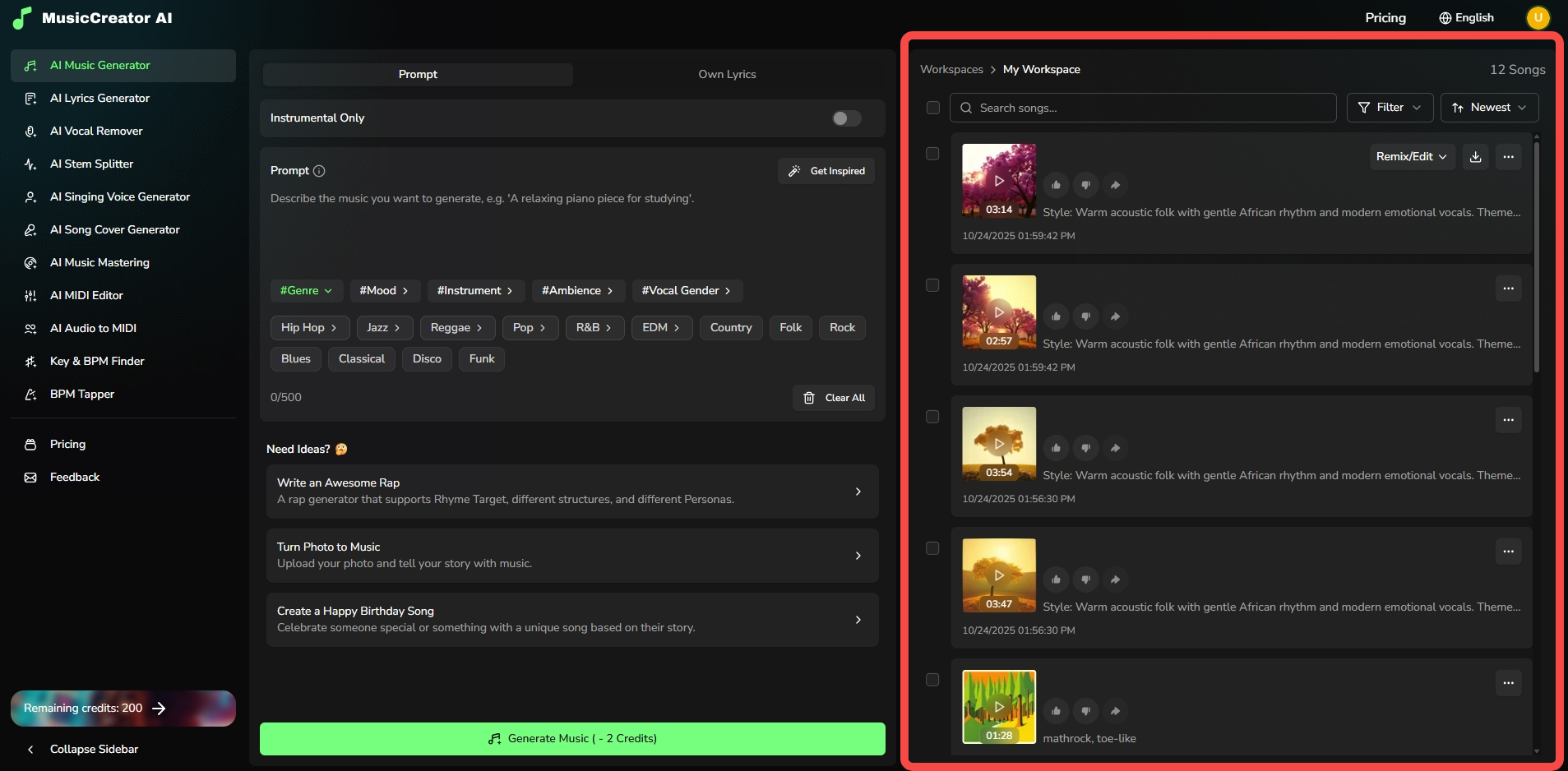
From here, you can:
- Play the song directly in the browser
- Download the audio file to your device
- View the full lyrics associated with the song
- Remix or edit the track to further refine the result
- Mark the song as Like or Dislike to help you organize your creations and improve future recommendations