MP3 to Video for Audiobook Chapters
You recorded the chapter, edited out the breaths and exported a clean MP3. Now you want listeners to find it, and many of them search for stories on video platforms rather than podcast apps.
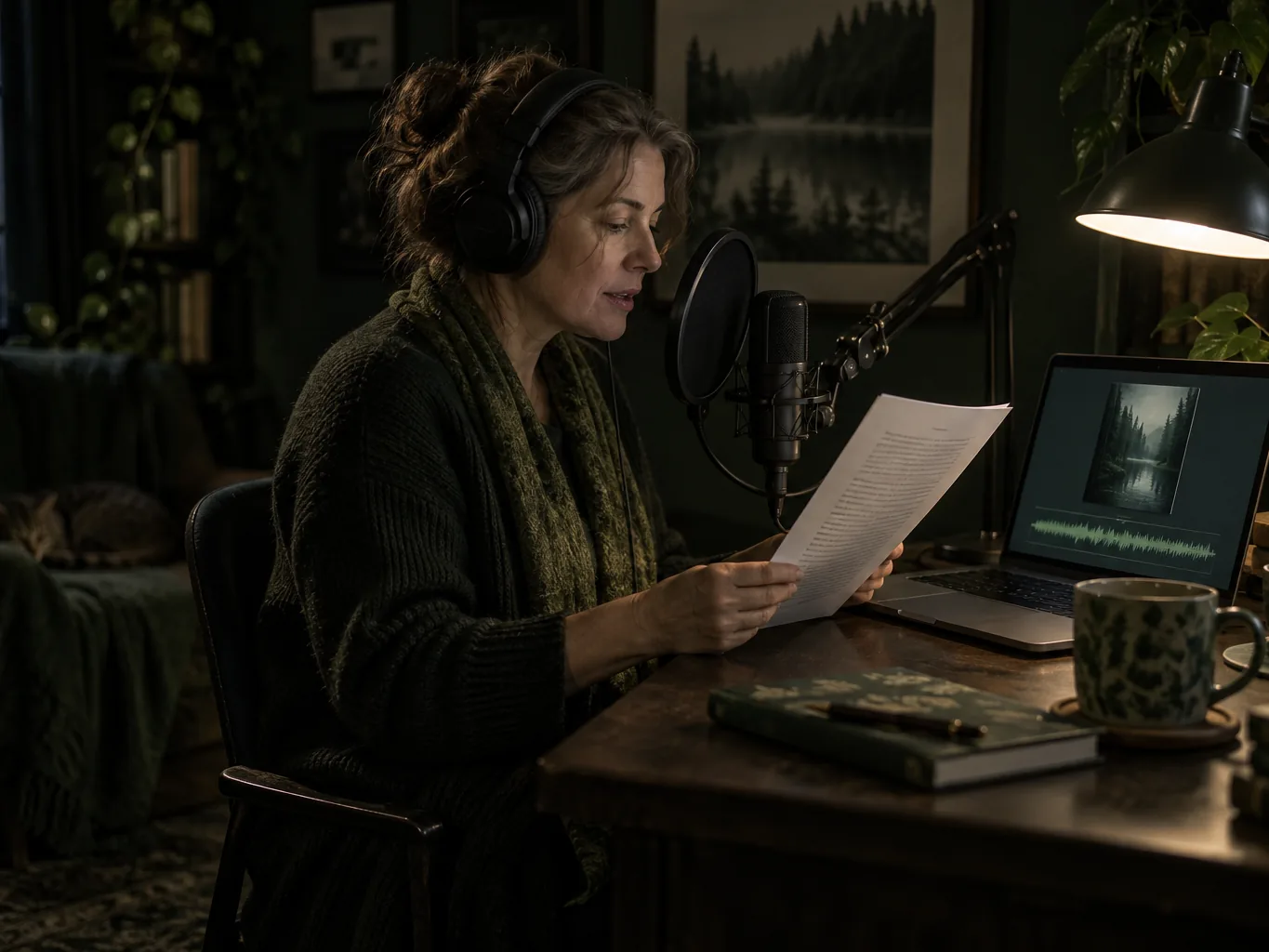
Turning an MP3 to video lets a narrated chapter sit on a channel next to everything else people watch: the book cover on screen, a quiet sound wave moving with your voice, and the chapter ready to share. The MusicCreator AI video generator from audio builds that video from your file and an image, in your desktop or phone browser.
Why narrators turn an MP3 to video
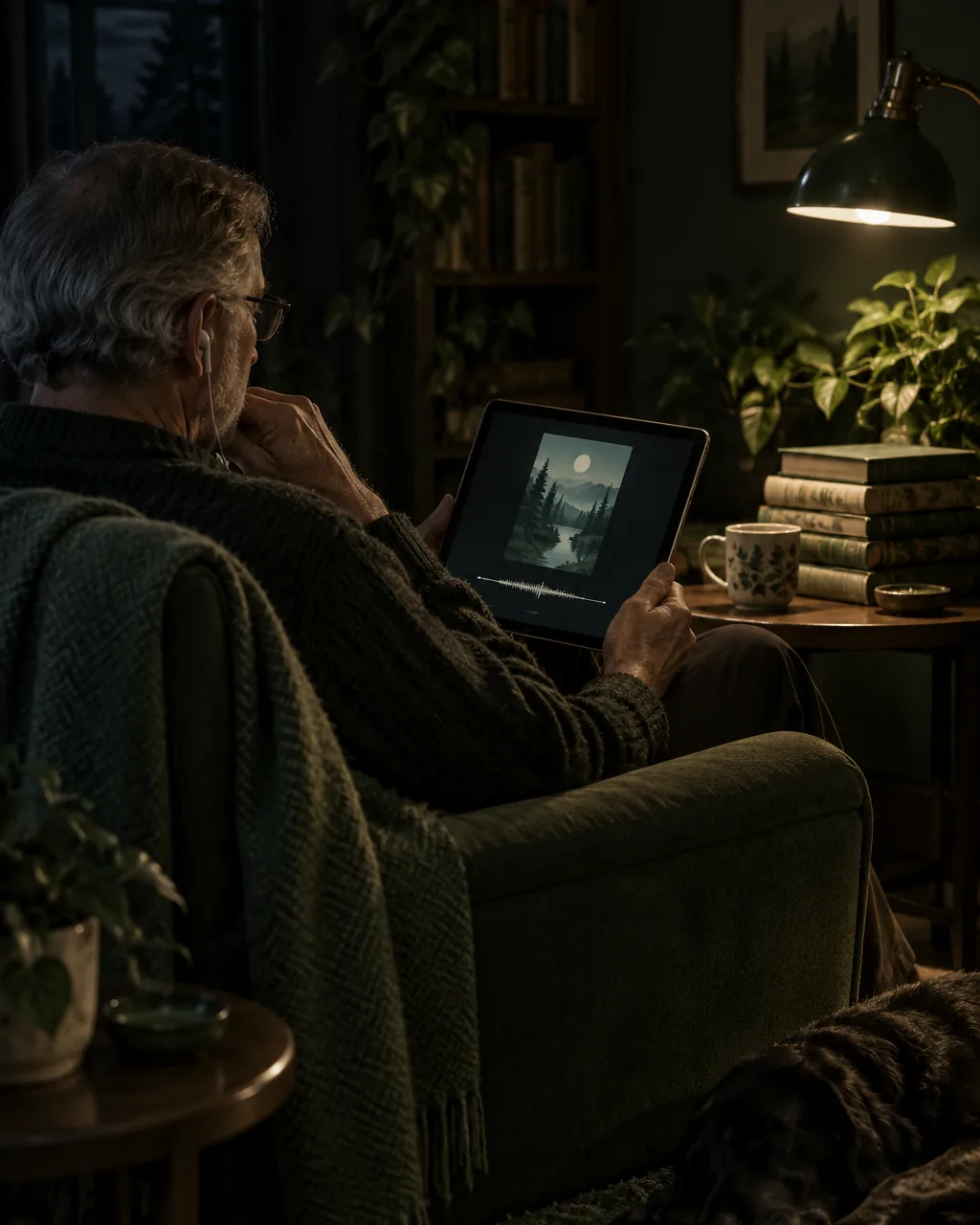
Audio-only platforms are crowded, and many independent narrators find their first listeners elsewhere. A story channel with one video per chapter is easy to browse, subscribe to and link from a newsletter. Readers who would never install a new app will happily press play on a video. A weekly chapter video also keeps a serial in front of people for months instead of one launch day.
An MP3 to video picture does not need to be busy. Listeners are there for the voice, so the screen only has to show what they are hearing: the book, the chapter and a sign that the audio is playing.
Hard to share, hard to find in search and easy to forget.
The cover on screen, a moving sound wave and a link that works anywhere.
MP3 to video also helps listeners who come to stories for reasons other than entertainment:
- People learning English often follow a narrated book chapter by chapter.
- Older listeners may find a video link easier than a podcast feed, and parents put a story on the family television at bedtime.
- Narrators who build a backlist of free sample chapters on video often use them as a showcase when they pitch for paid narration work, because a producer can hear their range in a few clicks.
- For indie authors who narrate their own books, a chapter video is a free preview that can lead readers to the full audiobook or the print edition.
What the MP3 to video panel offers
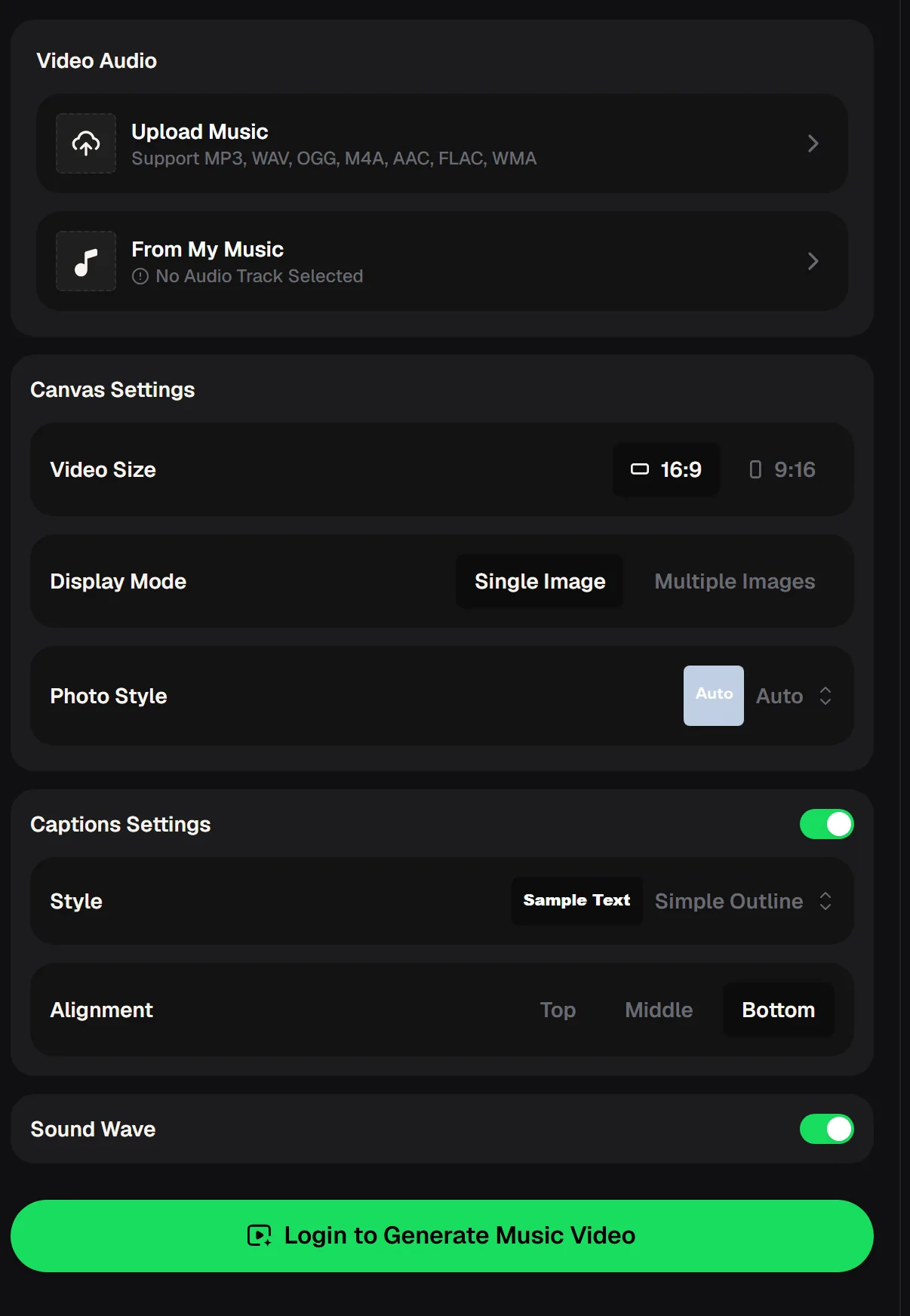
The AI video generator from audio on musiccreator.ai is laid out in four groups. Each row below lists one MP3 to video setting on the panel.
| Panel group | Setting | Options |
|---|---|---|
| Video Audio | Upload Music | MP3, WAV, OGG, M4A, AAC, FLAC, WMA |
| Video Audio | From My Music | A track already in your MusicCreator library |
| Canvas Settings | Video Size | 16:9 or 9:16 |
| Canvas Settings | Display Mode | Single Image or Multiple Images |
| Canvas Settings | Photo Style | Auto by default |
| Captions Settings | Captions | On or off; Simple Outline style by default; Top, Middle or Bottom |
| Sound Wave | Wave overlay | On or off |
| Account | Generate | Login needed; new accounts get free credits |
MusicCreator also lets you personalise a video with uploaded images, prompts, watermarks and logos. It does not state the export file format, so check the downloaded file before you upload it anywhere.
Choosing settings for a spoken chapter
For spoken word, MP3 to video asks different things than a song does. A chapter can run for half an hour, and the listener may leave it playing in another tab, so the picture should be calm and the settings simple.
A dark, uncluttered cover with clear title lettering works better than a bright collage. The table sums up the MP3 to video choices that matter most for narration, with the reason behind each one, so you can set the panel once and reuse the same settings for every chapter in the series.
| Setting | For a spoken chapter | Why |
|---|---|---|
| Display Mode | Single Image | The cover stays on screen for the whole chapter; Multiple Images suits a children's story with a few illustrations |
| Video Size | 16:9 for full chapters, 9:16 for excerpts | Full chapters live on a channel page; short vertical excerpts point people to them |
| Sound Wave | On | On a still cover, the moving wave is the only sign the video is playing |
| Captions | Test on a short file first | See whether on-screen words suit a long narration before you commit a full chapter |
Put it on screen with its cover and give readers a link they can press play on. Start free with credits after a quick sign-up.
Building a chapter series
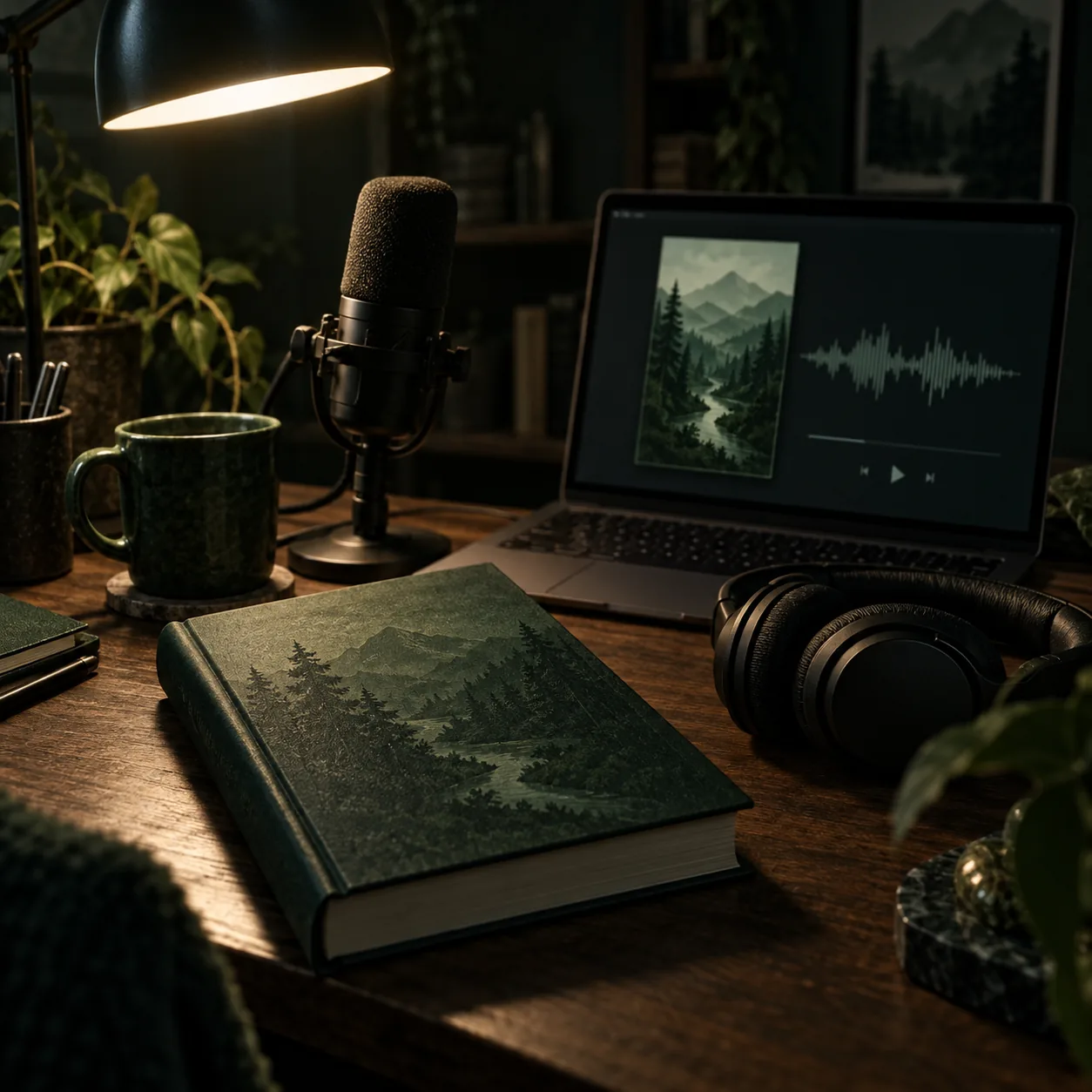
A serial looks professional when every chapter matches. Before you turn each chapter MP3 to video, make one cover template with space for the chapter number, export a version for each chapter, and use the same Video Size, Display Mode and Sound Wave setting every time. Listeners scrolling your channel will see a tidy row of matching chapters, and new ones will be easy to spot.
Name each file with the book title and chapter number before you upload it, so nothing goes out in the wrong order. Keep a simple log of which chapters are recorded, converted and published, and schedule uploads on the same day each week so subscribers know when the next chapter will arrive.
Export the chapter
Save each finished chapter as MP3 or another listed audio format.
Prepare the cover
Make one cover per chapter from a single template.
Set the canvas
Choose 16:9, Single Image and the Sound Wave switch, and keep them the same for every chapter.
Generate and check
Play the start and end of each video to confirm the audio and cover are right before you upload.
MP3 to video: questions from narrators
Can I upload a spoken recording instead of a song?
The upload is labelled Upload Music, but it accepts standard audio files: MP3, WAV, OGG, M4A, AAC, FLAC and WMA. A narrated chapter exported in one of those formats can go from MP3 to video the same way.
Do I need my own cover image?
For an audiobook it is best to use your real cover so listeners recognise the book. The MP3 to video tool lets you personalise videos with uploaded images, prompts, watermarks and logos.
Which video size should I pick?
16:9 suits full chapters on a channel; 9:16 suits short vertical excerpts. Make the full chapter first and cut a short excerpt as a separate MP3 for a vertical teaser.
Is it free?
You need to log in to convert MP3 to video, and new accounts get free credits. For music you create on MusicCreator, paid plans can download MP3, WAV and FLAC, while free users can download only a limited number.
Who owns the narration in the video?
Your recording stays yours; making a video does not change that. Only upload books you have the rights to narrate and publish.
Give Every Chapter a Screen
Pair each narrated chapter with its cover and a moving sound wave, ready for your story channel. Start free with credits after a quick sign-up.