Define Your Sound
Powerful Online Audio Equalizer
An intuitive online Audio Equalizer that lets you adjust frequencies instantly. Shape your tracks with our precise frequency controls for perfect playback.
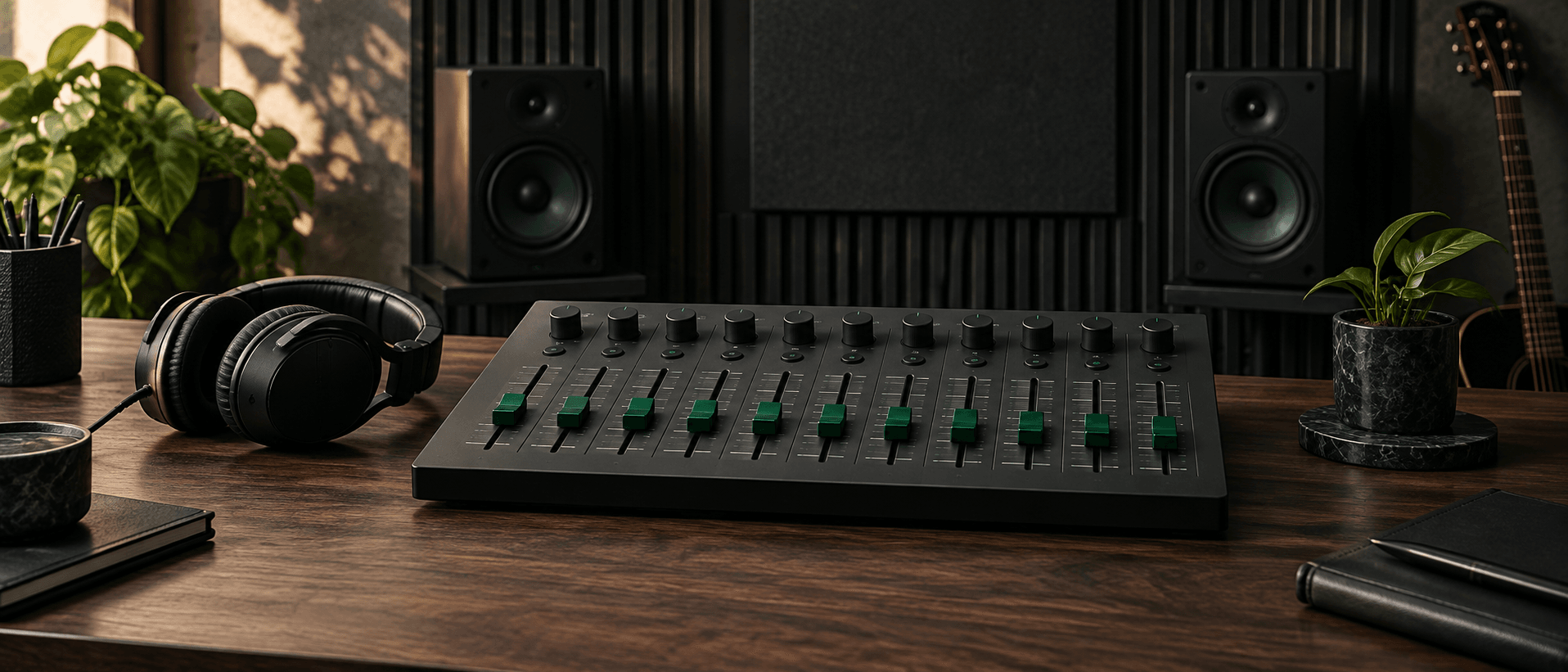
Better Sound Control
Master Your Mix Instantly
Take full control of your sound profile. Our browser based Audio Equalizer delivers instant feedback and precise adjustments without complex software installations.
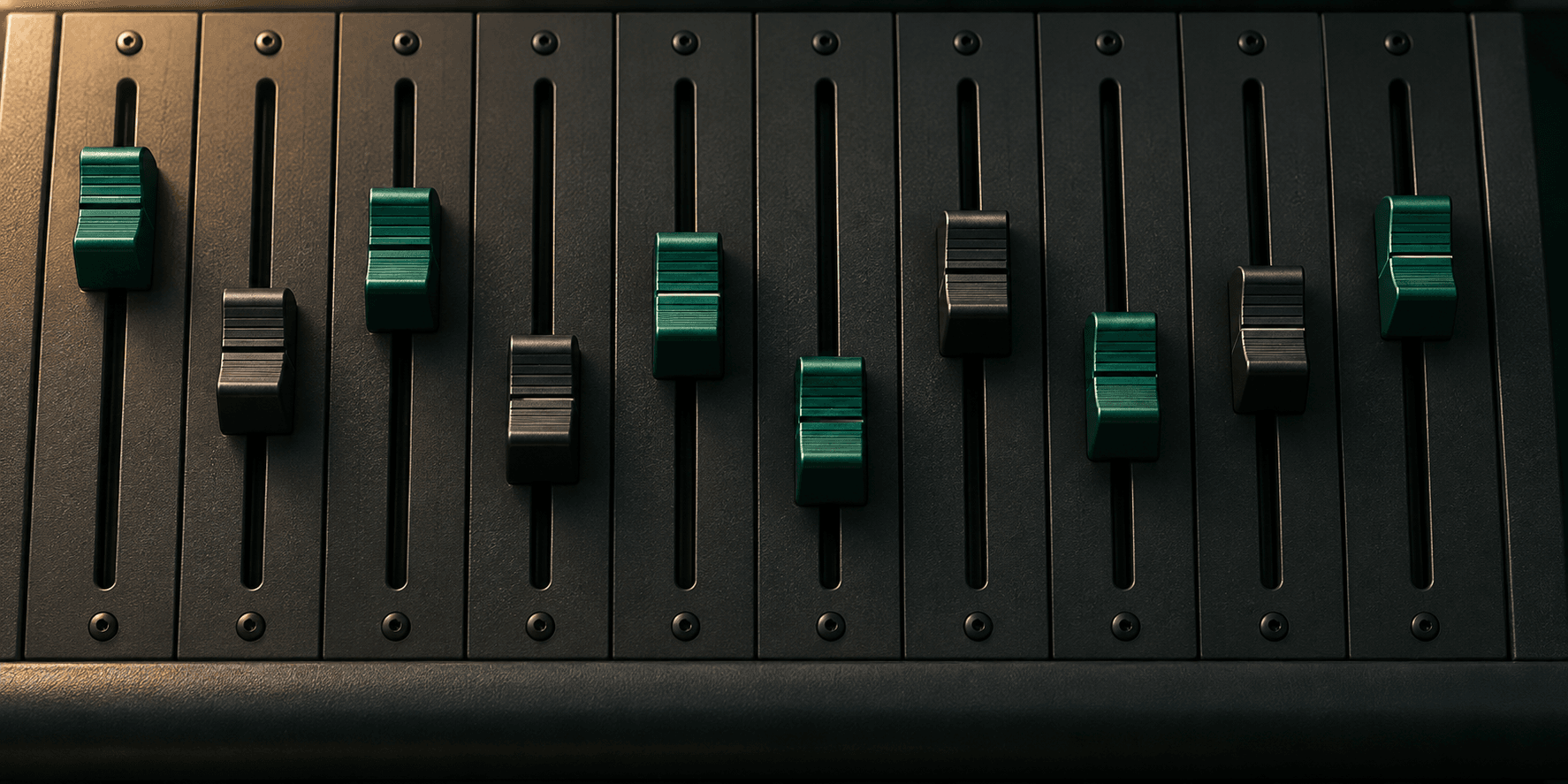
10 Band Precision
Adjust ten specific frequency bands from 31 Hz to 16 kHz with a flexible ±12 dB range for exact sound shaping.
Instant Presets
Apply built in curves like Bass Vocal or Bright to immediately fix common mix issues and speed up your workflow.
Real Time Preview
Hear every single frequency tweak as you make it ensuring your final export sounds exactly how you intended.
Shape Your Audio
Tune Tracks In Three Steps
Load your file into the Audio Equalizer and start shaping. This music audio equalizer makes frequency adjustments fast visual and incredibly straightforward.
Upload Your Track
Drag and drop your existing audio file directly into the browser workspace to load the waveform instantly.
Adjust The Bands
Move the ten frequency sliders manually or select a quick preset to boost the bass or clarify the vocals.
Export Your Mix
Preview the adjusted sound in real time and download the final polished track as a high quality WAV or MP3.
Pro Mixing Tools
Advanced Audio Equalizer Capabilities
Enhance your workflow with a responsive Audio Equalizer. Every tool helps you isolate frequencies and balance your mix before you download the result.
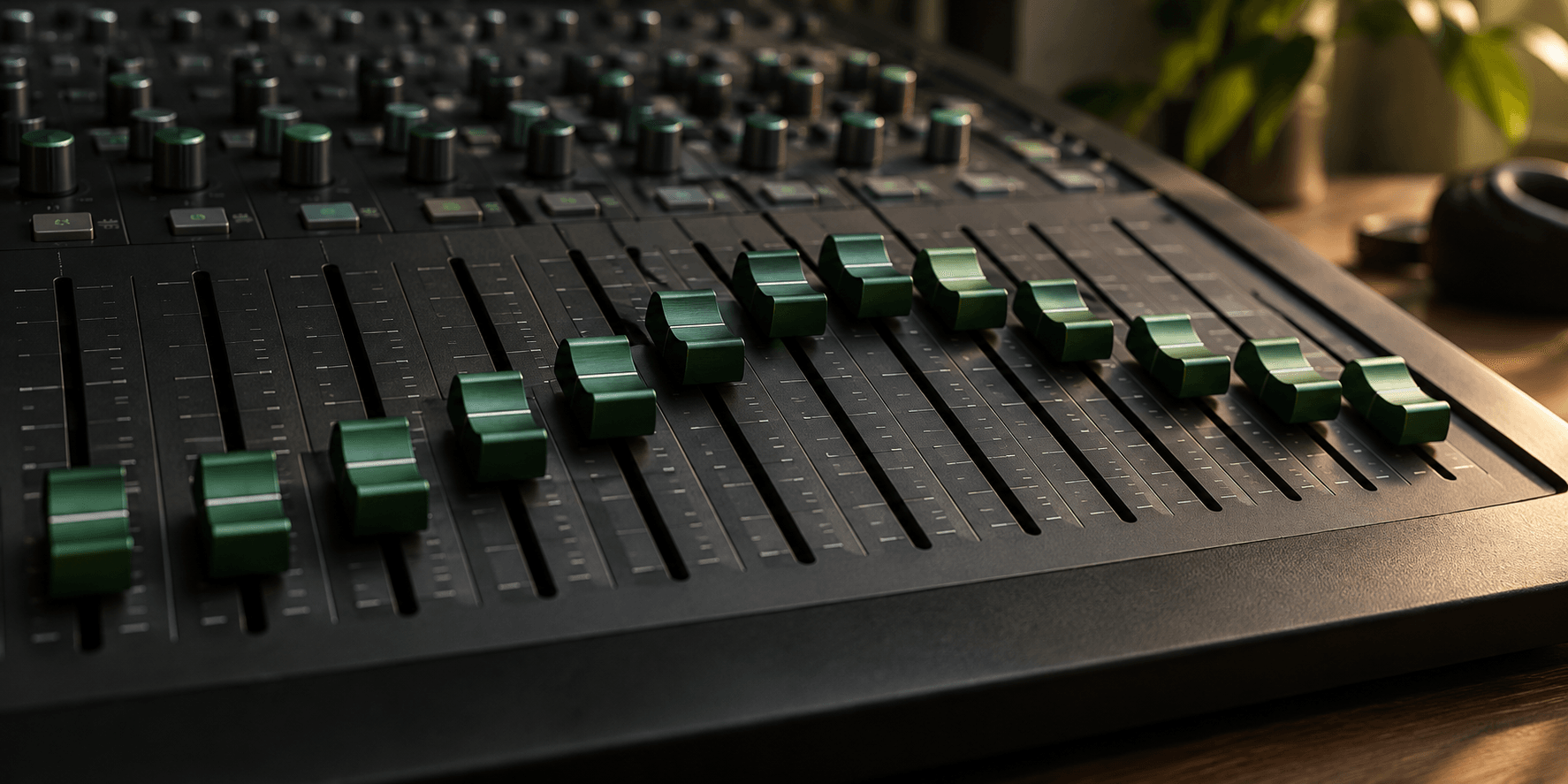
Visual Frequency Sliders
Grab and move ten distinct bands to cut mud or boost clarity. You see exactly how the curve affects your track.
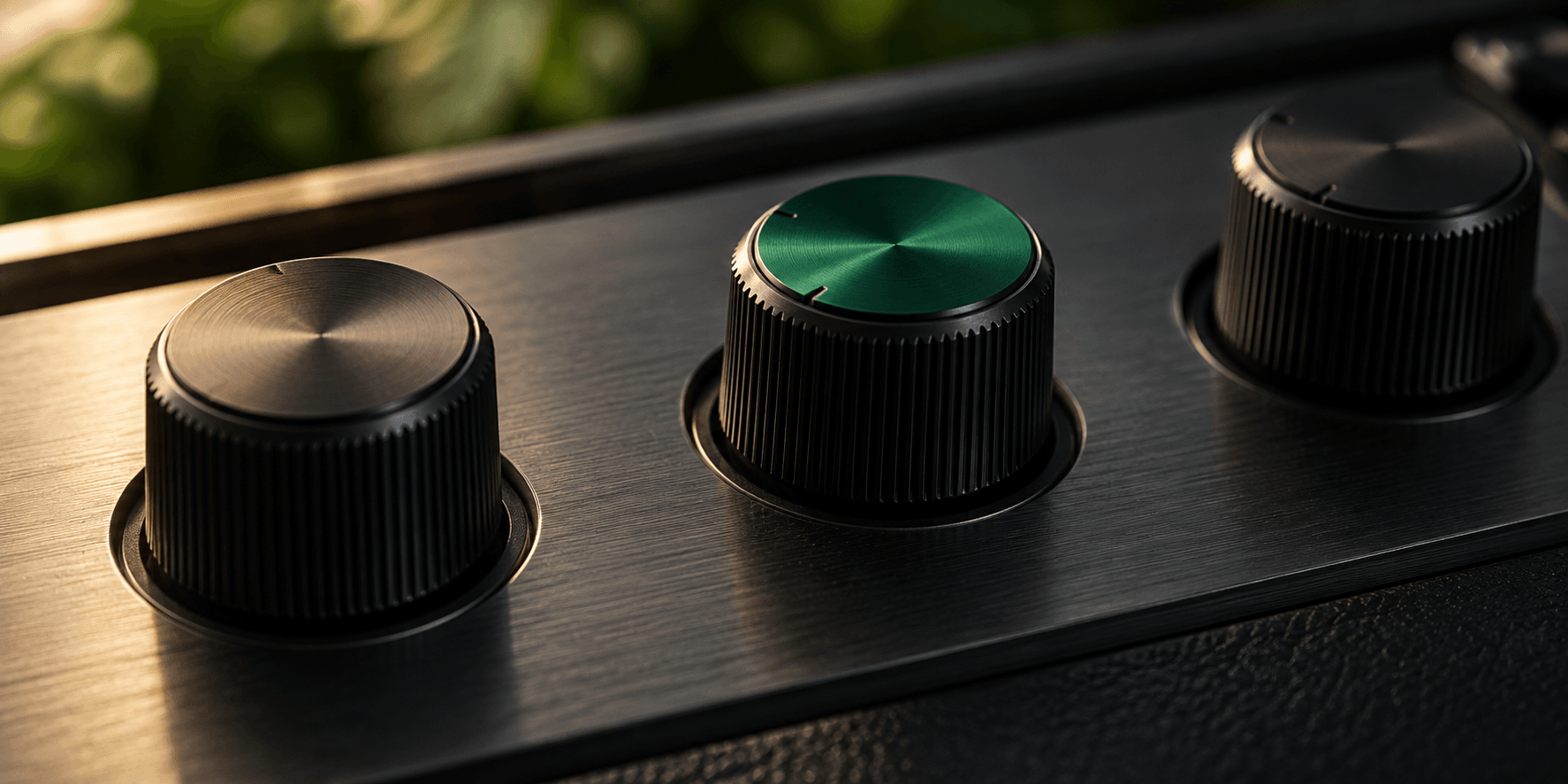
One Click Presets
Jumpstart your mix with Flat Bass Vocal or Bright curves. These starting points help you find the right balance faster.
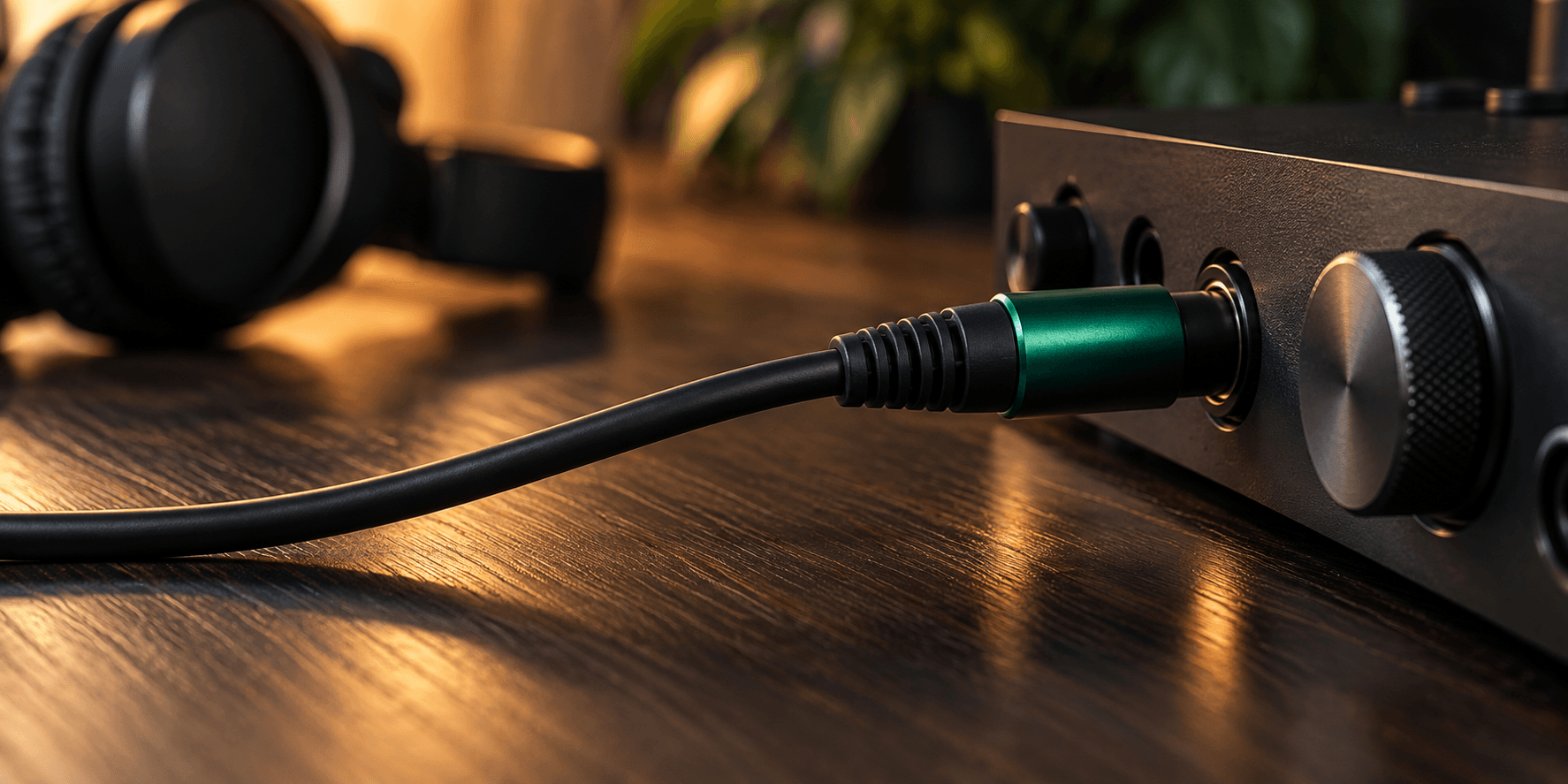
Broad Format Support
Bring in your raw recordings and export the finished sound. Download your tuned files in standard WAV or MP3 formats.
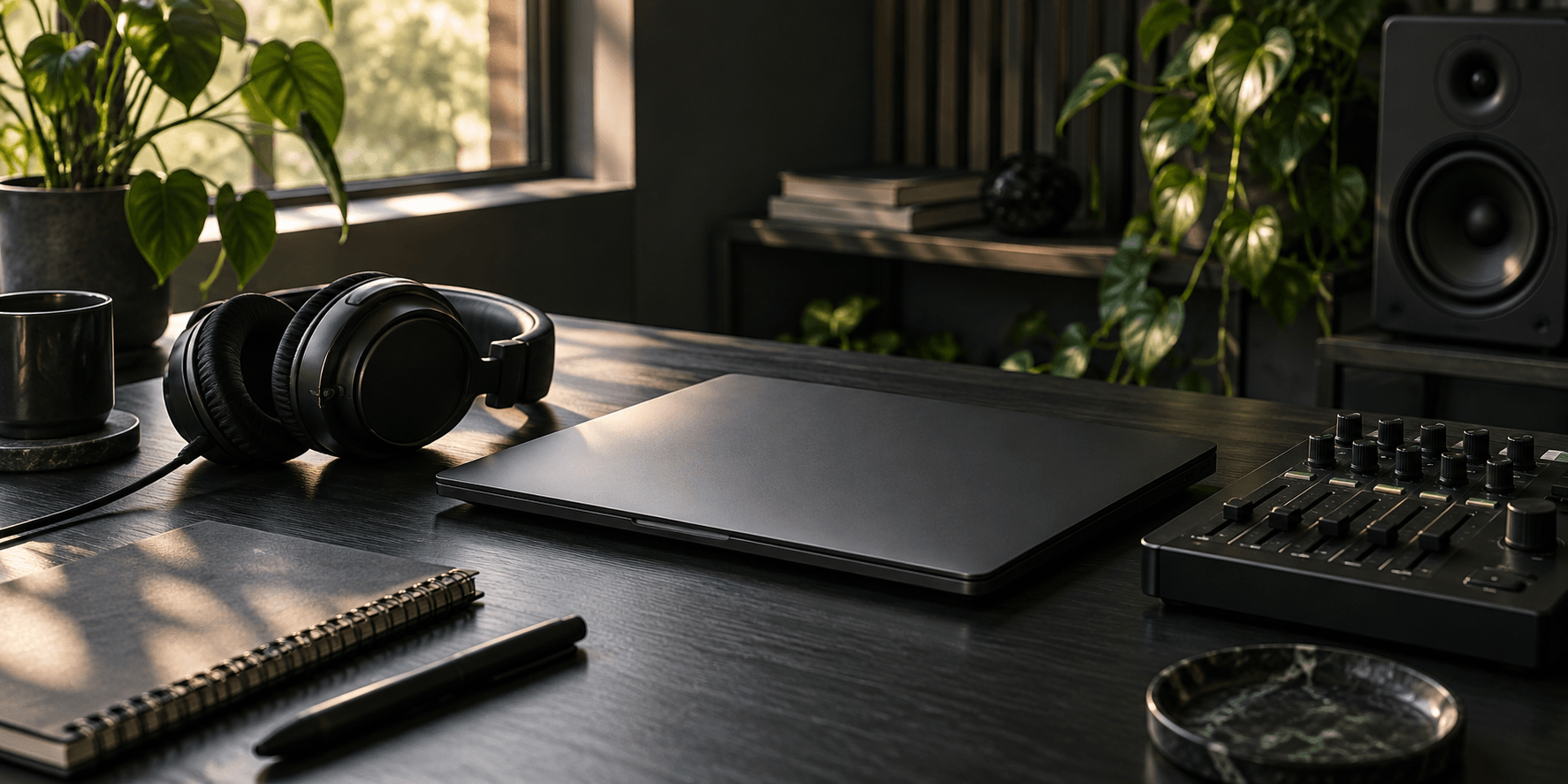
Browser Based Engine
Skip the heavy plugin installations. Process your tracks directly in your web browser with zero latency and immediate audio playback.
For Audio Creators
Perfect For Every Creator
Fix muddy recordings and enhance clarity fast. This Audio Equalizer gives podcasters and video editors the exact control needed for professional sound.
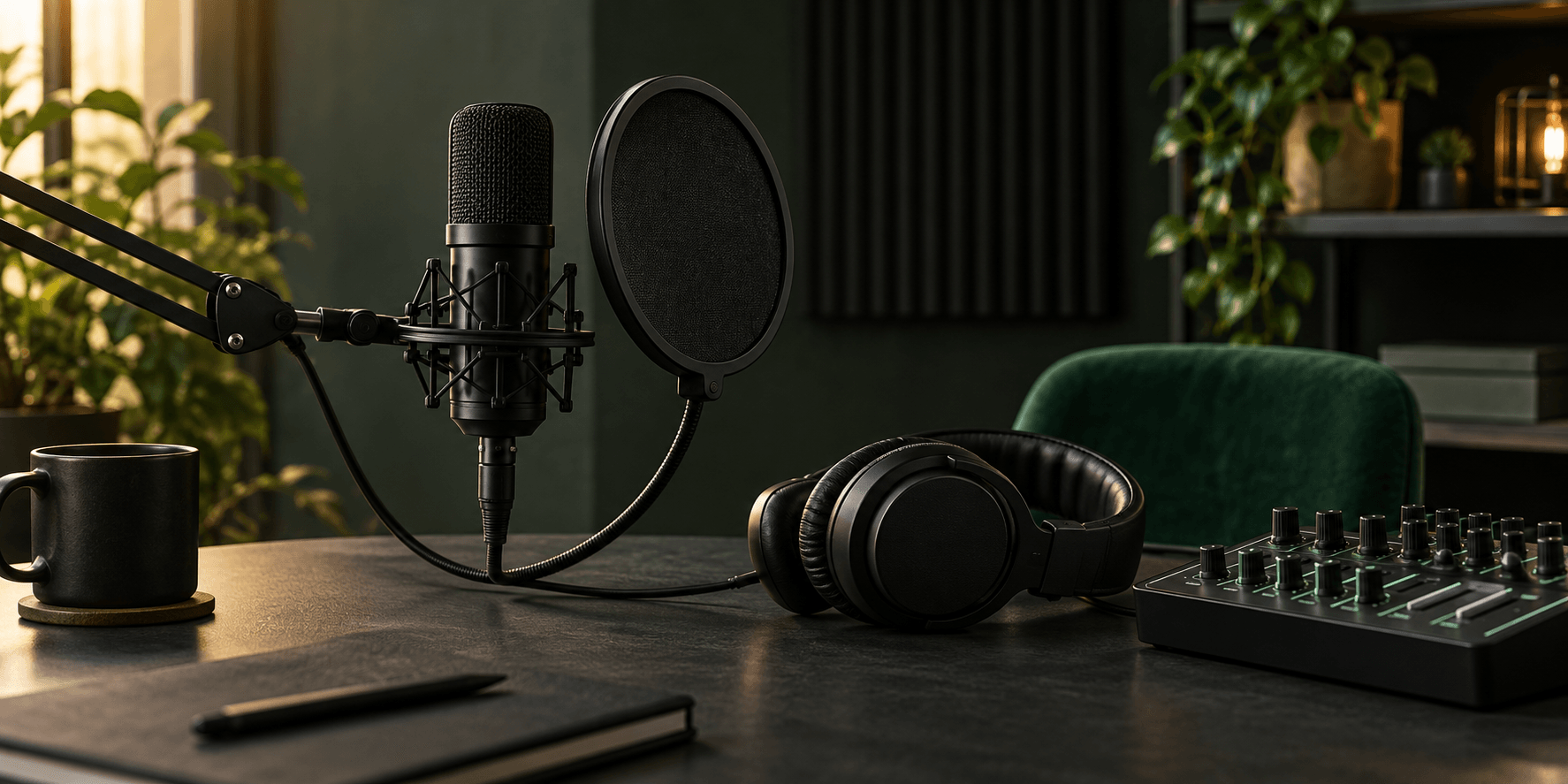
Podcast Producers
Clean up voice recordings by cutting low end rumble and boosting vocal presence for a crisp broadcast ready sound.
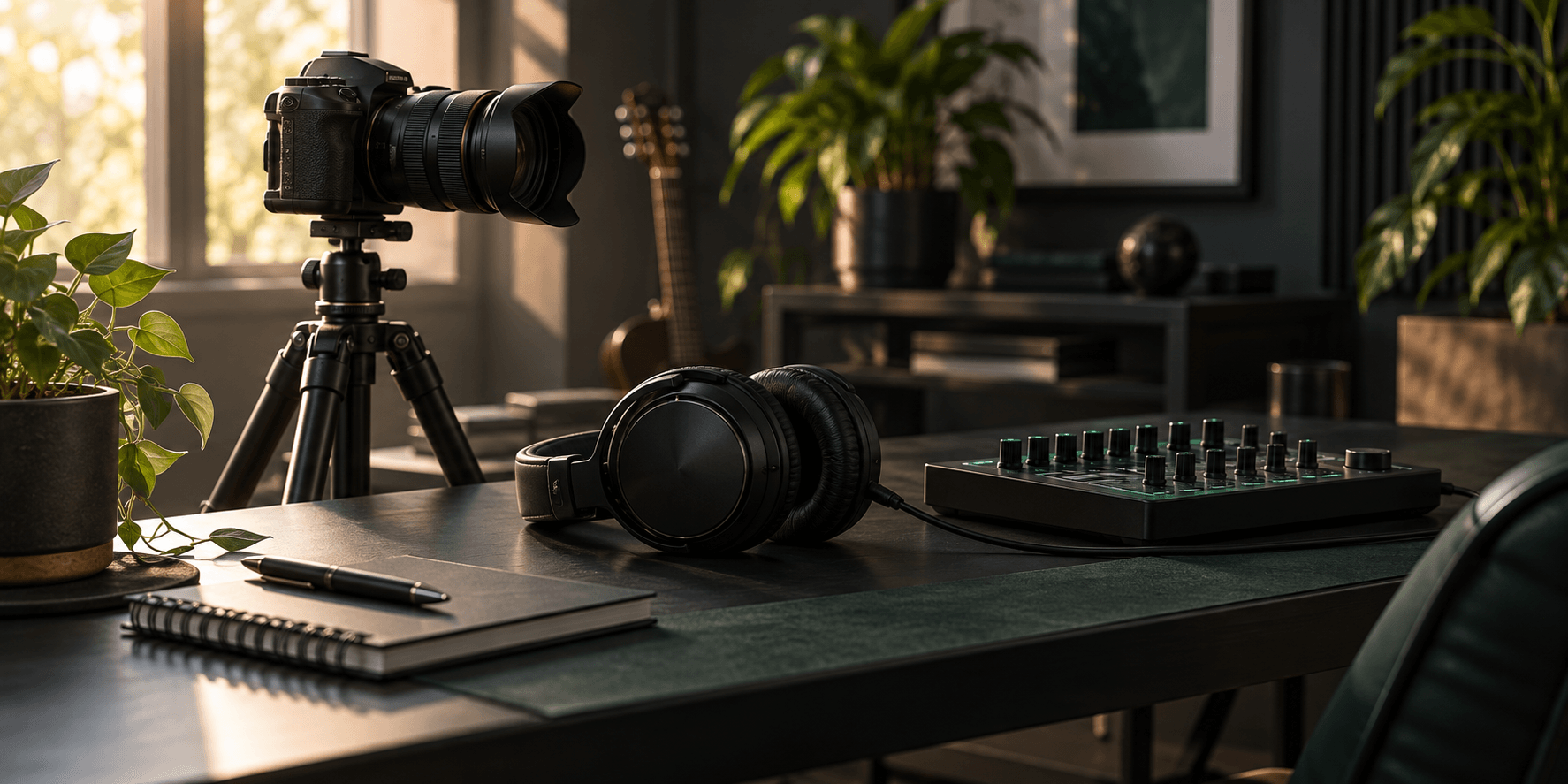
Video Editors
Balance background tracks against dialogue quickly. Ensure your soundtrack hits hard without overpowering the essential spoken words in your timeline.
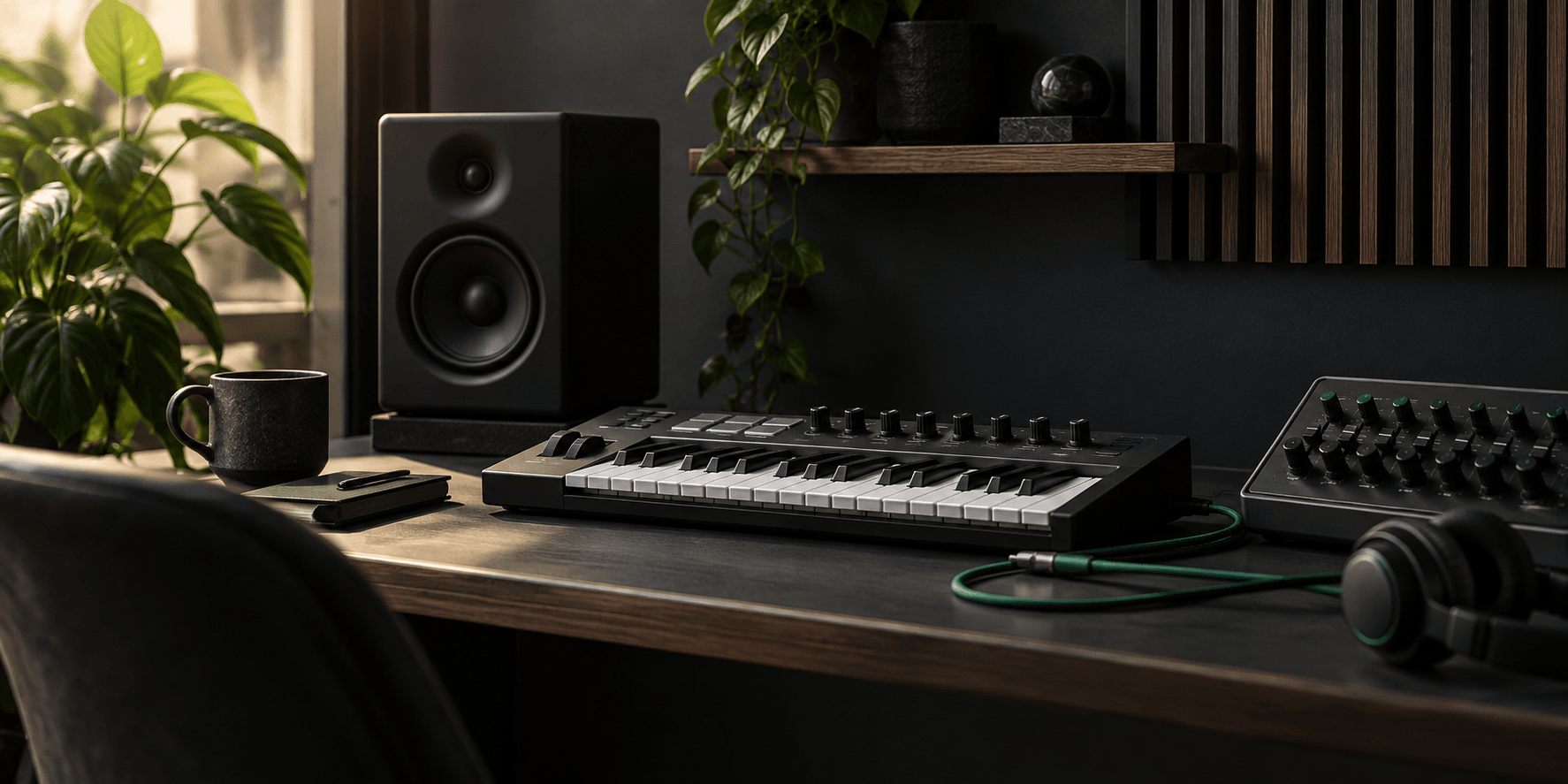
Bedroom Producers
Master your rough demos before sharing them. Tweak the overall frequency balance to make your beats sound punchy and wide.

Frequently Asked Questions
How does the online music audio equalizer process my uploaded files?
MusicCreator AI processes your uploaded files locally within your browser. This ensures fast playback and immediate feedback when you adjust the sliders.
What specific frequency range can I adjust with this tuning tool?
You can control ten specific bands ranging from 31 Hz up to 16 kHz. Each band allows a precise adjustment of plus or minus 12 dB.
Can I download my adjusted tracks in high quality audio formats?
Yes you can export your finalized mix directly to your device. We support standard high resolution formats including WAV and MP3.
Do the built in presets alter my original audio file permanently?
No the presets apply non destructive EQ curves to your playback. Your original file remains untouched until you decide to export the new version.
Is the best music tuning tool fully compatible with mobile browsers?
Our platform is optimized for desktop browsers to ensure precise slider control. For the most accurate frequency adjustments we recommend using a computer.

Launch The Audio Equalizer
Stop guessing with your mix. Load your track into the Audio Equalizer and download perfection.