Spotify Visualizer with Multiple Images
Several AI-styled pictures, cycling through the whole track. A single still cover can feel flat in a feed, so Multiple Images moves through a set of pictures drawn in the Photo Style you pick, such as Flash Grain Snapshot or Retro Jazz Blocks. This Spotify visualizer builds them for you.
Upload the audio of the song you have out on Spotify, set Display Mode to Multiple Images, choose 16:9 or 9:16, and add captions and a Sound Wave so the video moves with the music while the pictures carry the mood around it.
What the Spotify visualizer panel gives you
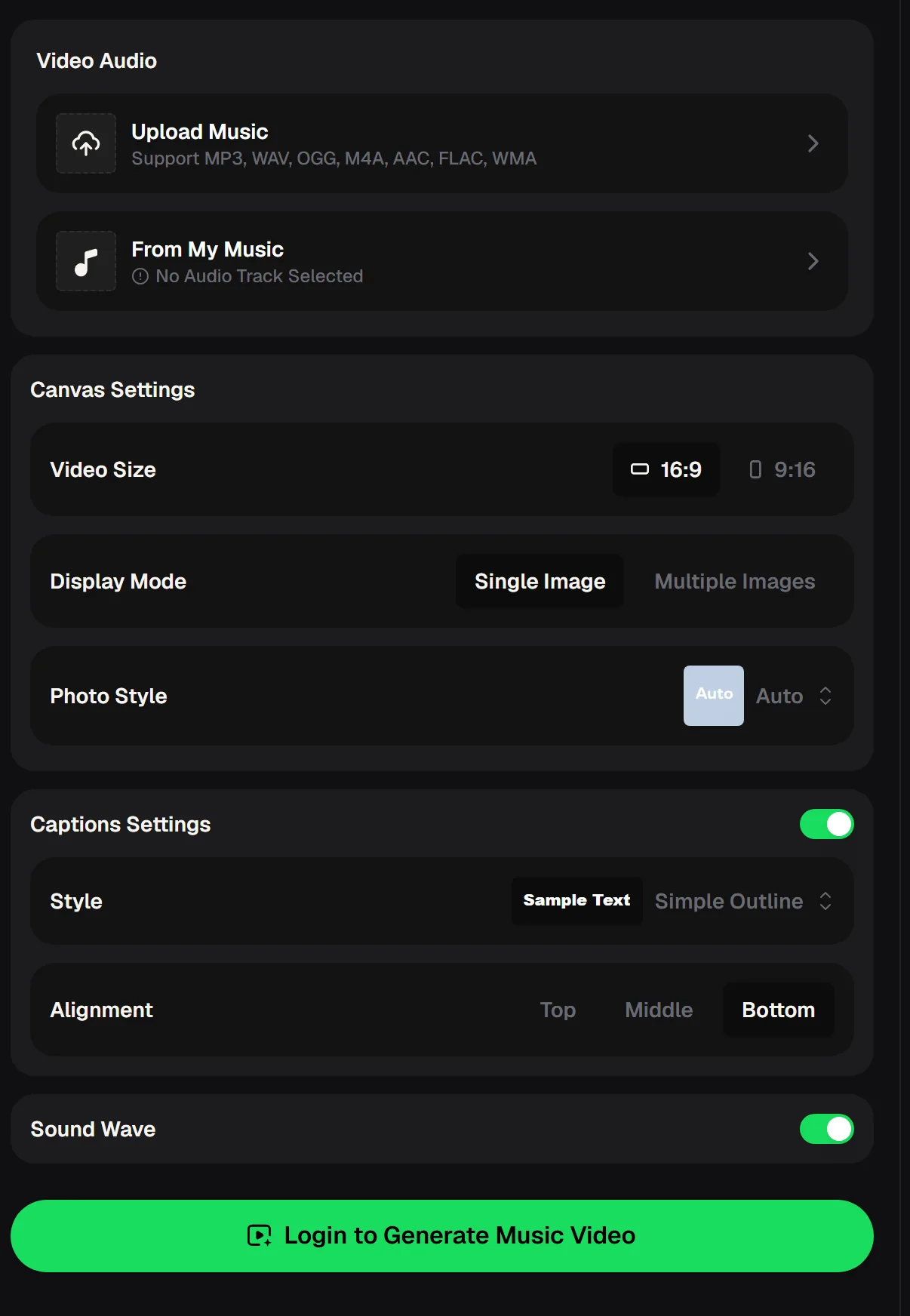
The Spotify visualizer keeps everything in one column. Video Audio comes first: upload a file in MP3, WAV, OGG, M4A, AAC, FLAC or WMA, or choose a song from My Music. Canvas Settings follow, with Video Size of 16:9 or 9:16 and Display Mode of Single Image or Multiple Images, plus a Photo Style menu.
Captions Settings has a switch, a caption style such as Simple Outline, and Top, Middle or Bottom alignment. A Sound Wave switch sits at the end, above the button that asks you to log in and generate the music video.
- Audio
- Upload or From My Music
- Video Size
- 16:9 / 9:16
- Display Mode
- Multiple Images
- On top
- Captions and Sound Wave
Turning a release's look into a Spotify visualizer
A multiple-image Spotify visualizer works best when the pictures belong together. The panel takes audio only, so the images come from the Photo Style you choose, not from your own photos. Before you open it, note the colours and mood of your cover so you can pick a style that matches.
One Photo Style keeps the colour and light consistent, so the changes feel like one piece rather than a slideshow of unrelated moments. Then follow the four steps below, using only settings that are already on the panel.
Add the track
Upload the audio file of the song, or choose a song you made on MusicCreator from My Music.
Pick the size
Choose 9:16 for vertical feeds or 16:9 for widescreen players and channel pages.
Choose Multiple Images
Set Display Mode to Multiple Images so the video moves through several pictures in your chosen Photo Style during the song.
Add captions and generate
Set the caption style and position, keep Sound Wave on, sign in and generate the video.
Upload the track, choose a Photo Style, set the caption style, keep Sound Wave on and generate the Spotify visualizer.
When a Spotify visualizer with several images beats one cover
A single cover image is the calm choice for a full album upload or a long mix. Multiple Images suits the moments when you want people to watch, not just listen. A release-day post benefits from variety, because viewers scrolling a feed decide quickly whether to stay.
A song with a story, such as a road song or a hometown song, can move through several scenes in one style. Changing images give fans a reason to watch to the end, and the changing pictures make the video feel more like a short film than a still frame with sound underneath.
Tip: keep Sound Wave on in the Spotify visualizer even with several images. It ties the changing pictures to the rhythm of the song and keeps every frame visibly connected to the music.
Five tips for a multi-image Spotify visualizer
With several pictures in a Spotify visualizer, consistency matters more than with a single cover. The Photo Style, the size and the way the captions sit over the pictures all decide whether the video looks planned or thrown together.
These habits help your Spotify visualizer feel like part of the release campaign, whether you make one video for the lead single or a matching set for every track on the record. Watch the finished result once on a phone before you share it.
Choose one consistent style
Pick a Photo Style whose light and colour suit your cover so the changes feel smooth.
Echo the cover
Choose a style close to the release artwork so listeners connect the video to the song.
Keep captions out of faces
Use Top, Middle or Bottom alignment so captions stay clear of the key part of each picture.
Match size to the platform
Use 9:16 for vertical feeds and 16:9 for widescreen players.
Start from clean audio
Upload a WAV or FLAC master so the sound matches what listeners hear on streaming.
Start your Spotify visualizer with the lead single, then reuse the same size and caption style for every track so the campaign shares one look.
Spotify visualizer videos for songs created on MusicCreator
If the song was created on MusicCreator, you can choose it with From My Music instead of uploading a file. The menu on a finished song also opens the Editor, where Photo Video and Story Video offer other ways to put pictures to your music.
Remix lets you Extend a track or Replace Section before you make the video, so the version you promote is the one you want people to hear. Before you publish, make sure your plan covers how you will share the song.
Paid plans can download MP3, WAV or FLAC; free users can download only a limited number. Paid plans, monthly or annual, include the right to use your songs within the scope of the Commercial License; a license certificate costs 5 credits per song on monthly plans and nothing extra on annual plans. See the pricing page for current plans.
Spotify visualizer questions
What does Multiple Images mode do?
In the Spotify visualizer, Multiple Images lets the video move through several AI-styled pictures during the song instead of holding one image the whole time. The panel takes audio only, so you cannot add your own photos. It suits release promotion and story songs. If you want one still cover for the full track, choose Single Image instead; captions and Sound Wave work with either mode.
How do I get my Spotify song into the visualizer?
Upload the audio file of your track in MP3, WAV, OGG, M4A, AAC, FLAC or WMA, or pick a song you made on MusicCreator from My Music. Use the same master you sent to your distributor so the video sounds like the streaming version.
Can the Spotify visualizer make vertical videos?
Yes. Choose 9:16 under Video Size for vertical feeds, or 16:9 for widescreen players. Set the size before you generate, and place captions so they stay clear of the buttons that platforms draw over vertical videos.
Do I need an account?
Yes. The Spotify visualizer asks you to log in before it generates a video, and there are free credits after a quick sign-up. The site also works in a phone browser, so you can make a visualizer away from your desk.
Make a matching Spotify visualizer for each single with the same size and caption style, and your whole campaign will share one look that fans recognise every time a new track arrives. Pick one Photo Style per release and let the pictures work for the music.
Let your release visuals move with the music
Upload the track, choose Multiple Images, pick 16:9 or 9:16, and add captions and a Sound Wave. The pictures play through the song as one Spotify visualizer.