AI Music Generation, Explained Round by Round
AI music generation is easier to understand when you watch one idea change across several runs. Here, a single summer song idea goes through three rounds, from a two-word prompt to your own lyrics, so you can hear what each input actually controls and which one is worth changing first.
Try a First Round- What
- Text or lyrics in, full songs out
- Cost
- Credits per song, shown on the button
- Output
- Two songs per run by default
What Happens in One Generation Run
In AI music generation, a run is one press of the Generate button. You describe what you want, the model writes and performs the music, and a set of new songs lands in your workspace. Everything you can steer before that press sits in one panel on the AI music generator page.
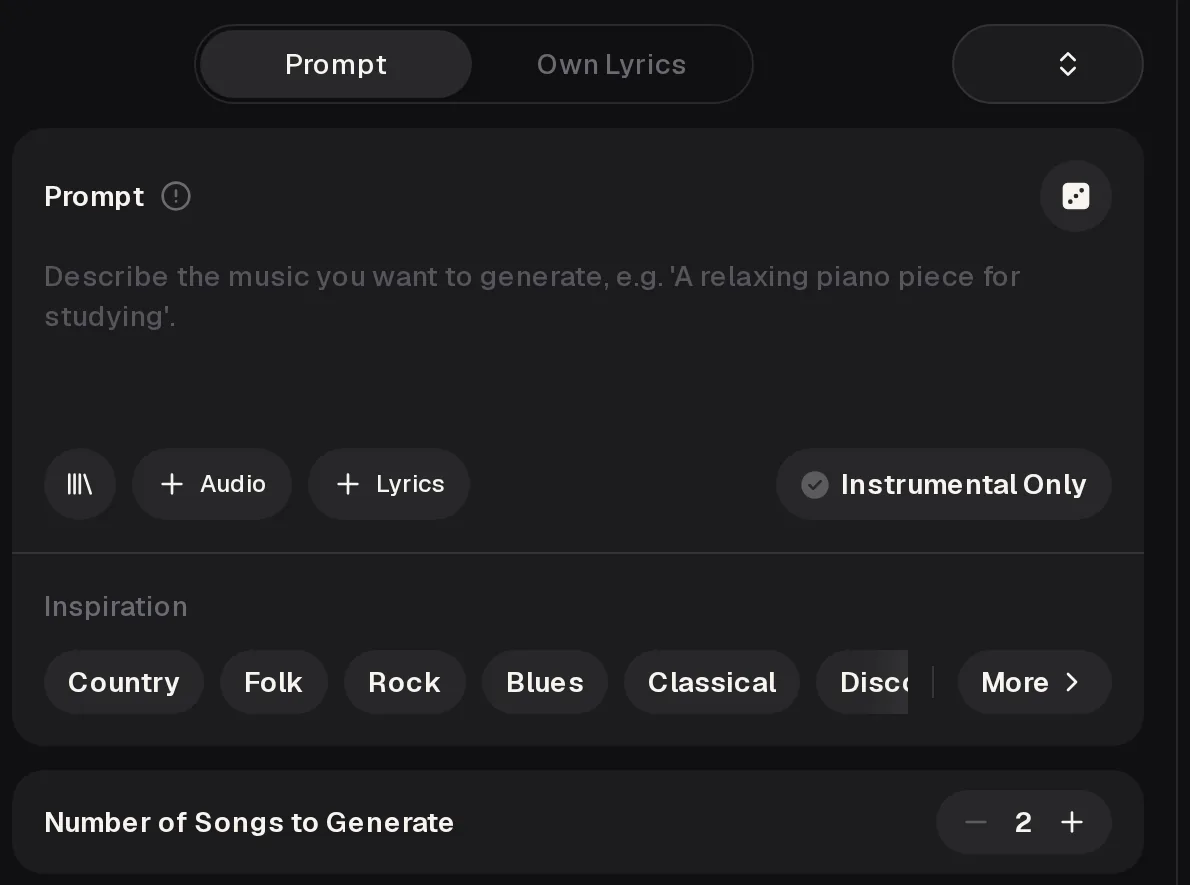 ABCDEF
- A
- Prompt or Own Lyrics: describe the song, or bring the words yourself.
- B
- The prompt box, where genre, mood, tempo and voice go. The dice icon suggests a random idea.
- C
- + Audio adds a reference clip so the run has a sound to lean on.
- D
- Instrumental Only drops the vocals for background music.
- E
- Inspiration chips such as Country, Folk, Rock and Blues add a genre in one tap.
- F
- Number of Songs to Generate, 2 by default, with minus and plus buttons.
One Idea Through Three Rounds of AI Music Generation
The idea: a bright, happy summer song. Each round keeps that goal and changes only one thing about the input, so the difference you hear comes from that change. Read the three inputs first, then play the example audio for each round below.
- Round 1
“a happy song”
two words, nothing else decided - Round 2
“sunny indie pop, 120 BPM, jangly guitars, handclaps, bright female vocal”
added genre, tempo, instruments and voice - Round 3
Same sound, plus original lyrics called “Open Windows”
added your own words via Own Lyrics
What the Run Decides and What You Decide
Listening back, the pattern is clear. In round 1 the model chose almost everything. By round 3 most of the big choices were yours, and AI music generation was filling in the performance around them.
Left to the run
- The melody and the chord changes
- The arrangement and where each part comes in
- The exact vocal performance and phrasing
- Lyrics, unless you supply your own
Set by you
- Genre, mood and tempo in the prompt
- Instruments and the kind of voice
- Vocals or Instrumental Only
- Your words, through Own Lyrics
Who Learns Most From These AI Music Generation Rounds
These rounds suit people who learn by trying. You do not need music theory, a studio or any gear, only an idea and a few runs to compare.
First-timers
You have heard about AI music generation and want to know what you can really control before spending credits. The rounds show the controls in order.
Hobbyists
You already make songs for fun and want better results with fewer runs. Comparing rounds side by side shows which details are worth typing.
Run Your Own Three Rounds
You can repeat the AI music generation experiment with any idea. Keep notes on what you typed each time, so you can tell which change made the difference.
Round 1: say it plainly
Type your idea in a few words, like “a calm song for rainy evenings”, and generate. Listen to both songs and note what the model chose for you.
Round 2: name the sound
Rewrite the prompt with a genre, a tempo, two or three instruments and a voice. Keep anything from round 1 you liked.
Round 3: bring your words
Switch to Own Lyrics and paste a short verse and chorus, keeping the sound from round 2 in mind.
Compare and keep one
Play the best song from each round back to back. Keep the strongest one and use it as the starting point for edits.
Write a two-word idea, press Generate and hear what the model makes of it before you add any detail.
What Happens After a Generation
A finished song is not the end of AI music generation. In My Workspace, each result has options that let you keep working on it instead of starting over with a fresh run.
- Extend continues a song you like when it ends too early.
- Replace Section regenerates one part while the rest stays the same.
- Cover gives the song a new style; Mashup also sits in the Remix menu.
- AI Vocal Remover and AI Stem Splitter in the Editor separate vocals or parts.
- View Lyrics and Use Style & Lyrics carry the words and style into a new run, since lyrics are not edited in place.
Downloads depend on your plan. Free accounts can download a limited number of songs, while paid plans add MP3, WAV and FLAC downloads.
Prompt Tips That Changed the Results
These are the AI music generation edits that made the biggest audible difference between rounds. Each one removes a guess the model would otherwise make.
| Tip | Why | Example |
|---|---|---|
| Name a genre | It sets the instruments and rhythm for everything else. | indie pop |
| Give a tempo | A number is clearer than words like fast or slow. | 120 BPM |
| List two or three instruments | A short list is followed more closely than a long one. | jangly guitars, handclaps |
| Describe the voice | Otherwise the vocal is chosen for you. | bright female vocal |
Limits of AI Music Generation
Knowing the limits saves credits. Results vary from run to run, even with the same prompt, so expect to listen to several songs before one fits. A prompt guides the model but does not fix an exact melody, and each song uses credits.
- Each song costs 2 credits, and the Generate button shows the cost before you press it.
- Songs can run up to 8 minutes, but a longer song is not always a better one.
- Using songs in paid projects is allowed only within the scope of the Commercial License.
AI Music Generation FAQ
What is AI music generation?
It is the process of turning a text description or your own lyrics into a complete song, with melody, arrangement and, if you want, vocals, made by an AI model. You describe a genre, mood, instruments or tempo, and the model builds the music around that description. Adding your own lyrics gives it the words to sing; leaving them out lets it write lyrics from your idea. The result is a new recording each time, which you can keep, compare with other takes, or use as a starting point for the next run.
Why do two songs appear after one run?
The Number of Songs to Generate setting is 2 by default, so each run gives you two takes on the same input to compare. The two songs share your prompt, style and lyrics, but the melody and performance differ. Listen to both before changing anything, because the difference between takes shows you how much comes from chance and how much from your words. Keep the better one and change one input for the next round.
Will the same prompt give the same song?
No. Every AI music generation run is new, so the same prompt usually gives different melodies and performances. Save the songs you like. Because results vary, the best way to learn is to change one thing at a time: keep the prompt and add a tempo, or keep the style and add your own lyrics. Comparing rounds like this shows what each input controls. If you find a take you love, keep it in your library rather than hoping the same prompt will give it again.
Can I make music without vocals?
Yes. Switch on Instrumental Only before AI music generation starts to get background music without singing. Describe the genre, mood and instruments as usual; the lyrics field is not needed. Instrumentals are useful for videos, podcasts, study sessions and games. If you already have a song with vocals, you can also remove the vocals from it with the AI Vocal Remover and keep the instrumental track.
Can I change the lyrics after a song is made?
Lyrics are not edited in place. Use View Lyrics or Use Style & Lyrics, change the words and run a new generation. If you like the melody and only a few words are wrong, Cover from the Remix menu in My Workspace can regenerate the song with corrected lyrics while keeping the original style. For many changes across the song, a fresh round of AI music generation with the updated lyrics is usually simpler. Keep your original lyrics so you can compare versions.
Is AI music generation free to try?
Free accounts get 30 credits a year, enough for 15 generations, and each run gives two songs. Free users can download a limited number of songs; paid plans download MP3, WAV and FLAC. Unused credits reset at renewal, and Pay Once one-time credits are also available. If a generation fails, its credits are usually credited back automatically. Try a few rounds before you decide on a plan.
Hear Your Own Three Rounds
Take one idea from a plain prompt to your own lyrics and listen to how each round of AI music generation changes the song.