AI Music Video Maker for EP Release Videos
Use an AI music video maker to give every track on your EP its own video, and make the whole set look like it belongs to one release. When an independent artist puts out four or five songs at once, the usual result is one video for the single and nothing for the rest.
This AI music video maker approach turns each track into a video using the same canvas, display, caption and sound wave choices, so the EP reads as a series instead of a pile of uploads. Add each song from your device or from My Music, keep your settings consistent, and build the whole set in the browser. Free credits come after a quick sign-up.
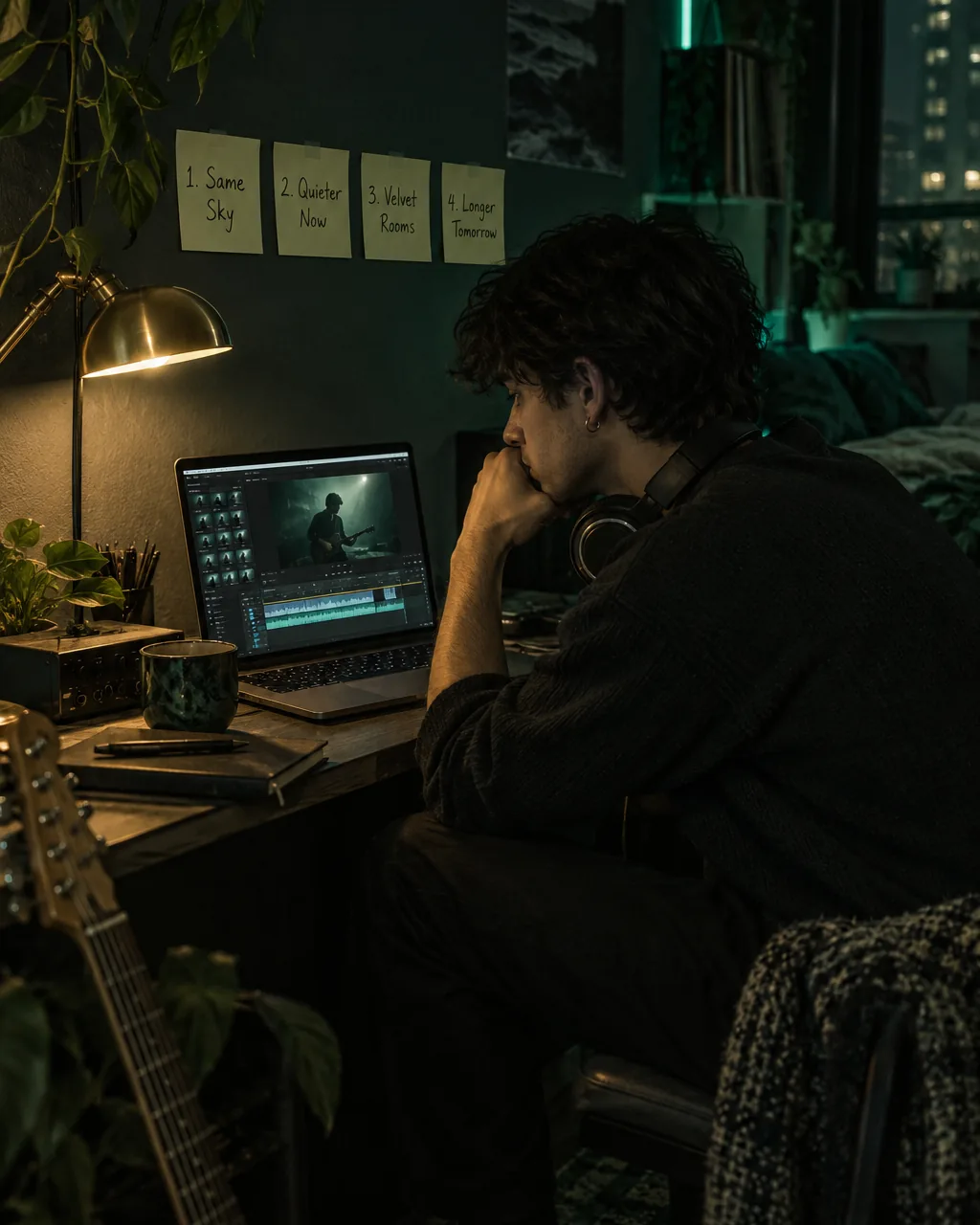
Why an EP needs more than one AI music video maker run
Listeners often discover a release through one song and then go looking for the rest. If only the single has a video, the other tracks are easy to skip.
A video for every track gives each song a chance to be found, shared and played, and a consistent look tells people the songs belong together. These are the release moments where a full set of videos pays off for an independent artist.
Every track ready
Publish a video for each song on the day the EP comes out.
One track a week
Release the videos one by one to keep the EP in front of people.
Vertical cut-downs
Make a 9:16 version of each track for vertical feeds.
Older releases
Give a past EP the same treatment so the catalogue matches.
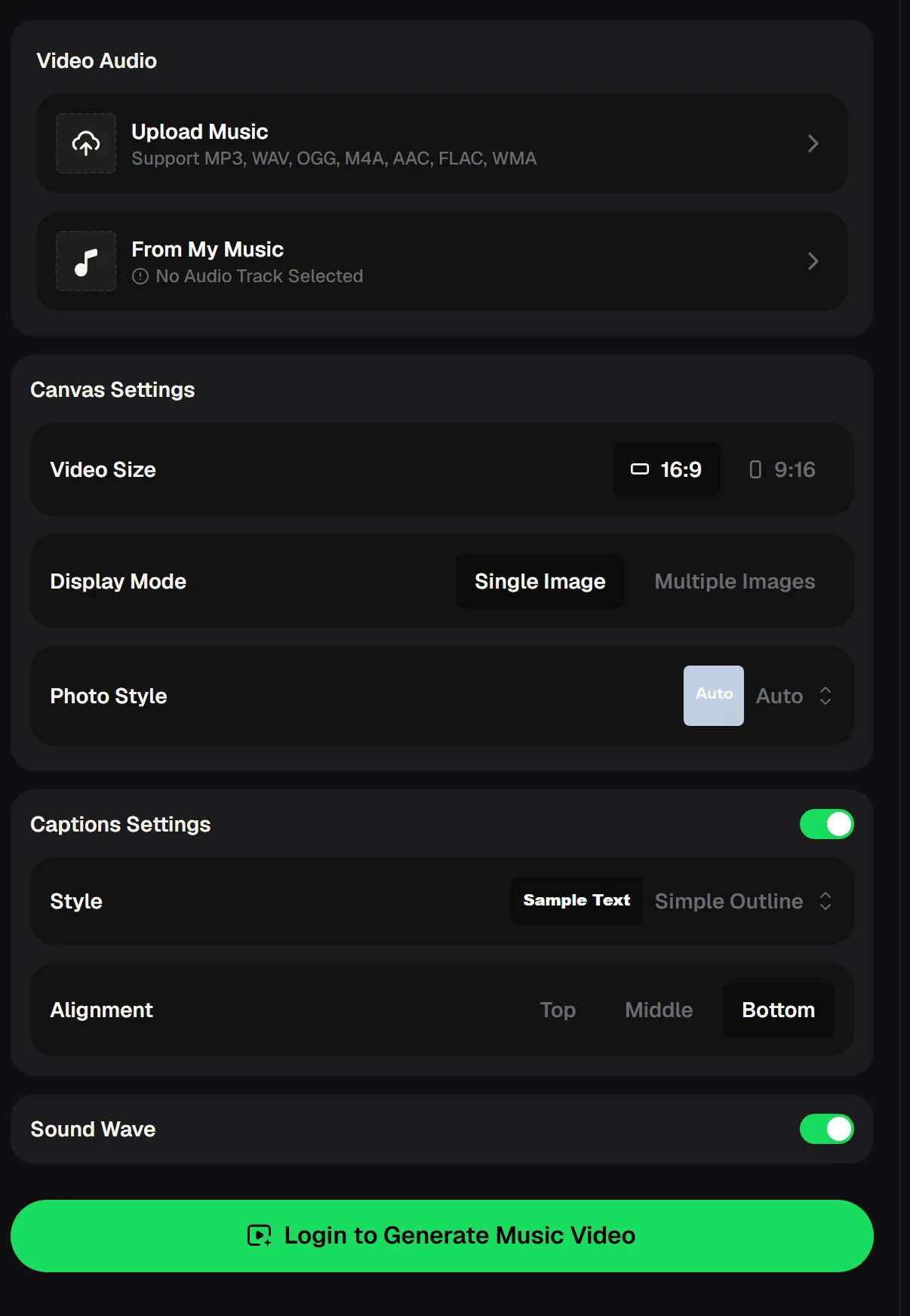
The AI music video maker settings that define a series
Everything listed here comes from the live panel. For a release series, these settings are your house style: decide them once for the first track, write them down, and repeat them for every song on the EP. Changing only the audio and the images between tracks is what makes the set feel planned rather than improvised, even when the songs themselves are very different.
- Audio
- Upload Music or choose From My Music
- Formats
- MP3, WAV, OGG, M4A, AAC, FLAC, WMA
- Video Size
- 16:9 or 9:16
- Display Mode
- Single Image or Multiple Images
- Photo Style
- A style setting, auto by default
- Captions
- Style plus Top, Middle or Bottom alignment
- Sound Wave
- Switch on or off
Generating a video in the AI music video maker needs you to log in, and the panel works in a phone browser as well as on a computer.
Building an EP set with the AI music video maker
Treat the EP as one project rather than four separate jobs. Start with the track you know best, settle the look on that video, and then work through the rest with the same choices. Keep a short note of every setting so you can come back later for a remix, a bonus track or a vertical version and still match the original set exactly.
Set the house style
On the first track, choose Video Size, Display Mode, Photo Style, caption style and Sound Wave.
Write it down
Note every setting so each track can repeat them.
Work through the tracks
Add each song in turn and change only the audio and the images.
Watch the set together
Play the videos back to back and redo any one that breaks the look.
Set the look on your strongest song first, so every other track has a style to follow. Free credits come after a quick sign-up.
Make the first videoKeeping AI music video maker results consistent across tracks
A series works when the viewer recognises it within a second. The easiest anchors are the ones the AI music video maker controls directly: the same Video Size, the same Display Mode, the same caption style and position, and the same Sound Wave choice. Your images carry the rest.
Pick photos from one shoot, or covers designed as a set, so colours and mood repeat from video to video. If one track needs something different, change a single element and keep everything else fixed, so it still reads as part of the release.

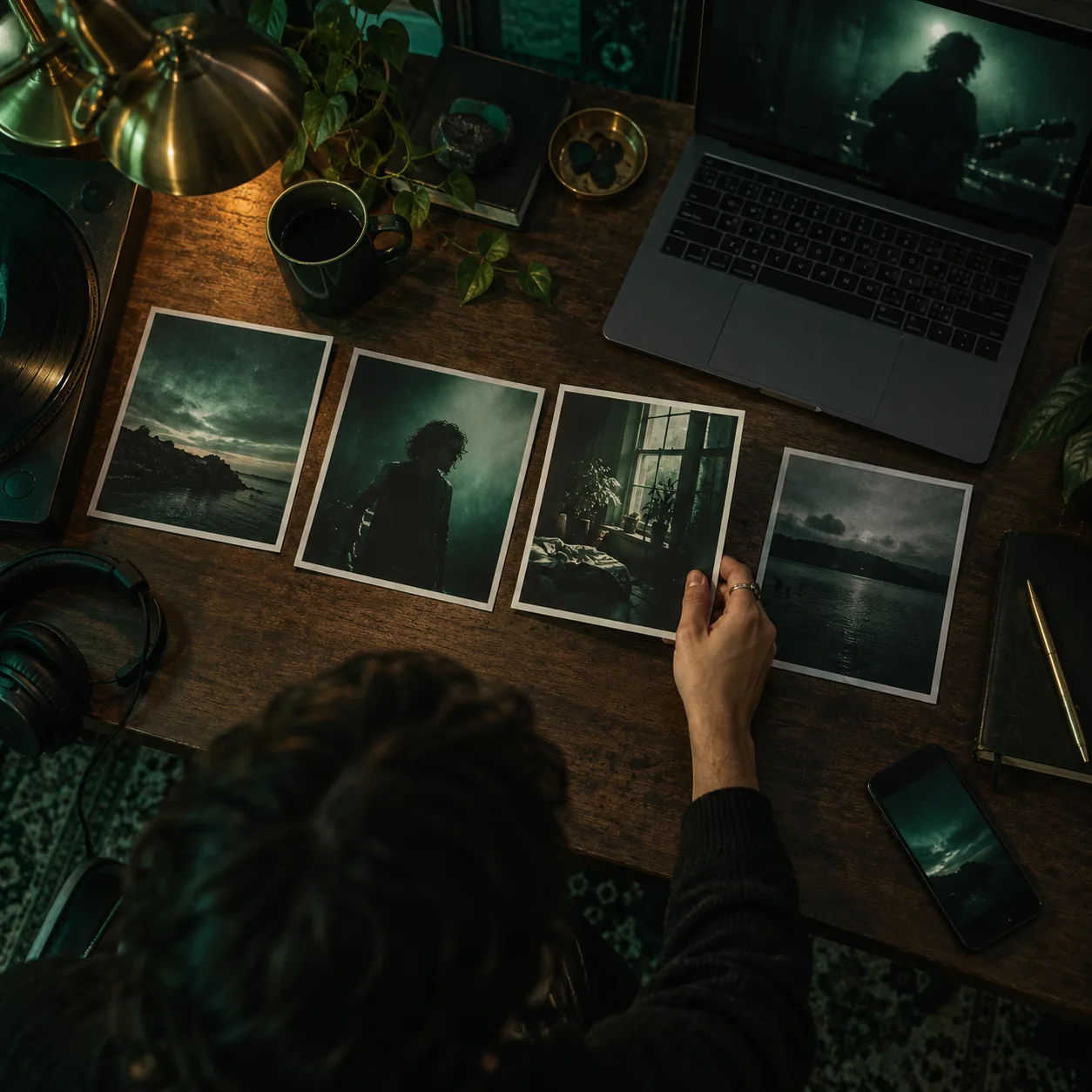
Single Image or Multiple Images for each track
Display Mode is the biggest AI music video maker choice in the house style. Single Image keeps one picture on screen for the whole track, which suits a release where every song has its own cover in a shared design.
Multiple Images cycles through several pictures, which suits an EP that came out of one photo shoot. Decide by looking at what you already have, then stick with that mode for every track so the set stays coherent.
Match the display mode to the pictures you already have, and the whole EP will look like one planned release.
Open the video panelAI music video maker plans for a release week
How you publish the set matters as much as how you make it. Some artists drop every video at once so the EP arrives complete, while others release one a week to stretch the attention over a month. Whichever plan you pick, make the full set before release day so you are never rushing the last track. These starting plans can be adjusted for any EP length.

AI music video maker questions
Short answers about making a full set of release videos with the AI music video maker, from the audio you add to the rights that come with a plan. If a question is not covered here, the video generator page on MusicCreator shows each setting in place.
Is the AI music video maker free to try?
You can use MusicCreator as a free AI music video maker to start, with free credits after a quick sign-up. Generating a video needs you to log in.
Can I use songs I made on MusicCreator?
Yes. Choose From My Music in the AI music video maker, or upload a file from your device.
Which audio files can I upload?
The panel lists MP3, WAV, OGG, M4A, AAC, FLAC and WMA.
Can I make vertical videos?
Yes. On the AI music video maker free plan or a paid one, set Video Size to 9:16 for vertical, or 16:9 for widescreen.
What about commercial rights?
Monthly and annual plans both include commercial rights within the scope of the Commercial License. Downloading the license certificate costs 5 credits per song on a monthly plan and nothing extra on an annual plan.
Can I choose where captions appear?
Captions Settings let you pick a style and place captions at the Top, Middle or Bottom of the frame.
Give every track its own video
Turn your whole EP into a matching set of videos in the browser with the AI music video maker, starting with free credits after a quick sign-up.