No sheet music needed
Write Music by Ear, Fix It by Eye
You can write music without reading a single note on a staff. Sing or play the tune into the AI Audio to MIDI converter, pick chords that fit with the Chord Generator, then fix every note by eye in the MIDI Editor's piano roll. When the piece sounds right, download the MIDI file or export it as WAV or MP3, all in your browser.
From a tune in your head to a file you can share
Plenty of people hear melodies all day but stop there, because writing them down seems to need years of theory and sight-reading. A piano roll removes that wall: every note is a block, higher blocks are higher pitches, longer blocks last longer. If you can tell when something sounds wrong, you can write music this way.
- You only humRecord the tune into AI Audio to MIDI and let the piano roll show you what you sang.
- You play a littleTry four chords at a time in the Chord Generator and keep the loop that fits your tune.
- You write songsWrite the instrumental hook or intro as MIDI before lyrics, then hand it to a full-song tool.
- You score short projectsBuild a theme for a game, video or podcast across several tracks and export WAV or MP3.
Wherever you start to write music, the goal is the same: a melody and chord track you can play back, change note by note, download as MIDI and export as audio.
Sheet music ideas, translated to the piano roll
If you have ever looked at a score and felt lost, here is how the same ideas show up on screen when you write music in the MIDI Editor. Most of them you change by dragging, not by reading symbols. The last row is the honest gap: the editor has no staff view.
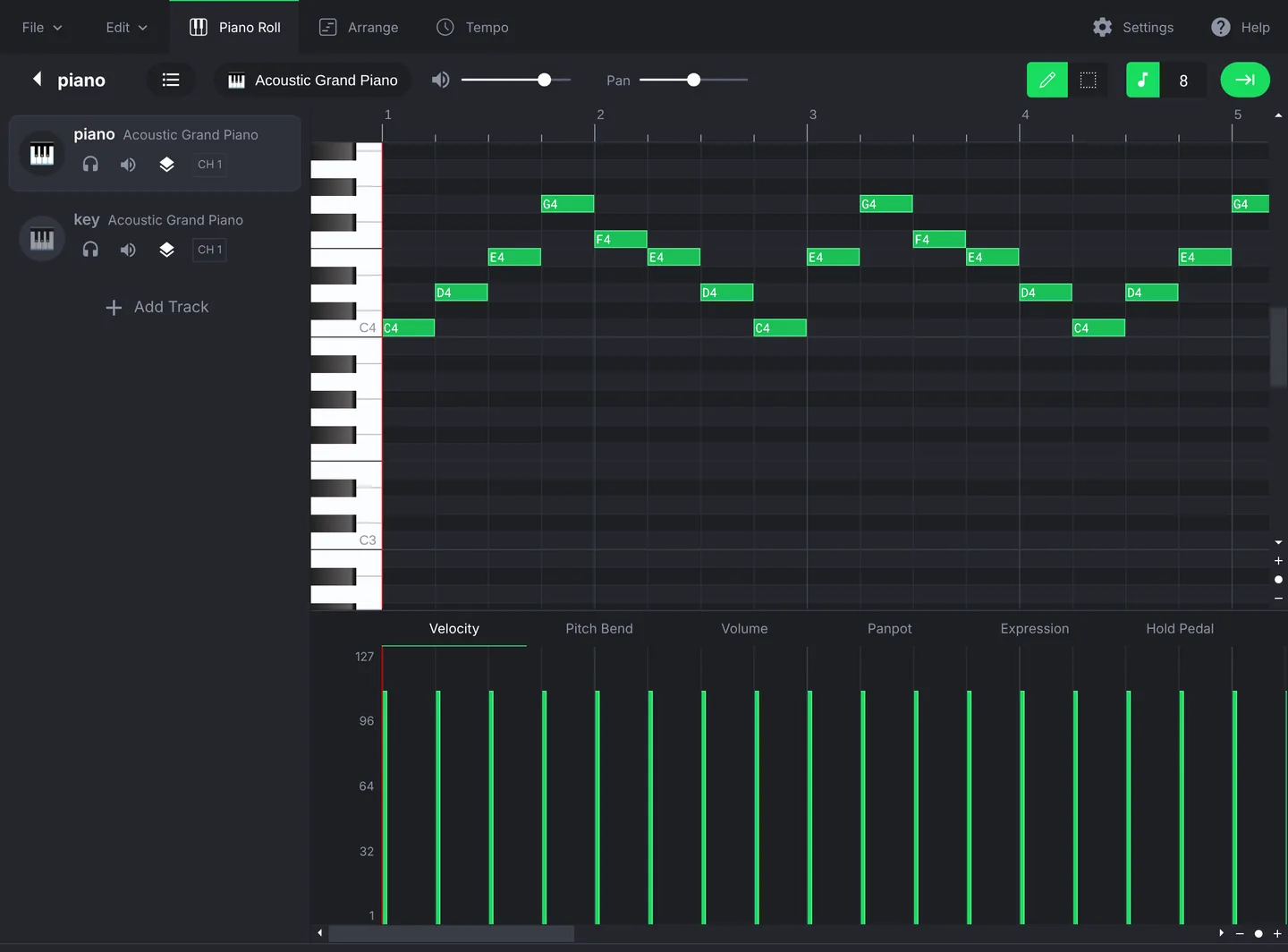
- Pitch on the staffRows next to an on-screen keyboard, with labels such as C4, D4 and E4 on each note blockYes
- Note lengthHow long the green block is; drag its edge to change itYes
- Key signatureThe Key setting in the Melody and Chord Generators, plus Transpose and ±1 octave in the editorYes
- DynamicsThe Velocity lane under the notes, next to Volume, Expression and Hold Pedal lanesYes
- Tempo and metreBPM, a Tempo tab, and 4/4, 6/8 or 3/4 in the Melody GeneratorYes
- Parts for each playerSeparate tracks with Add Track, each with its own instrumentPartly
- A printed scoreNo staff or score view; download the MIDI file and open it in notation softwareNo
Three moves to write music in one sitting
To write music, you do not need every tool on every piece. Start with whichever part you already have: a tune you can hum, a chord loop you like, or nothing at all. Each tool hands over a MIDI file, so the editor is where the parts meet.
Capture the tune
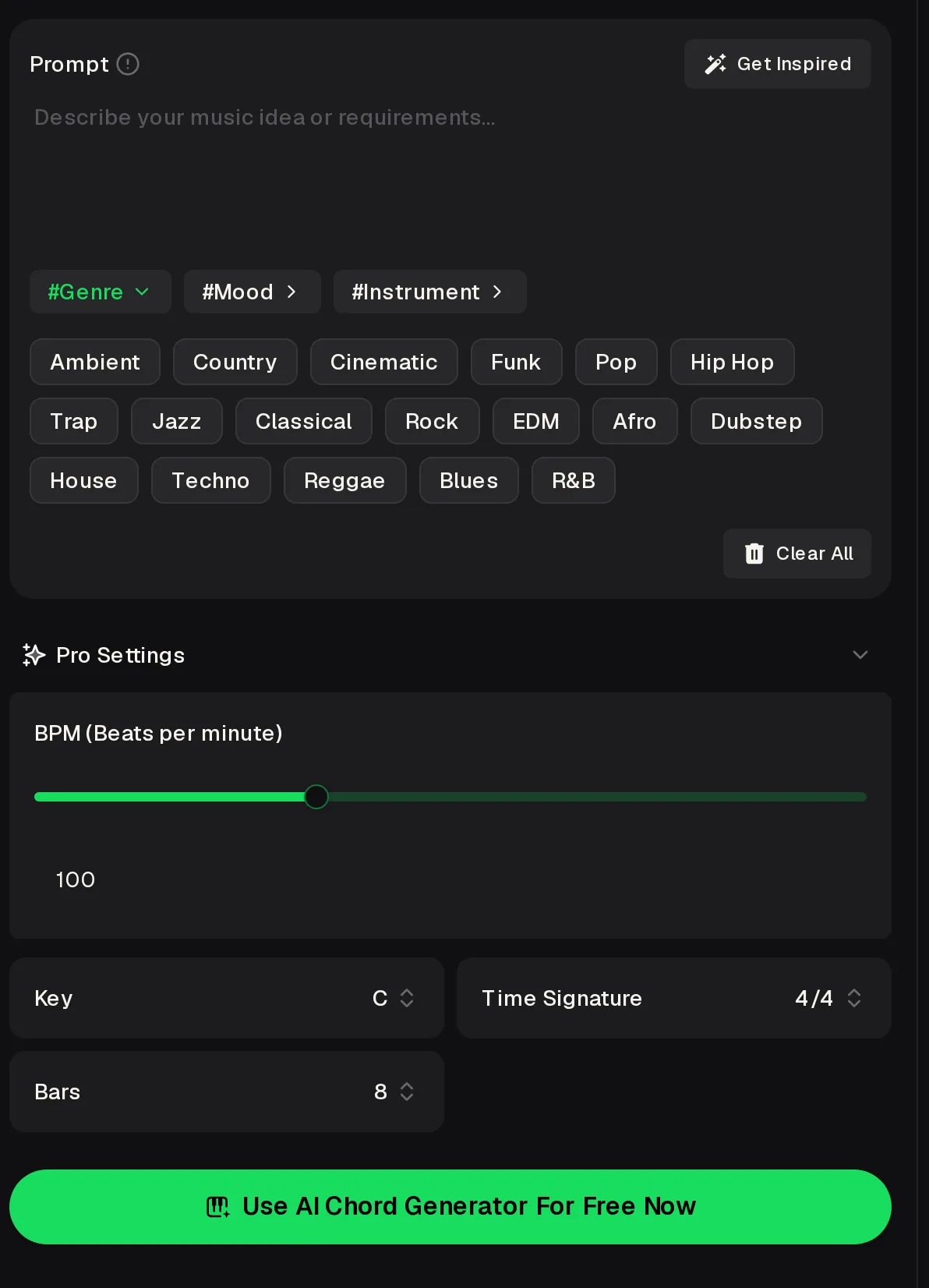
To write music from a hum, open the AI Audio to MIDI converter, choose Record and sing, or Upload a WAV, MP3, FLAC or OGG of one instrument. Stuck for a line when you write music? The Melody Generator takes a prompt or #Genre, #Mood and #Instrument tags, plus BPM, Key, Time Signature and Bars.
Find the chords
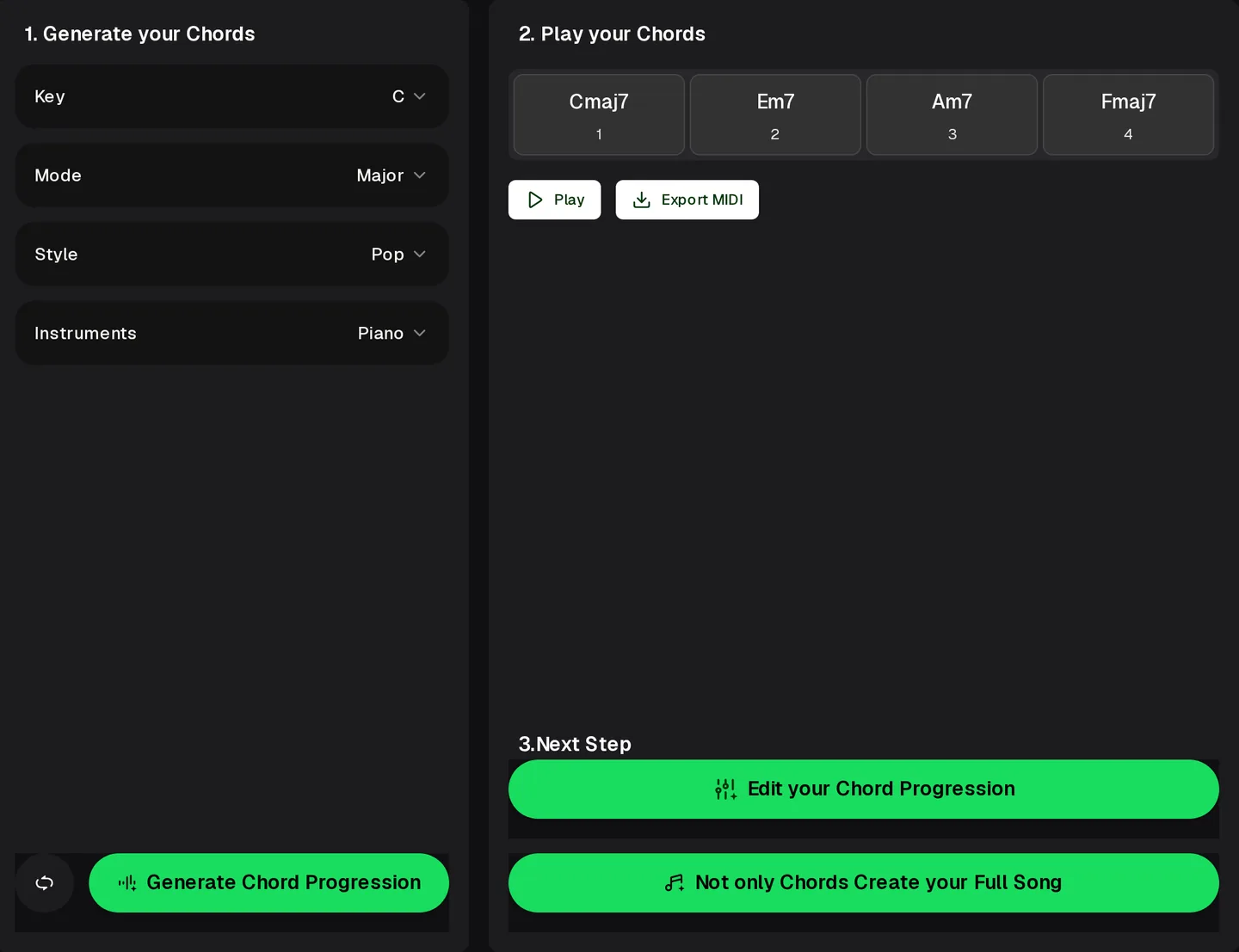
In the Chord Generator, where you write music over chords, set Key, Mode, Style (Pop, Jazz, Blues, Rock, R&B, Funk, Lo-fi, Gospel, EDM or Latin) and Instruments. Play the four chords, generate again if they feel wrong, then Export MIDI.
Shape and export
Write music in the MIDI Editor: open the files, put each part on its own track, then move, stretch, Quantize and Transpose notes. File, Export saves WAV or MP3; Download MIDI File keeps it editable.
When you write music across tools, keep the same Key and BPM in every tool, so the melody and chords line up when they land on the same timeline.
The three panels that write music with you
These are the real panels you write music with on musiccreator.ai, shown signed out. Settings show their defaults, so expect different chords and notes when you try them yourself. Generated chords change on every run.
Start with the chords
To write music from chords, pick a key and style, play four chords and export the MIDI file, then hum a tune over the loop before you open the editor.
Two sketches, rendered straight from the tools
Neither clip is a finished song. They are what you get at the sketch stage when you write music this way, exported as plain audio so you can hear the raw material before any editing.
Four chords
Chord Generator in C Major, Pop style, Piano: Cmaj7, Gmaj7, Am7, Fmaj7. Exported as MIDI, converted with MIDI to MP3, looped three times.
0:10
Eight bars of melody
A Melody Generator example at 100 BPM in C, 4/4, 8 bars, opened in the MIDI Editor and saved from File, Export, MP3 with no edits.
0:19
Your edit
Put the two on separate tracks to write music of your own: change a few notes, vary the velocity and export again. That pass is where the piece starts to sound like yours.
The habit that makes the piece sound written
Generated or converted parts are a starting point when you write music. These small habits are what make a sketch sound like a choice rather than an accident, and none of them needs theory beyond careful listening.
Repeat a phrase, then change only its last note. That small twist is what makes a tune stick, and it is a two-second edit in the piano roll.
- Hum one short phrase per take; a clean four-bar take converts more cleanly than a long ramble.
- Run Quantize after recording, then nudge a few notes back by hand so the line still breathes.
- Vary the Velocity lane, because a melody where every note hits equally hard sounds mechanical.
Download the MIDI file after each session you write music, so you can return to an earlier draft after a big change.
Where the tools to write music stop
It is easier to write music when you know where each tool stops. The Melody Generator works in fixed lengths, shown on the scale below, so plan longer pieces as several sections you join in the editor.
Bars options in the Melody Generator: 4, 8, 16 or 32.
- No staff notation, printed score or parts. Open the downloaded MIDI file in notation software for that.
- Audio to MIDI is meant for one voice or instrument, not a full mix, so record the tune on its own.
- MIDI tools play instrument sounds, not sung vocals or a produced mix. For a full song, use the AI Music Generator or AI Lyrics to Song.
- The Chord Generator gives four chords per run and does not explain the theory behind them.
Write music FAQ
Can I write music if I cannot read notes?
Yes. The MIDI Editor shows notes as blocks on a piano roll, with pitch labels such as C4 and E4, so you work by ear and by eye instead of by reading a staff. Sing or play the idea into the AI Audio to MIDI converter, or start from four chords in the Chord Generator, then move, lengthen and delete notes until it sounds right. Many self-taught players write music this way and pick up some theory along the way, simply from seeing which notes they keep choosing.
Does MusicCreator make sheet music?
No. The editor you write music online in has Piano Roll, Arrange and Tempo views, and none of them is a staff or score view, so you cannot print sheet music from it. What you can download is a standard MIDI file from File, Download MIDI File. If a teacher, choir or band needs printed parts, open that MIDI file in notation software and tidy it there. Expect to fix some details, such as rests and note spelling, because a MIDI file stores timing and pitch rather than engraving choices.
Can I hum a melody and get notes?
That is what the AI Audio to MIDI converter is for when you write music by ear. Choose Record and sing into your computer, or Upload a WAV, MP3, FLAC or OGG file. Its own guide suggests a ditty sung by you or a recording of a single instrument, so keep the take simple: one voice, no backing track, and a clear start to every note. Open the result in the MIDI Editor and check it note by note, because a few pitches or lengths will usually need a nudge before the melody matches what you meant.
Can I hear what I wrote without other software?
Yes. As you write your own music, the MIDI Editor plays the piece in the browser with built-in instruments such as Acoustic Grand Piano, and File, Export saves it as WAV or MP3. If you already have a MIDI file from elsewhere, the MIDI to MP3 tool converts it at 128, 192 or 320 kbps. Both sketches above were made that way, without any extra software, so what you hear is close to what you will get from a plain draft before you start editing it yourself.
How do I turn the piece into a full song?
The MIDI tools give you notes and plain instrument sound, not a produced track with singing. For a finished song, describe the style in the AI Music Generator, or bring your words to AI Lyrics to Song and pick the genre there. Free credits come after a quick sign-up, and paid plans can download MP3, WAV and FLAC. Use the music you write in the editor as your guide for key, tempo and mood when you write the prompt, so the song keeps the feel of your sketch.
Write the first four bars today
Write music in the MIDI Editor: add a melody you hummed or generated, set the chords underneath and export a sketch you can play to someone tonight.
Open the MIDI Editor