Best Vocal Remover Checklist
Everyone searching for the best vocal remover wants the same thing: a clean instrumental without that underwater, warbly sound, and a vocal track that does not drag the drums along with it. The tool that wins is the one that does this on your song, on your device, without a slow install.
Below is a simple best vocal remover checklist and a walk-through of the MusicCreator AI vocal remover, which runs in the browser and returns both the instrumental and the vocals from one upload.
Five things that make the best vocal remover for you
Reviews tend to crown a single winner, but what counts as the best vocal remover depends on the song, the device and what you plan to do with the result. A karaoke night forgives small artifacts; a remix or a cover for release does not. Run any tool you are considering through these five questions before you commit to it.
Separation quality
Listen to the instrumental on headphones. Leftover vocal "ghosts", metallic cymbals and a hollow middle are the usual giveaways of a weak model.
Both outputs
The best vocal remover gives you the instrumental and the isolated vocal, so you can sing over one and sample or remix the other.
Formats in and out
Check that it accepts the file you actually have, not just MP3, and that you can download what you need.
Hardware demands
Desktop separation apps can be heavy on an older laptop. Browser tools move the processing off your machine.
What comes next
The best vocal remover sits inside a workflow: more stems, editing, mastering or a new song built from the instrumental.
What the MusicCreator vocal remover handles
These figures come from the live MusicCreator tools, so you can match them against the best vocal remover checklist above. If you need more than two parts, the stem splitter on the same site goes further, and the outputs can be taken straight into the editor or mastering tool without downloading and uploading again.
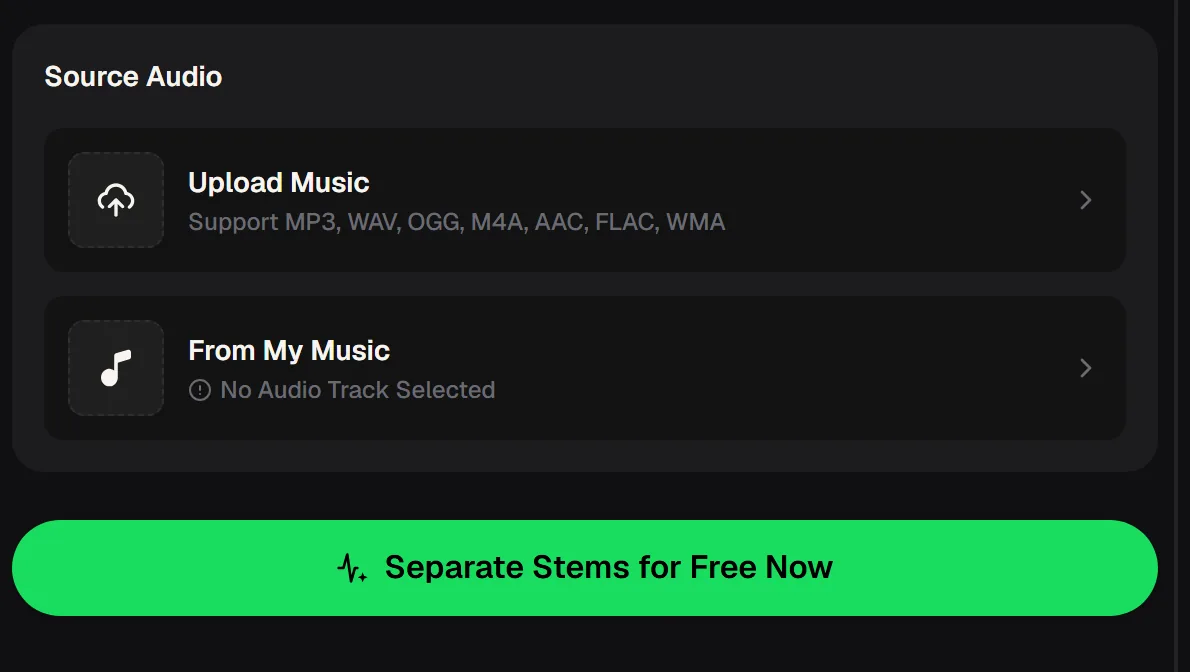
Upload the song you want to sing over or remix, then judge the instrumental and vocal on headphones against the checklist.
How to remove vocals from a song online
The whole job happens on one page, with nothing to install and no settings to tune.
Open the vocal remover
Go to the AI vocal remover on musiccreator.ai in any modern browser.
Upload your song
Drop in an MP3, WAV, OGG, M4A, AAC, FLAC or WMA file.
Let it separate
The AI splits the mix into an instrumental track and a vocal track.
Listen and download
Check both parts on headphones, then keep the one you need, or both; paid plans can download MP3/WAV.
Best vocal remover online versus installed software
Either route can be the best vocal remover for you. The difference is mostly about your computer, your patience and what you do with the files afterwards. Here is how a browser tool like the MusicCreator vocal remover compares with a typical desktop separation app, so you can decide which suits your setup.
| Question | MusicCreator in the browser | Typical desktop app |
|---|---|---|
| Install needed | No, open the page | Yes, plus model downloads |
| Older laptops | Processing is not on your machine | Can be slow or struggle |
| Outputs | Instrumental and vocals | Depends on the model you pick |
| More stems | Stem splitter on the same site | Separate model or app |
| Offline use | Needs a connection | Works offline |
The separation runs online, so an older laptop or a phone browser can handle a full song without any extra software.
What people do with the best vocal remover
An instrumental and an a cappella open up very different projects. Singers and karaoke fans keep the backing track; producers and DJs go after the vocal. Most people end up using both halves of the same song at some point, which is why getting both from one upload saves so much time.

Karaoke at home
Turn any song in your library into a backing track for a night of singing with friends.
Covers and practice
Rehearse over the original arrangement, then record your own take on top.

Remixes and samples
Producers lift the isolated vocal into a new beat or chop it into a hook.
Study and transcription
Hear a bass line or harmony clearly with the lead vocal out of the way.

Common vocal remover complaints, and fixes
“I can't use the desktop vocal remover because my laptop struggles with it.”— a post on r/audioengineering
That complaint is common, along with artifacts in the instrumental and vocals that come out thin. A few habits help you get the best vocal remover results with any tool.
Best vocal remover questions
Short answers on removing vocals from a song with AI.
How do I remove vocals from a song?
Open the MusicCreator AI vocal remover, upload the song in MP3, WAV, OGG, M4A, AAC, FLAC or WMA format, and let the AI separate it. You get an instrumental track and a vocal track. Listen to both on headphones before you download, and start from the best quality file you have for the cleanest result.
Is an online vocal remover safe to use?
When you look for the best vocal remover online, use tools from sites you trust and that you can sign in to with your own account, rather than pages full of download buttons and pop-ups. MusicCreator runs the vocal remover in the browser, so there is no installer to run on your computer. Check the site's privacy information if you upload unreleased music.
Which is the best vocal remover for a clean instrumental?
Quality depends heavily on the source song. Dense mixes with heavy reverb on the vocal are harder for every tool. The best vocal remover online test is your own track: run the same song through the tools you are considering and compare the instrumentals on headphones, listening for vocal ghosts and dull cymbals.
Can I get drums, bass and other parts separately?
The vocal remover returns two parts. For more, use the MusicCreator AI stem splitter, which separates a song into 4 or 6 stems, or All Detected Stems, with up to 12 stems on AI songs. That suits remixing, practice and mixing work where you need each instrument alone.
Can I use the instrumental in my own release?
Separating a song does not change who owns it. If the original song belongs to someone else, you need their permission to release anything built from it. For songs you create on MusicCreator: Paid plans, monthly or annual, include the right to use your songs within the scope of the Commercial License; a license certificate costs 5 credits per song on monthly plans and nothing extra on annual plans. See the pricing page for details.
Test it on the song you care about
Upload the track you actually want to use, listen to both parts on headphones, and move to the stem splitter if you need more than two.