Stem Separator for Music Therapy Sessions
Split a client's favourite song into parts you can use one at a time. Familiar music is often the easiest way into a session. A stem separator lets you take that song apart so you can choose which pieces the client hears.
Upload the track to the MusicCreator stem separator, pick how many stems you want, and get separate parts such as vocals, drums and bass. Free credits come after a quick sign-up.

Why a stem separator helps session planning
Separated parts let you shape a familiar song around the goal of each activity. A full mix gives you one fixed version. Stems give you several versions of the same song to choose from.
The client still recognises the music, and you decide how much of it to play. How you use each part is your clinical call; the tool only provides the pieces.
Room for the client's voice
Play the song without its vocal so the client carries the melody.
A clear beat to follow
Use the drums alone for drumming and movement work.
One part at a time
Play a single stem to focus attention on one sound.
Fill in a part yourself
Mute the guitar or piano stem and play it live instead.
Preparing parts by hand in audio software takes time and skill. A stem separator does the splitting in the browser, so your prep time goes on planning the activity.
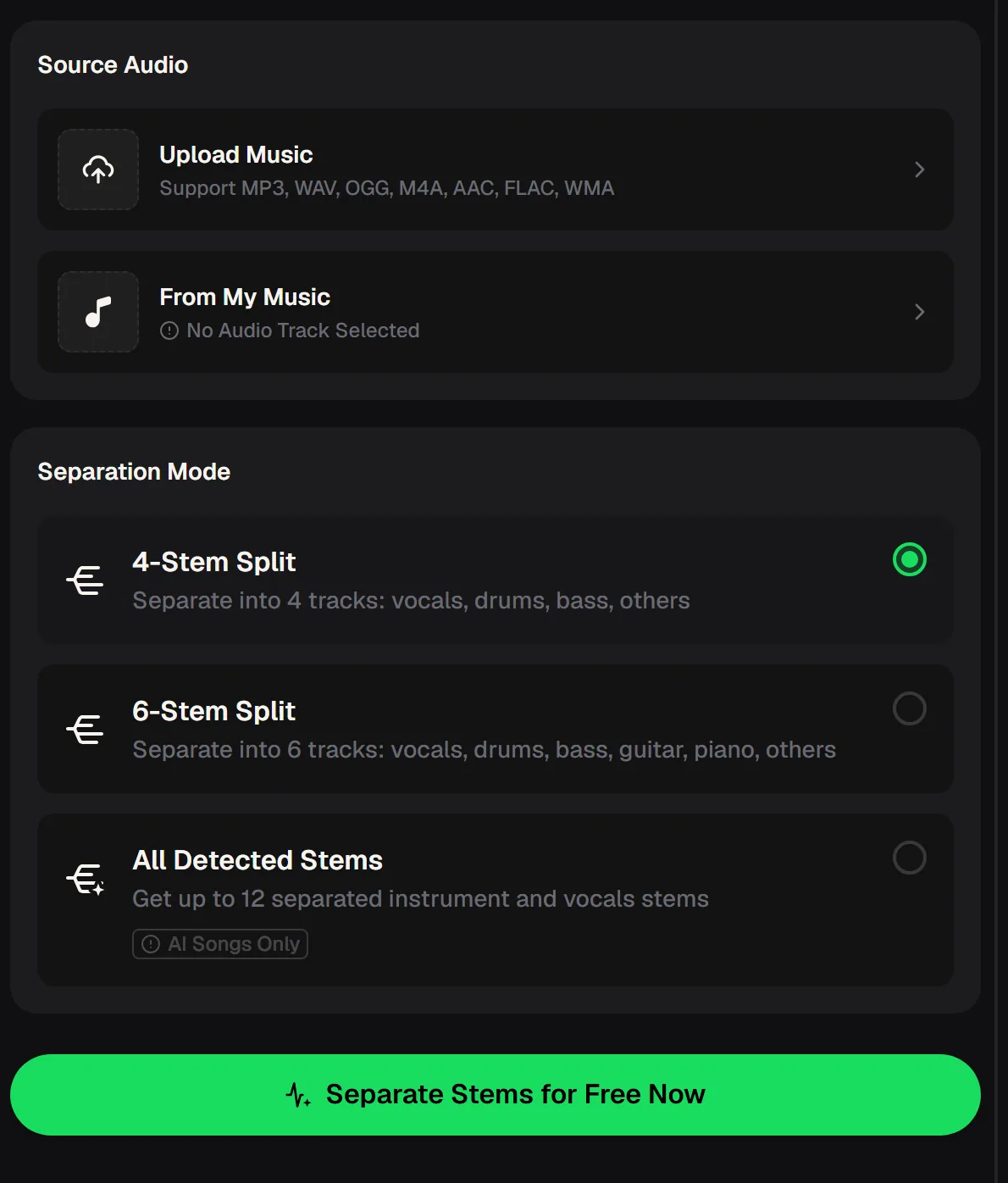
What the stem separator panel offers
You upload one song and choose how finely to split it. The options below are the ones the stem separator offers.
- Upload Music
- MP3, WAV, OGG, M4A, AAC, FLAC or WMA
- From My Music
- Pick a song already in your library
- 4-Stem Split
- Vocals, drums, bass, others
- 6-Stem Split
- Vocals, drums, bass, guitar, piano, others
- All Detected Stems
- Up to 12 stems, AI songs only
For most session songs, four stems from the stem separator are enough. Choose six when you need guitar or piano on their own.
All Detected Stems only works on songs made on MusicCreator. For a client's favourite commercial track, use 4 or 6 stems.
Stem separator options for session needs
Each common session need maps to a specific stem option. Use the table to pick the stem separator split before you upload.
| Session need | Stem option on MusicCreator | What you get |
|---|---|---|
| Song without the singer | 4 stems | Vocals, drums, bass and others as separate parts |
| Beat for rhythm work | 4 stems | A drums part on its own |
| Guitar or piano on its own | 6 stems | Adds guitar and piano to the four basic stems |
| Finer parts of a song you made on MusicCreator | All Detected Stems | Up to 12 stems, for AI songs made on the site only |
| Song from your own library | Upload | MP3, WAV, OGG, M4A, AAC, FLAC or WMA, or pick from My Music |
| Rights for shared or published use | Monthly or annual plan | Commercial rights within the scope of the Commercial License; certificate 5 credits per song on monthly, nothing extra on annual |
From a client's song to session-ready parts
Prepare the stems before the session, not during it. That keeps your attention on the client.
Ask for the song
Note the songs the client or family names as favourites.
Upload the track
Add the file to the stem separator or pick a song from My Music.
Pick the split
Choose 4 stems, or 6 if you need guitar and piano.
Label and save
Name each part by song and activity so it is quick to find.
Run one favourite song through the stem separator now and have its parts ready to try in your next activity, with free credits after a quick sign-up.
Split your first song
Session activities built from separated stems
The same song can support several different activities once it is split. These are starting points to adapt to each client's goals.

Using a stem separator for group sessions
In a group, separated stems let each person take a role in the same song. One part of the room can follow the drums while another sings the melody.
- Give each small group one stem to listen for and respond to.
- Bring parts in one by one so nobody is overwhelmed.
- Keep the vocal stem handy for anyone who wants to sing along.
- Save each group's song as a labelled set for repeat sessions.
Repeating the same song across weeks builds familiarity. Changing which stems you play keeps it fresh.
Keep the volume of each stem steady between rounds. Sudden jumps can pull attention away from the activity itself.
When separated stems need a second try
Stem separator quality depends on the source recording, so test before the session. Busy mixes and older recordings can leave traces of one instrument in another stem.
Run the better file through the stem separator and compare the new stems with the old ones, so the parts you play in your next session sound clean.
Split the better copy
Stem separator questions from therapists
Short answers for music therapists preparing session music. Follow your service's own policies on client data and online tools.
How many parts can one song be split into?
Four stems (vocals, drums, bass and others) or six, which adds guitar and piano. Songs made on MusicCreator can use All Detected Stems, with up to 12.
Which files can I upload?
MP3, WAV, OGG, M4A, AAC, FLAC or WMA. You can also pick a song from My Music.
Will the stems be perfectly clean?
Not always. With older or busy recordings, a stem separator can leave traces between stems, so listen through before a session.
Can I use it on a tablet in the room?
Yes. The stem separator runs in the browser, including phone browsers, so you can prepare parts on whatever device you have.
What about rights if I publish a recording?
Monthly and annual plans both include commercial rights within the scope of the Commercial License. Downloading the license certificate costs 5 credits per song on a monthly plan and nothing extra on an annual plan.
How do I start?
The MusicCreator stem separator is free to start, with free credits after a quick sign-up.
Take a favourite song apart
Give every session activity the right part of a familiar song, starting with free credits after a quick sign-up.