For team leads and office crews
Text to Song for Team Shout-Outs at Work
Use text to song to turn a launch note, welcome or farewell message into a song the whole team hears. Paste the words as lyrics, pick a style, and play the better of two takes at the next meeting.
Everything on one panel
- Prompt or Own Lyrics Describe the moment or paste the team message.
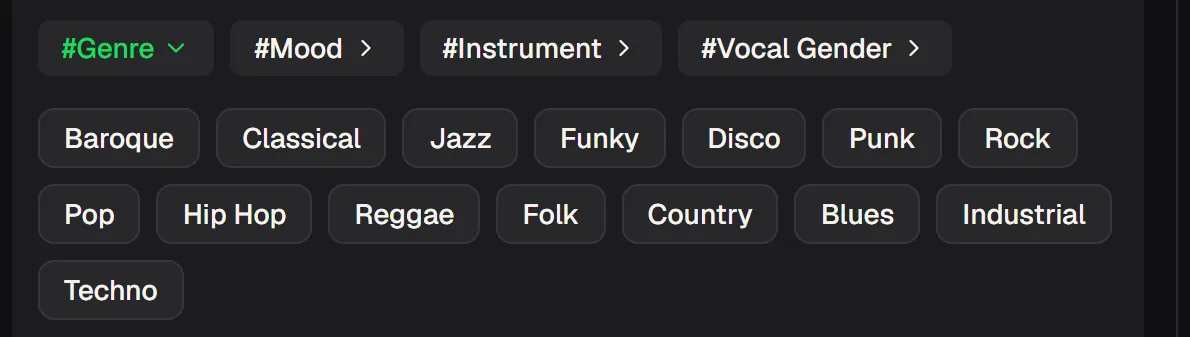
- Genre, Mood, Instrument, Vocal Gender Tags that set the sound.
- Instrumental Only A music bed with no singing.
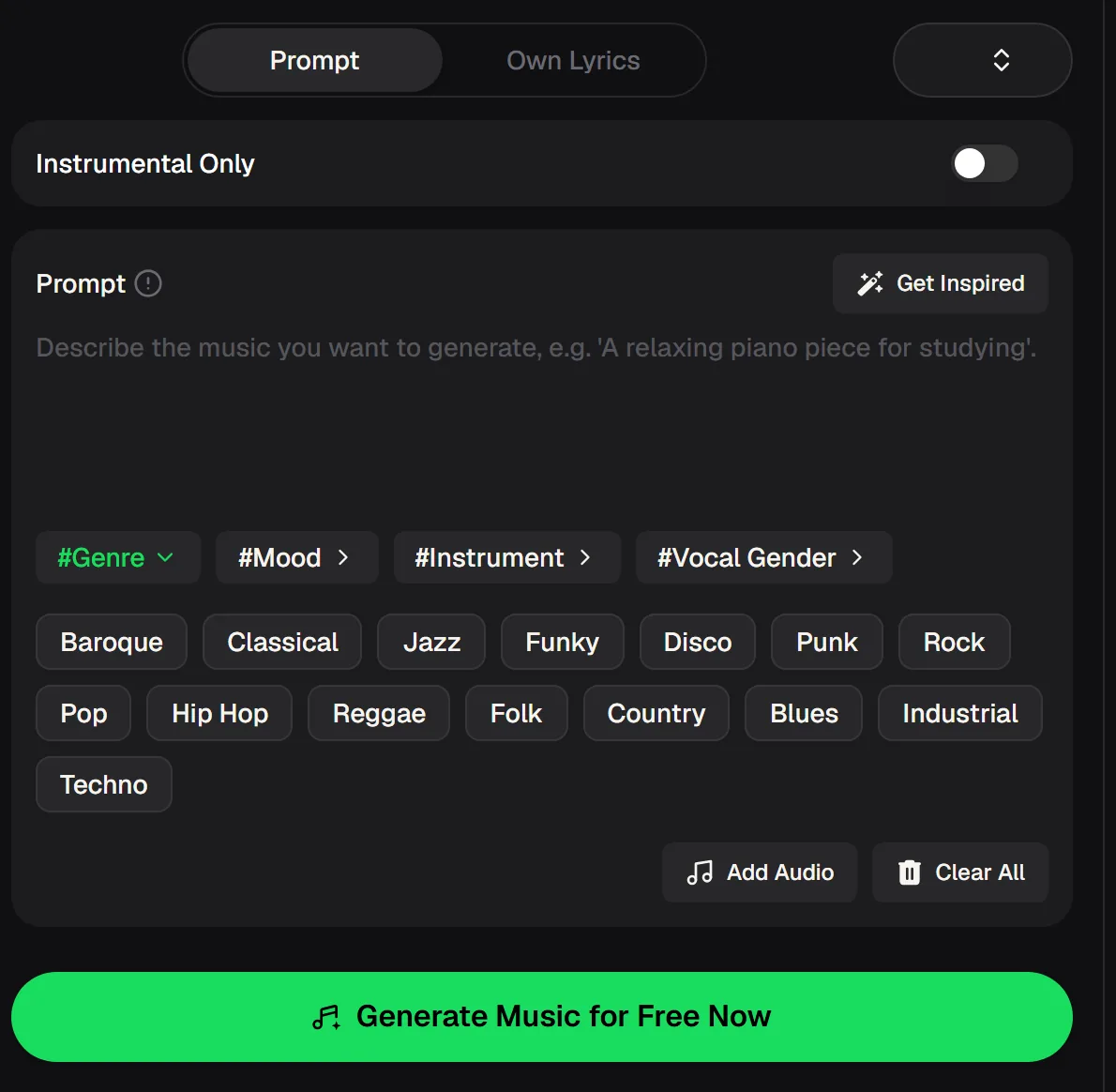
- Prompt or Own Lyrics
- 2 tracks per run
- Free credits after a quick sign-up
A team week full of text worth singing
Most teams already write the text for a song every week; it just sits in a chat channel. Each of these messages can become lyrics with text to song.
- Mon
A welcome note for a new starter, turned into a short upbeat intro.
- Tue
A sprint goal or weekly target, sung as a rally chorus.
- Wed
A product or project launch announcement with the feature names.
- Fri
A farewell message or a quarter wrap-up for the last call of the week.
Short, specific messages work best for text to song. Names, the project and one shared moment give the song something the team recognises straight away.
Which team text turns into a good song
Lines that are short, concrete and a little personal sing better than formal announcements. Ask these questions before you paste anything into text to song.
Is it short enough to sing?
Keep each line to one idea. Trim long sentences from the original message into short, rhythmic lines.
Does it name real people and work?
Names, the project and the milestone make the song feel made for this team rather than any office.
Is there a line worth repeating?
Pick one phrase, such as the launch name or "welcome to the team", and use it as the chorus.
Would everyone be happy to hear it?
Keep jokes kind and check that anyone named is comfortable before you play it to the group.
Own Lyrics or Prompt: choose by how exact the words must be
Use Own Lyrics when the team's exact words matter, and Prompt when a description is enough. Both tabs sit at the top of the text to music panel.
- Own Lyrics: paste the edited message line by line, so names and the launch title stay exactly as written.
- Prompt: describe the moment, such as "an upbeat pop song welcoming Priya to the design team", and the words are written for you.
- Instrumental Only: switch it on for a short music bed under a slide deck or a recap video.
Whichever tab you pick, the tags for Genre, Mood, Instrument and Vocal Gender shape the sound. Every run gives you two tracks to choose from.

Turn a team message into a song in three steps
Converting text to song takes three moves on one panel. Each step below shows the part of the panel you use.

1. Pick a tab
Choose Own Lyrics to paste the team message, or Prompt to describe it. Leave Instrumental Only off if you want it sung.
2. Set the style
Tap the Genre, Mood, Instrument and Vocal Gender tags. Upbeat pop or funk suits launches; folk or soft rock suits farewells.
3. Generate and pick
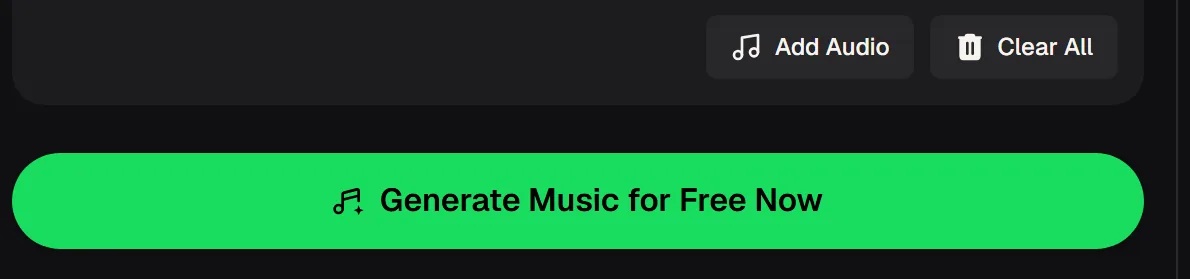
Press Generate, play both tracks and keep the one that fits the room. You can add an audio clip as a reference with Add Audio.
From a launch message to song lyrics
In text to song, a plain announcement becomes singable once you cut it into short lines with a repeated hook. Here is one message before and after editing.
Original message:
"Huge thanks to everyone on the Atlas team. We shipped the new checkout on Thursday after six weeks of work. Special shout-out to Sam and Lena for the late nights."
Paste it as lyrics, tag a genre and mood, and play the better of two tracks at your next team call, with free credits after a quick sign-up.
Paste your team messageWho on a team makes text to song shout-outs
The person who usually writes the team message is the right person to turn it into a song. The scale changes, the steps do not.
- Team leadWelcome songs, sprint wins and thank-yous for a small group call.
- Office or people managerFarewells, work anniversaries and department milestones for a wider meeting.
- Internal commsLaunch songs and quarter wrap-ups for company-wide updates and recap videos.

Teams that play music in a public video or event should read the plan terms before they publish. The table below shows what each plan includes.
Free credits or a paid plan for text to song team tracks
Free credits cover a few text to song shout-outs; monthly and annual plans add full downloads and commercial rights within the scope of the Commercial License. The figures come from MusicCreator's published plan terms.
| Free | Monthly | Annual | |
|---|---|---|---|
| Credits | 30 a year (15 generations) | Plan credits | Plan credits |
| Tracks per run | 2 | 2 | 2 |
| Downloads | A limited number | MP3, WAV, FLAC | MP3, WAV, FLAC |
| Commercial rights | – | Within the Commercial License | Within the Commercial License |
| License certificate | – | 5 credits per song | No extra cost |
Based on MusicCreator pricing and plan terms.
Text to song questions
Answers to what people ask before they try text to song. They cover the steps, sharing, files and rights.
| How do I convert text to a song? | Open the text to music panel and choose a tab. Own Lyrics takes your words exactly as written, so paste the edited message line by line. Prompt takes a description of the song instead, and the words are written for you. Then tap Genre, Mood, Instrument and Vocal Gender tags and press Generate. Each run gives two tracks, so play both and keep the one that suits your team best before you share it anywhere. |
|---|---|
| Can I text a song to my team? | Yes, once you download it, on text to song free or a paid plan. Paid plans can download MP3, WAV and FLAC; free users can download a limited number. An MP3 is small enough to post in a team chat, attach to an email or drop into a shared folder. For a live meeting, you can also play the track straight from the browser while sharing your screen, so everyone hears it at the same moment without any downloads. |
| Can I use a text to song track in a short video? | Yes. Download the track and add it in the video editor you already use for team recaps or social clips, the same way you would add any audio file. Monthly and annual plans both include commercial rights within the scope of the Commercial License. Downloading the license certificate costs 5 credits per song on a monthly plan and nothing extra on an annual plan. |
| How long should the message be? | Short works best. A verse and a chorus of four to six short lines each is plenty for a shout-out, and it keeps the song simple to follow in a meeting. Cut long announcements down to the names, the achievement and one memorable moment. If the original message is very long, use the Prompt tab and describe the moment instead of pasting every word, then compare the two tracks. |
| Can I choose the singer's voice? | You can steer it with the Vocal Gender tag on the panel, alongside the Genre, Mood and Instrument tags. That lets you pick a male or female vocal to suit the message. If you would rather have no singing at all, switch on Instrumental Only and use the track as a music bed under a slide show or a recap video. Each run still gives you two tracks to compare before you choose. |
| Is text to song free to try? | To try free text to song, you get free credits after a quick sign-up. The free plan gives 30 credits a year, which covers 15 generations, and each generation makes two tracks. That is enough for several team shout-outs across the year. Paid plans add more credits, MP3, WAV and FLAC downloads and commercial rights within the scope of the Commercial License, which matter if your team plans to use the songs in public videos or events. |
Give your team message a tune
Paste the welcome, launch or farewell text as lyrics in text to song, pick a style and play two tracks at your next meeting.
Make a team song