Audio to Video with One Cover Image
Sometimes a song does not need a busy music video, only a quick audio to video online export. It needs its cover art on screen and the audio playing underneath, the way releases and long mixes are often shared on video platforms.
This audio to video tool has a Single Image display mode for exactly that: upload your track, keep one image on screen for the whole song, choose a 16:9 or 9:16 size, and add a sound wave or captions if you want a little movement.

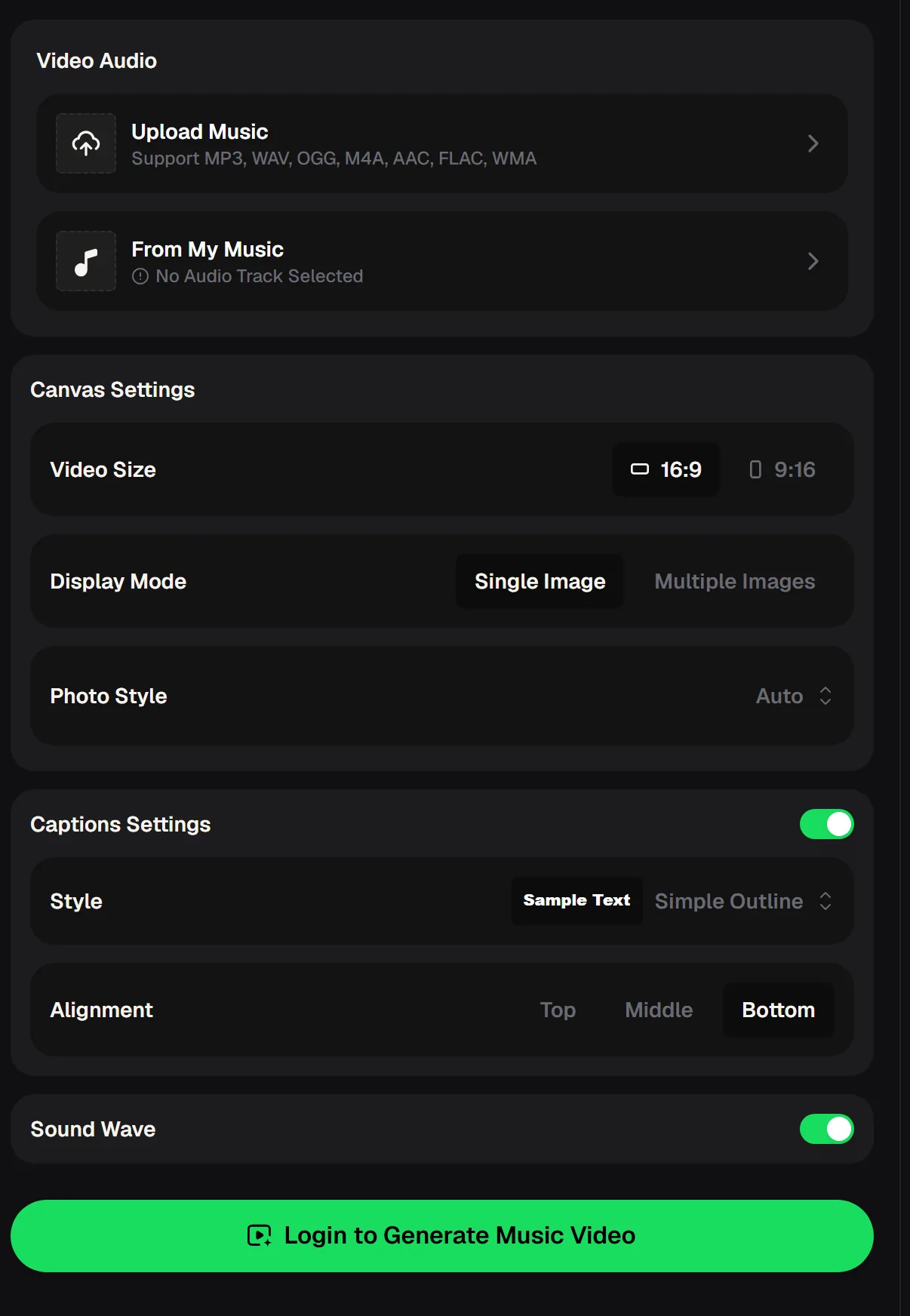
How the audio to video panel is laid out
The panel works from top to bottom. First comes the audio: upload a file in MP3, WAV, OGG, M4A, AAC, FLAC or WMA, or pick a song from My Music. Then the Canvas Settings: Video Size of 16:9 for widescreen or 9:16 for vertical, and a Display Mode of Single Image or Multiple Images.
For a cover-art video, choose Single Image. Below that you can set the Photo Style, turn on captions with a style and Top, Middle or Bottom alignment, and switch on a Sound Wave.
- Audio
- Upload or From My Music
- Video Size
- 16:9 / 9:16
- Display Mode
- Single Image / Multiple Images
- Extras
- Photo Style, captions, Sound Wave

Audio to video with one image, step by step
A single-image video is the quickest kind to make and one of the easiest to watch. Viewers see the cover they recognise, hear the full track and are not distracted by cuts. Here is the whole audio to video process in four short steps, using only the settings already in the panel.
Prepare your image before you start, ideally the same artwork you use for the release, so the video and the streaming cover match. If the track has a quiet intro, captions with the song title can fill the first seconds while the music builds.
Add your track
Upload the song or mix, or choose a track you made on MusicCreator from My Music.
Pick the size
Choose 16:9 for widescreen players or 9:16 for vertical short-video feeds.
Choose Single Image
Set Display Mode to Single Image so one picture stays on screen for the whole track.
Add movement and generate
Switch on Sound Wave or captions if you like, sign in and generate the video.
Upload the song and one image, choose 16:9 or 9:16, and add a sound wave or captions before you generate the video.
Where one-image audio to video works best
A single image suits any audio where the listening matters more than the watching. New singles and album tracks are the obvious case, because the cover art is already part of the release. Long DJ mixes, ambient sessions and study playlists also work well, since viewers often leave them playing in a background tab.
Podcast segments and spoken pieces benefit too: one clear image with captions at the bottom keeps the focus on the voice. If you want scenes that change, switch to Multiple Images instead and pick a few related pictures.
Tip: a Sound Wave gives a still image a gentle sense of movement, which helps on platforms where a completely static frame can look like a paused video.
Five audio to video tips for cover images
Because one image carries the whole video, small choices matter. The size, the placement of captions and the way the sound wave sits on the image all affect how professional the result looks.
These habits help a simple audio to video export feel deliberate rather than rushed, whether you are sharing one single or a full set of tracks. Preview the finished video once on the device your audience uses most before you post it.
Match the size to the platform
Use 16:9 for widescreen players and 9:16 for vertical feeds.
Keep captions clear of the art
Pick Top, Middle or Bottom so captions do not cover the key part of the image.
Use the sound wave lightly
A subtle wave adds life without competing with the cover.
Keep a consistent look
Use the same size and caption style for every track in a release.
Start from your best audio
A WAV or FLAC upload keeps the sound as clean as possible.
Keep the same size and caption style for every track, so the full set looks consistent when listeners find your channel.
Videos for songs created on MusicCreator
If the track was made on MusicCreator, you do not need to download and re-upload it. Choose it with From My Music in the audio to video panel, or open the menu on the finished song, where the Editor includes Photo Video and Story Video.
That keeps your song, its cover and its video together in one place. Before you publish, check that you have the rights to every image you use and that your plan covers how you plan to share the song.
Paid plans can download MP3, WAV or FLAC; free users can download only a limited number. Paid plans, monthly or annual, include the right to use your songs within the scope of the Commercial License; a license certificate costs 5 credits per song on monthly plans and nothing extra on annual plans. See the pricing page for current plans.
Audio to video questions
What does Single Image mode do?
Single Image keeps one picture on screen for the whole track, which is ideal for cover-art videos of singles, mixes and spoken audio. If you would rather have several images change during the song, choose Multiple Images instead. Either way, every audio to video export can carry captions and a Sound Wave on top.
Which files can I turn from audio into video?
You can upload MP3, WAV, OGG, M4A, AAC, FLAC or WMA, or choose a song you created on MusicCreator through From My Music. For the cleanest audio to video online result, start from the highest-quality version of the track you have.
Can I make vertical videos for short-video feeds?
Yes. Choose 9:16 under Video Size for a vertical video, or 16:9 for widescreen. Pick the size before you generate, and keep captions placed so they stay clear of the platform's on-screen buttons.
Do I need an account for audio to video?
Yes. The panel asks you to log in before it turns audio into video, and there are free credits after a quick sign-up. The pricing page lists the current plans if you plan to make videos regularly.
Give your track a screen of its own
Upload the song, choose Single Image, pick 16:9 or 9:16 and add a sound wave for motion. Your audio to video export is ready to share in a few steps.