Vocal Separator for Mix Reference Study
Pull a favourite record apart into vocals and instrumental, and listen to how the vocal was placed against the band. Home producers lean on reference tracks to judge their own mixes, but a finished master is hard to read: everything arrives at once. A vocal separator lets you hear the parts on their own.
Upload a reference track you have as an audio file, choose AI Vocal Remover, and the song is split into a vocals track and an instrumental track. Listen to the vocal for its tone, space and level, then to the instrumental for how much room was left for it. Free credits come after a quick sign-up.

What a vocal separator shows you about a mix
When you compare your mix with a finished record, the question is usually about balance: is my vocal too loud, too dry, too buried? Hearing the reference in parts makes that easier to answer.
A vocal separator gives you the vocal and the instrumental as separate tracks, so you can focus on one decision at a time instead of guessing from the full master. These are the questions producers tend to bring to it.
How wet is the vocal?
Listen to the isolated vocal for reverb tails and delays.
What makes space for it?
Hear how the instrumental thins out where the vocal sits.
Bright or warm?
Compare the vocal's character with the one in your mix.
What drops out?
Follow which parts step back in verses and return in choruses.
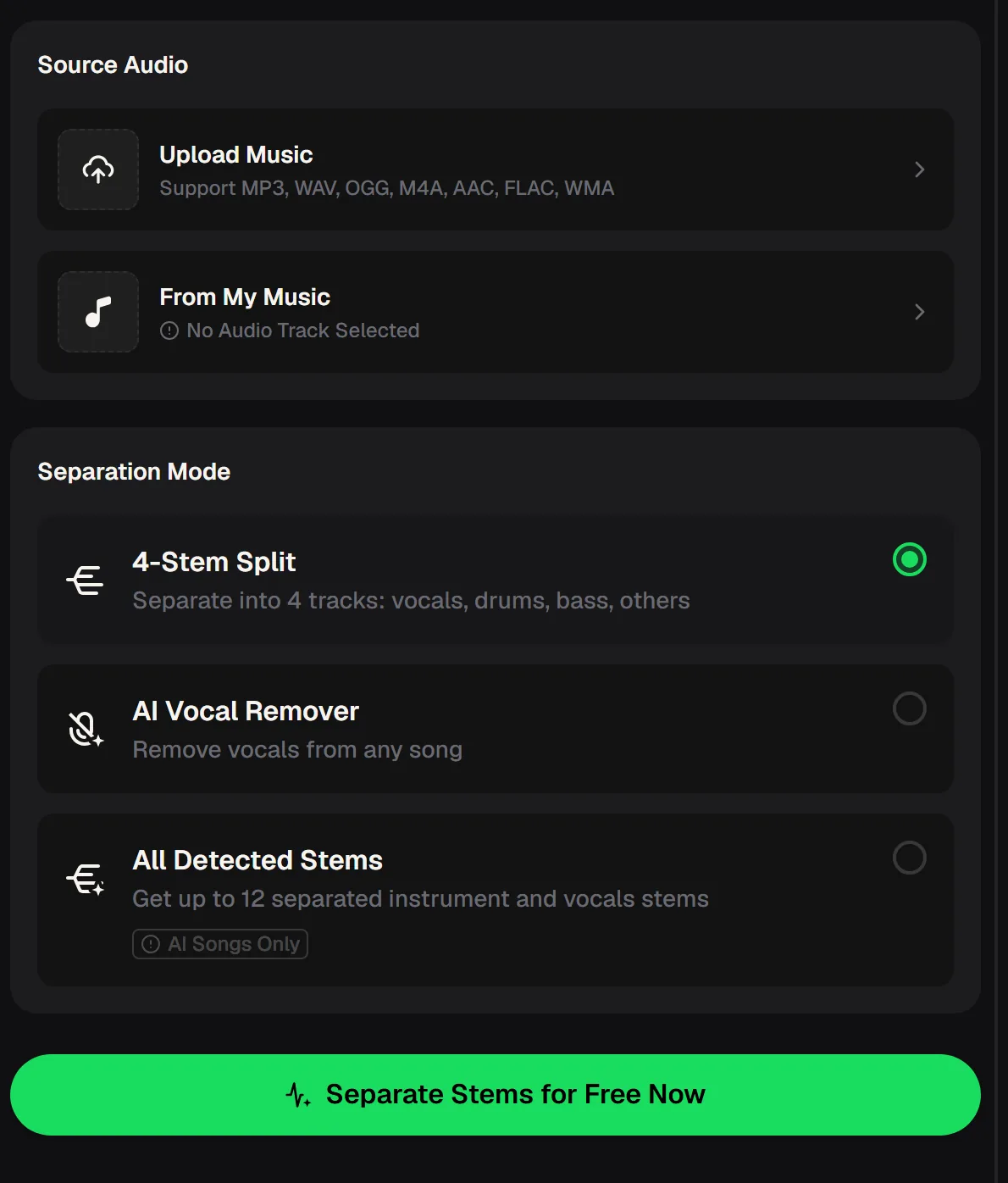
Vocal separator settings for reference listening
The panel asks two things: which audio to use and how to split it. Each option below is on the vocal separator panel. Start with AI Vocal Remover for the vocal-versus-band question, and switch to 4-Stem Split when you want to hear the drums and bass apart from everything else.
- Upload Music
- MP3, WAV, OGG, M4A, AAC, FLAC or WMA
- From My Music
- Pick a track already in your library
- AI Vocal Remover
- Two tracks: vocals and instrumental
- 4-Stem Split
- Vocals, drums, bass and others
- All Detected Stems
- Up to 12 stems, AI songs only
The vocal separator takes audio files, so you cannot paste a link. Use a reference you already own, ideally as WAV or a high-quality MP3, because the source quality affects what you hear.
From reference track to mix notes with a vocal separator
This routine fits between mixing sessions. Split the reference once, keep the tracks next to your project, and come back to them whenever you are unsure about a vocal decision. Remember that separation is an estimate, so small artefacts are normal; listen for the big picture rather than tiny details.
Upload the reference
Choose a song file you own, or a track from My Music.
Pick AI Vocal Remover
Run the split to get vocals and instrumental.
Take notes
Listen to each track and write down space, tone and level.
Compare with your mix
Go back to your session and adjust one thing at a time.
Split a reference track with the vocal separator and compare its vocal and instrumental with your own mix, one element at a time.
Which vocal separator mode fits the question
Different mix questions call for different splits. The two-track mode of the vocal separator answers vocal-versus-band questions. The 4-Stem Split helps when the low end is the issue, because you can hear drums and bass apart from the vocal and the other instruments.
All Detected Stems goes further but only works on songs made on the site, so it is useful when you are studying your own AI tracks rather than outside references.


Reading separated tracks without being misled
Separated tracks are a study aid, not the original multitrack. Some reverb or backing sounds can land in either track, and dense mixes separate less cleanly than sparse ones. Keep these points in mind so your notes reflect the mix rather than the separation. When in doubt, go back to the full reference and check your observation there.
Run the next one through the vocal separator the same way, and check every observation against the full reference before you change your mix.
Vocal separator exercises for home producers
Two tracks make focused listening much easier. These exercises use only the vocals and instrumental you get from the vocal separator, and each one targets a single mix decision. Do one per session with the same reference so you build a clear picture of how it was put together, then carry that picture back into your own project.
Questions about separating reference tracks
Short answers about using the vocal separator to study mixes.
Is the vocal separator free to try?
Yes, it works as a free vocal separator to start: MusicCreator is free to start, with free credits after a quick sign-up, and no credit card is needed to try the vocal remover.
What tracks do I get?
AI Vocal Remover splits the song into a vocals track and an instrumental track. 4-Stem Split gives vocals, drums, bass and others.
Which files can I upload?
MP3, WAV, OGG, M4A, AAC, FLAC and WMA, or a track from My Music.
Can I paste a link to a song?
No. Upload an audio file you have to the vocal separator instead.
Is this the same as the original multitrack?
No. The tracks are AI separations of the finished song, so expect some spill between them.
Can I use the vocal separator online on my phone?
Yes. It runs in a phone browser as well as on a computer.
Every great mix you admire is a set of decisions about where the vocal sits and what makes room for it. Over a few references, you will start hearing those decisions in every song you play, and your own mixes will benefit from it.
Hear how the record was built
Split your reference with the vocal separator, listen to the vocal and instrumental on their own and note the space, tone and arrangement. Then make one change at a time.