Online, for your own tracks
Music Separator for DJ Edits
A music separator turns one finished track into drums, bass, vocals and more, so you can build DJ edits before the gig and play them as ordinary audio files. Upload your own production or pick a song you made on MusicCreator, choose how many parts you need, and rebuild the intro, blend or breakdown at home, where you have time to listen.
- Drums-only intros and outros for cleaner mixing
- Instrumentals and acapellas for blends
- Up to 12 stems from songs you made on MusicCreator
Why prep stem edits before the set
Some DJ software can split tracks live, and plenty of DJs still ask why they would need stems at all. Prepared edits answer a different need: they are files you build once, check at home and then play on any setup. Here is when a music separator earns its place in your prep.
Your player only plays the file you load
Many setups play one stereo file per deck. A drums-only intro or an instrumental you made at home with the music separator plays on them like any other track.
You play your own productions
Producer-DJs often only have the final master of a track. A music separator gives you the parts back without opening an old project.
You reuse the same edits every set
An intro edit you play every weekend is worth making once, cleanly, and keeping in your library instead of rebuilding it live.
Only run tracks through the music separator that you wrote, made or have permission to edit, such as your own releases, songs made on MusicCreator or tracks whose owner gave you the parts.
Pick the separation by the edit you want
Start from the edit, not the tool. Each row below names a common DJ edit, the music separator mode that produces it and the parts you keep. Every mode starts from an uploaded audio file or a song in your MusicCreator library.
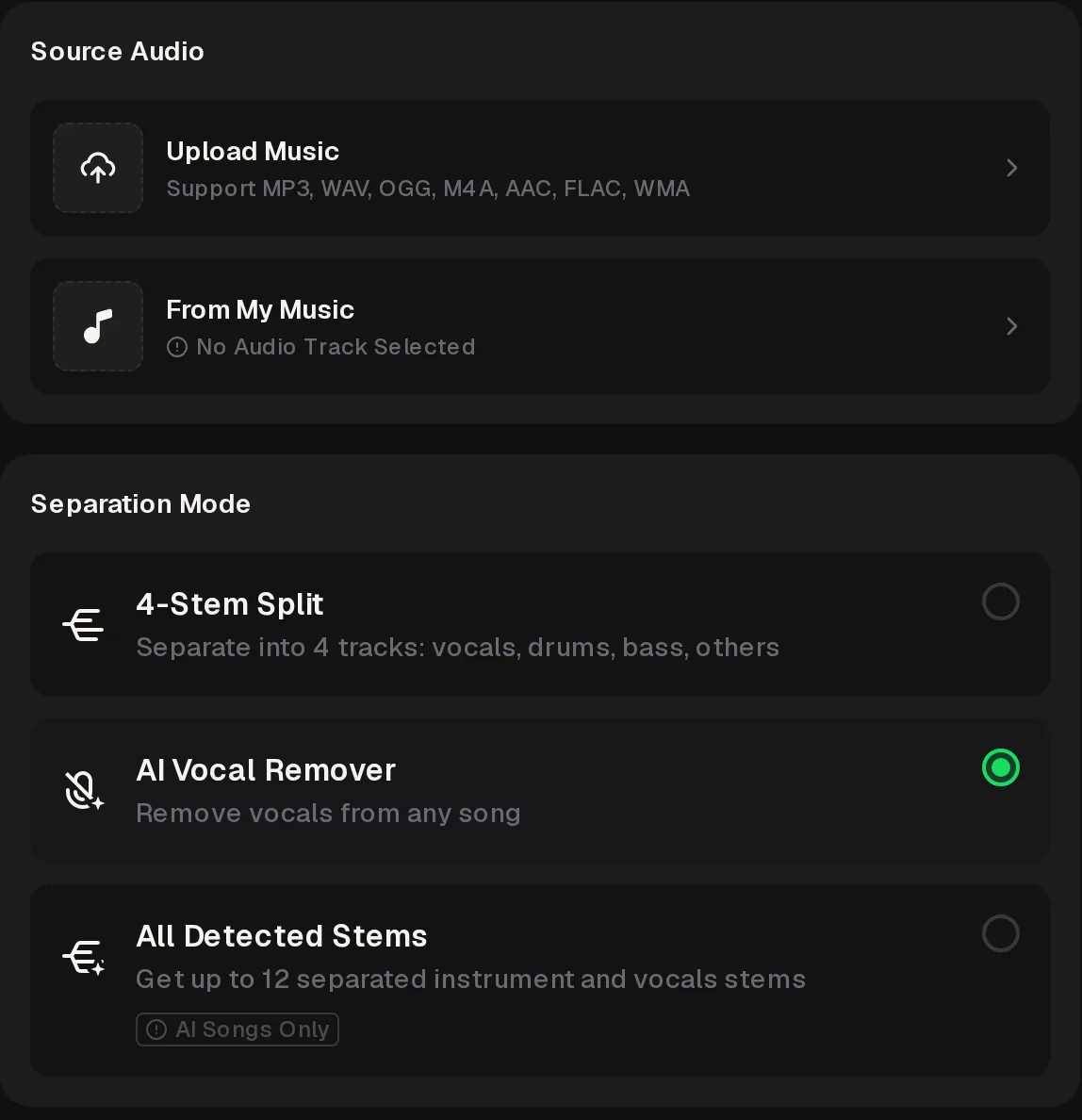
The AI Vocal Remover mode lives on the Vocal Splitter and Acapella Extractor pages. 4-Stem, 6-Stem and All Detected Stems are on the AI Stem Splitter.
Two panels, one job
The two music separator panels look alike. The choice between them comes down to whether you need two parts or a full set of stems for the edit you have in mind.
Stems or a clean vocal split
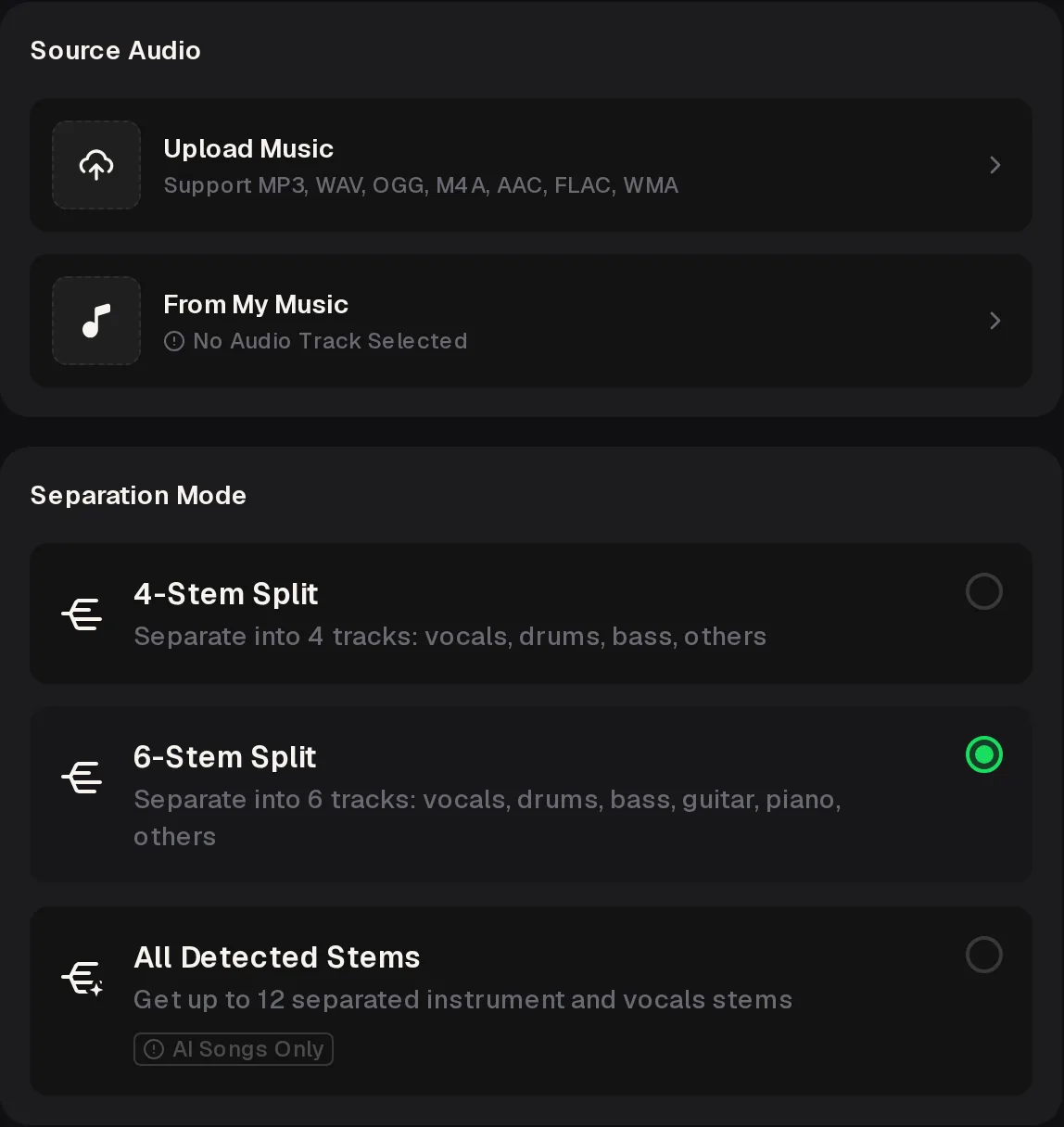
The AI Stem Splitter offers 4-Stem, 6-Stem and All Detected Stems. The Vocal Splitter swaps 6-Stem for AI Vocal Remover, which removes the vocals and gives you the instrumental and the vocal as two parts. Use it for acapellas and instrumentals; use the Stem Splitter when you need drums or bass on their own.
Build your first intro edit
Upload a track you made to the music separator, pick 4-Stem Split and keep the drums for a clean, beat-only intro.
A simple prep timeline for gig week
Running the music separator is the easy part; the edits still need listening and labelling. Spread the work across the week so every edit is heard on the real system before the gig.
- A week out
Choose the tracks
List the own productions and permitted tracks for the music separator that need edits, and note which edit each one needs.
- Three days out
Separate
Run each track through the music separator in the mode its edit needs and download the parts.
- Two days out
Build and label
Rebuild the music separator edits in your editor and name files clearly, for example “Track – drums intro”.
- Soundcheck
Test on the system
Play each edit on the actual setup and listen for leftover sounds before the doors open.
Keep the original master next to every edit, so you can always fall back to the full track mid-set.
How many parts each mode gives
More stems are not always better for DJ edits. Fewer, larger parts are easier to rebuild into a clean intro, while more parts help when you want a breakdown with one instrument. These are the counts the music separator offers, from a simple two-part split up to a full set of stems for songs made on the site.
All Detected Stems works only on songs made on MusicCreator. Uploaded tracks use the 4-Stem, 6-Stem or vocal modes.
Mistakes that ruin a stem edit
Most problems with separated edits come from the prep, not from the music separator itself. These are the ones that show up in the booth.
Give the music separator the best audio file you have, such as your own WAV or FLAC master. A cleaner source gives cleaner parts.
Listen to every music separator edit from start to finish at home. Separation can leave faint traces of other parts.
Place every downloaded music separator part at the same start point in your editor before you cut the edit.
Name each edit by track and purpose so you can spot it at a glance in a dark booth.
What the music separator supports
A quick reference before you start. If your source matches something on the Not supported list, sort it out first, for example by exporting an audio file from your own project instead of using a video or a link.
SupportedMP3, WAV, OGG, M4A, AAC, FLAC, WMA uploadsSongs from your MusicCreator library4 or 6 stems for uploadsUp to 12 stems for MusicCreator songs
Not supportedVideo filesPasted linksLive splitting during a set12 stems for uploaded tracks
The music separator runs in a desktop or phone browser, with nothing to install.
Music separator FAQ
Can I separate any track I play?
Only separate tracks you wrote, made or have permission to edit. That covers your own productions, songs you made on MusicCreator and tracks whose owners gave you permission or the parts. A music separator is a technical tool; it does not give you rights to someone else's recording. If you want edits of other artists' tracks, look for official remix packs or ask the rights holder first. Keeping to your own and permitted tracks also keeps your edits safe to share.
Is the music separator free?
You can start with the music separator online for free. Free credits come after a quick sign-up: 30 credits a year. Free users can download a limited number of songs, while paid plans can download MP3, WAV and FLAC, including songs made on the free plan. Pay Once credits are also available. Failed generations are usually credited back automatically. The pricing page lists the current plans, so check it before a busy run of gigs.
Which mode makes the best acapella?
Use the AI Vocal Remover mode on the Vocal Splitter or Acapella Extractor pages. It splits a track into the vocal and the instrumental, which is exactly the pair most blends need. Choose 4-Stem Split instead when you also want the drums or bass on their own for the same track. Listen to the acapella on headphones before the gig, because quiet traces of the beat can show up when the vocal plays alone over another track in the mix.
Can I edit songs I made on MusicCreator?
Yes, and they get the most options. Choose From My Music instead of uploading, and the All Detected Stems mode can split the song into up to 12 parts. That gives you separate instruments for breakdowns, builds and alternative edits of your own track. On a paid plan, you can use your songs within the scope of the Commercial License, which monthly and annual plans include; a certificate costs 5 credits a song on monthly plans and with Pay Once credits, and nothing extra on annual plans.
Do separated edits sound perfect?
Not always. A music separator online works from a finished mix, so faint traces of other parts can remain, especially where instruments share the same range. Dense, loud sections are the hardest. That is why the prep timeline ends with a soundcheck: you hear the edit on the real system before the crowd does. If a stem edit has a problem at one spot, cut around it, or use the full original track at that point instead of the separated version.
Prep your next set with stems
Use the music separator to turn your own tracks into drums-only intros, instrumentals and acapellas, then test every edit on the system before the doors open.
Free credits come after a quick sign-up. Paid plans add MP3, WAV and FLAC downloads.