Spotify Canvas Maker for Looping Visuals
Short, looping visuals that play behind your music. A Canvas is the short, silent, looping vertical video that plays behind a track while someone listens on their phone. It turns a static cover into something that moves, and it gives listeners a reason to stay on the screen, share the track or tap through to your profile.
You do not need a film crew to make one. A Spotify canvas maker like the MusicCreator visualizer builds a vertical 9:16 video from your song and AI-styled pictures you pick in Photo Style, which you then trim into a short loop and upload with the track through your artist account.
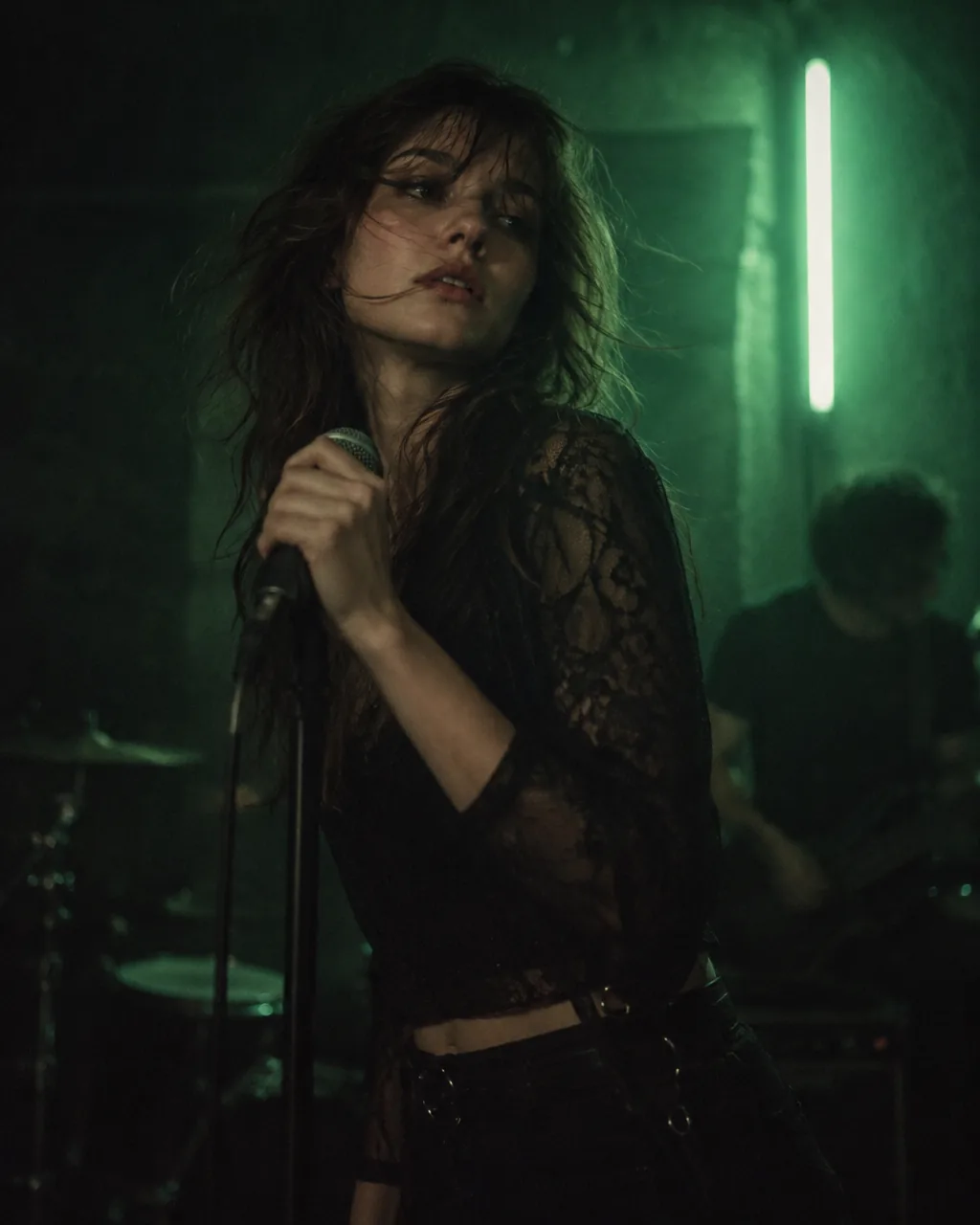
What this Spotify canvas maker does, and the step it leaves to you
Canvas has its own rules: it is vertical, short, silent and loops endlessly. MusicCreator takes audio only and makes the visual from an AI Photo Style, not your own images. It does not upload anything to a streaming service for you, and its videos run alongside the song, so you cut a short section yourself. Here is the whole picture before you start, so nothing surprises you at upload time.
Check the current specs
Length, size and file rules for Canvas are set by the streaming platform and can change. Check the requirements in your artist account before you export the final loop.
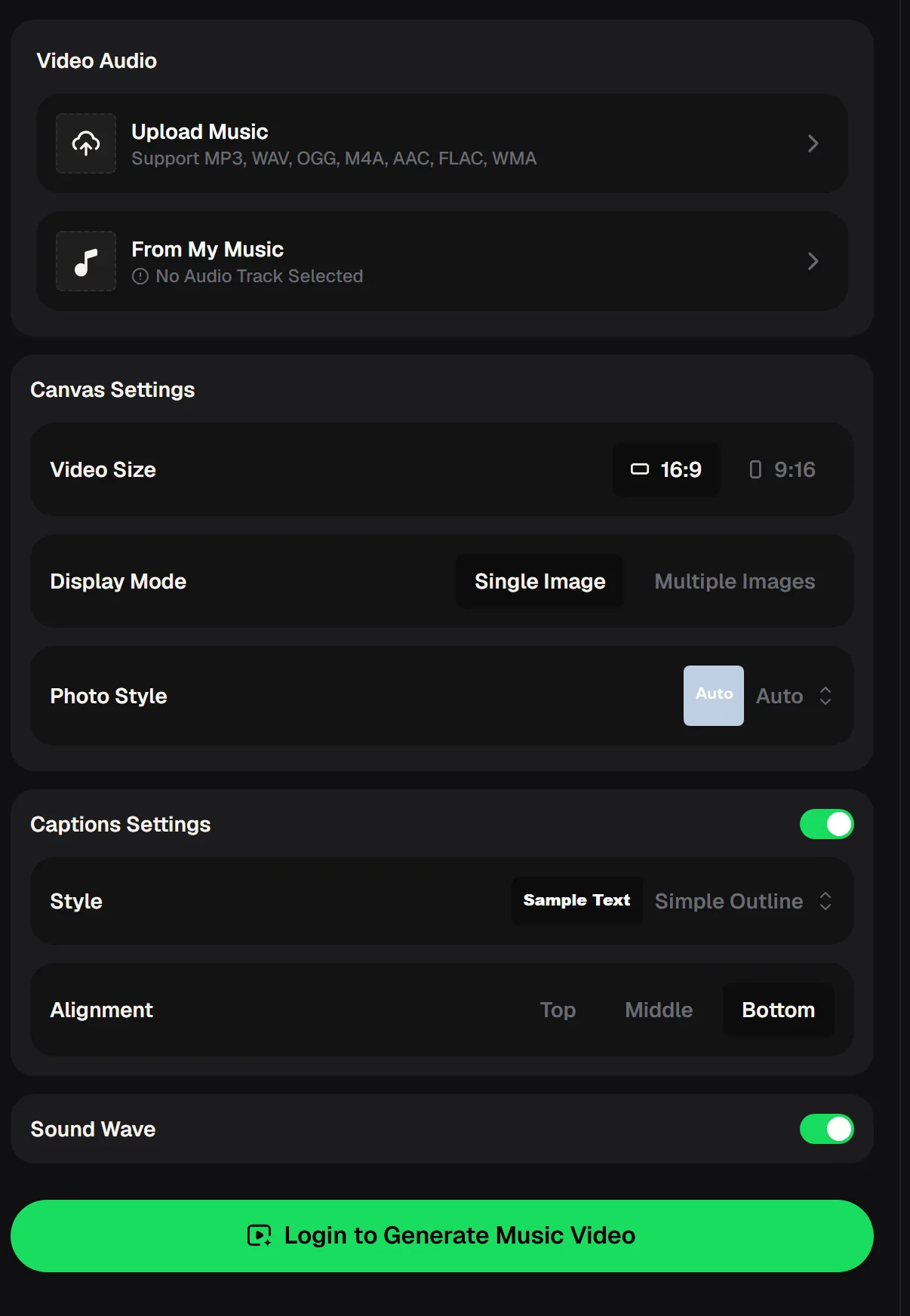
- Video size
- 9:16 vertical, or 16:9 for other uses
- Display mode
- Single Image or Multiple Images
- Photo style
- Auto or a chosen look
- Captions
- On or off, Top / Middle / Bottom
- Sound wave
- Optional moving waveform
- Audio upload
- MP3, WAV, OGG, M4A, AAC, FLAC, WMA
Upload your song, choose the 9:16 frame and a Photo Style, and keep text off so the loop looks clean on a phone screen.
How to make a Spotify Canvas with AI visuals
The Spotify canvas maker visual takes a few clicks; most of the craft is choosing a fitting Photo Style and a clean loop point.
Upload the song
Add your track, or pick one you made on MusicCreator.
Choose 9:16 and a Photo Style
Set the video size to vertical, pick Single Image or Multiple Images for more movement, and choose a Photo Style.
Switch off captions
Canvas plays under the player controls, so keep text off and let the image breathe.
Generate and download
Sign in, generate the video and save it.
Trim a short loop
In any video editor, cut a few seconds where the end flows back into the start, then upload it with your track. Preview it on repeat to spot any jump.

Canvas ideas that keep listeners watching
The best loops are simple: one subject, gentle motion and a mood that matches the song. Busy edits feel frantic when they repeat every few seconds. These directions work across genres and are easy to steer with the Photo Style you pick. A good Spotify canvas maker workflow starts with picking the look, not the effect.
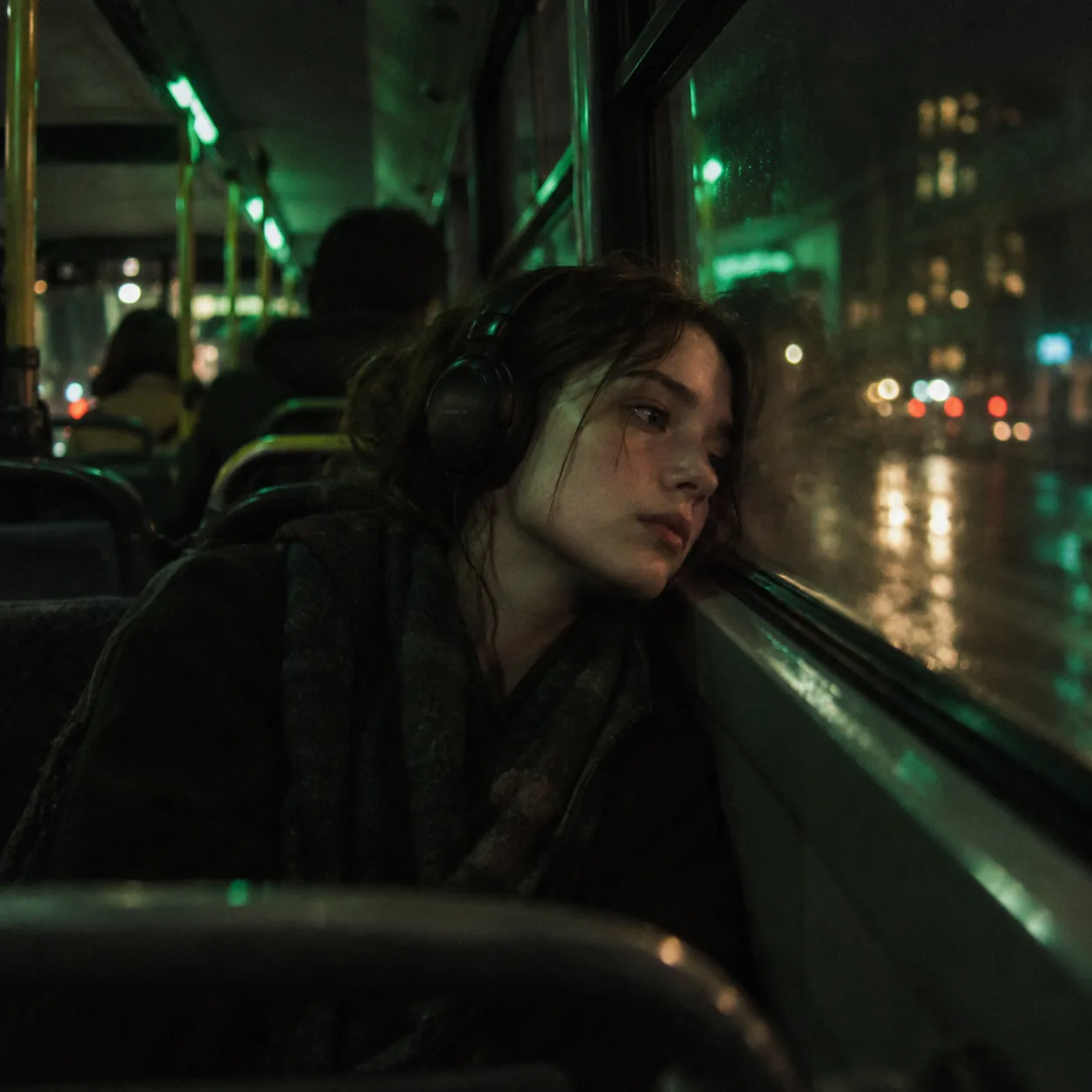
Moody portrait
A strongly lit AI-styled portrait that fits the character of the song.
Instrument close-up
An AI-styled look built around hands, strings or keys.
Place and atmosphere
Street, room or landscape scenes in one Photo Style, shown with Multiple Images.
Turn your track and an AI-styled look into a short vertical loop, then trim a few calm seconds for your Canvas upload.
Who uses a Spotify canvas maker like this
Canvas matters most for artists who release often and cannot film a video for every song. A quick, consistent visual system lets each release look finished on day one, and the same vertical video can be reused for social clips in the same 9:16 format. Here is how three typical users fit a Spotify canvas maker into their release routine.
Keeps one Photo Style for every single, builds each Canvas from it, then reuses the vertical video for Reels.
Pairs one Photo Style with the sound wave to give every instrumental release a recognizable, consistent look.
Gives each artist their own Photo Style and makes vertical visuals quickly, without booking an editor or waiting on a designer.
Canvas mistakes, and fixes
Most rejected or awkward Canvases from any Spotify canvas maker come down to a few avoidable details: the wrong shape, text in the way and a jarring loop. Each fix is quick once you know it, and all three come up again and again when artists share their first attempts.
Spotify canvas maker questions
Short answers for artists using a Spotify canvas maker for their first Canvas.
What is a Spotify Canvas?
It is a short, looping vertical video that plays in place of the cover art while a track is playing on mobile. Artists add it per track through their artist account. It has no sound of its own, because the song itself is the audio.
What is a Spotify canvas generator?
It is any tool that helps you create the vertical looping visual. With the MusicCreator Spotify canvas maker you upload the song, choose 9:16, pick a Photo Style and generate a video, then trim a short loop in an editor before uploading. The platform's current rules decide the final length and format.
Can a Spotify canvas maker use my own photos?
No. The visualizer takes audio only, so you cannot upload your own photos, cover art or press shots. The pictures come from the Photo Style you pick: Single Image gives one AI-styled picture, and Multiple Images moves through several over the song. Pick a style that still reads clearly at phone size, because a Canvas is mostly seen on small screens.
How do I make a Spotify Canvas for free?
MusicCreator is free to start: new accounts receive 30 free credits a year after a quick sign-up, and you need to sign in to generate a video. Trimming the loop can be done in any free video editor on your phone or computer.
Why does a Spotify Canvas have no audio?
The Canvas plays on top of the song that is already streaming, so it is designed to be silent. Any audio in your exported video is ignored or should be removed before upload, depending on the platform's current requirements.
How long does a Spotify Canvas need to be?
Canvas videos are very short loops, a matter of seconds. Check the exact minimum and maximum length in your artist account at upload time, since the platform sets and updates these specs.
Make every release move
Use the Spotify canvas maker to build a 9:16 visual from your song, trim a calm loop for Canvas, and reuse the same vertical video for social clips across the release.