MIDI tracks · drum lane · stems · master

AI DAW

An AI DAW on MusicCreator is a browser session split into a few tools rather than one big program. You draw MIDI and drum tracks in the AI MIDI Editor, pull separate parts out of a song with the AI Stem Splitter and finish the mix in AI Mastering, then take the files into the DAW you already use.

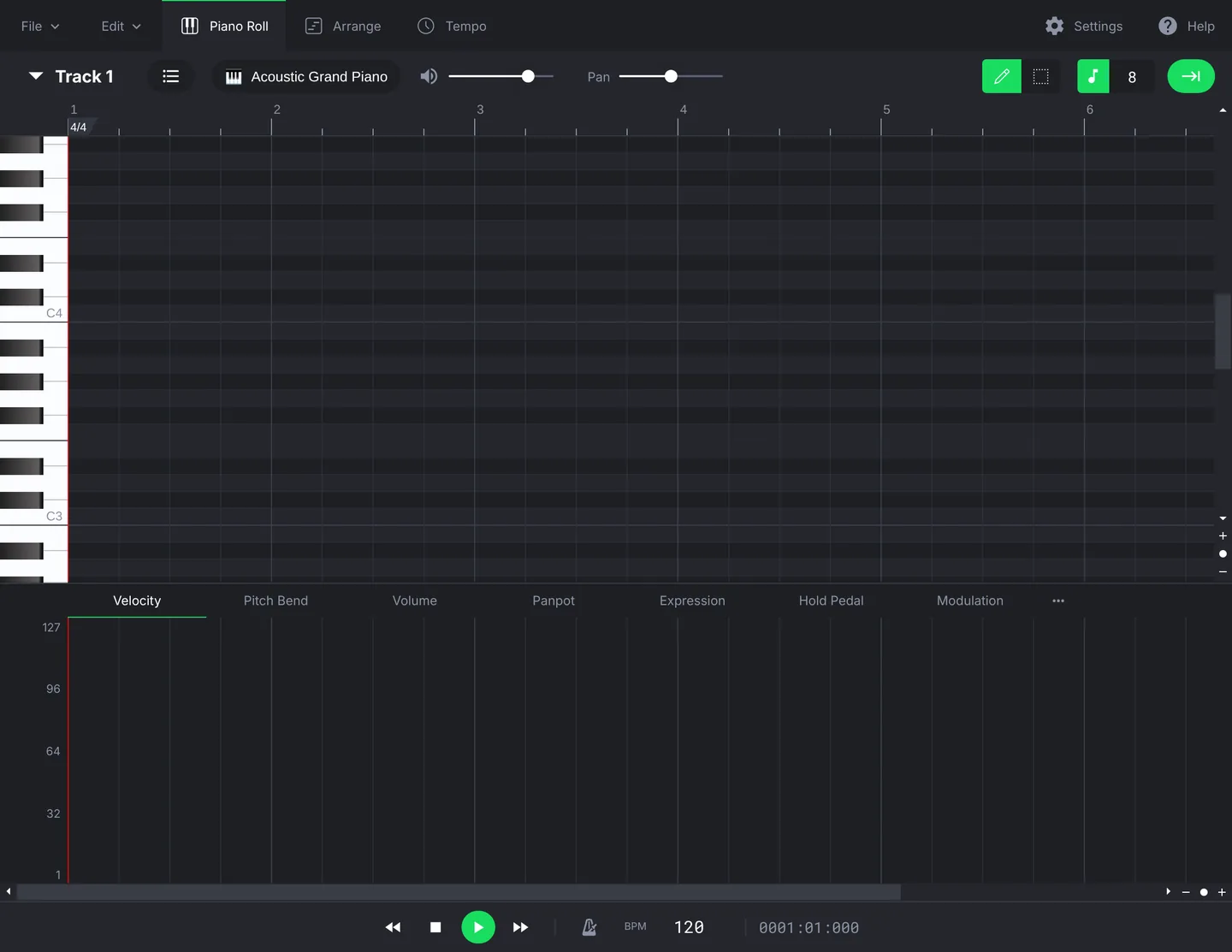
  1. Piano Roll, Arrange and Tempothree views in the AI MIDI Editor
  2. Velocity, Pitch Bend and Expressioncurves under every track
  3. Download MIDI or exportWAV and MP3 from the File menu
AI MIDI Editor with Piano Roll, Arrange and Tempo tabs, Track 1 on Acoustic Grand Piano, a piano keyboard and a Velocity lane beneath the note grid
Open the MIDI Editor

Runs in a desktop or phone browser · nothing to install

Channel strips

What Each AI DAW Strip Opens in MusicCreator

Read the table like a mixer: each column is one part of a session, and the rows show where it lives, what you set and what you take away.

PartMIDI tracksDrum laneAudio stemsMaster
WhereAI MIDI EditorAI MIDI Editor, Rhythm TrackAI Stem SplitterAI Mastering
You setAdd Track, an instrument from 16 groups such as Piano, Strings or Synth Lead, then notes in the Piano RollTick Rhythm Track and pick one of nine kits, from Standard and Room to Jazz, Brush and SFX4-Stem Split or 6-Stem Split for an upload, from a file or From My MusicTarget Music, plus an optional Reference Music track to aim at
You getA MIDI file, or a WAV or MP3 from File, ExportDrum notes on channel 10 in the same MIDI fileVocals, drums, bass and others, plus guitar and piano in 6-Stem modeA mastered version of the mix, after you sign in

The AI MIDI Editor works while you are signed out, including Download MIDI File and Export to MP3. AI Mastering asks you to sign in before it runs, and songs made on MusicCreator can also be split into up to 12 stems.

Two starting points

Two Ways to Start an AI DAW Session

Most sessions start from one of two places. Pick the one that matches what you already have in hand.

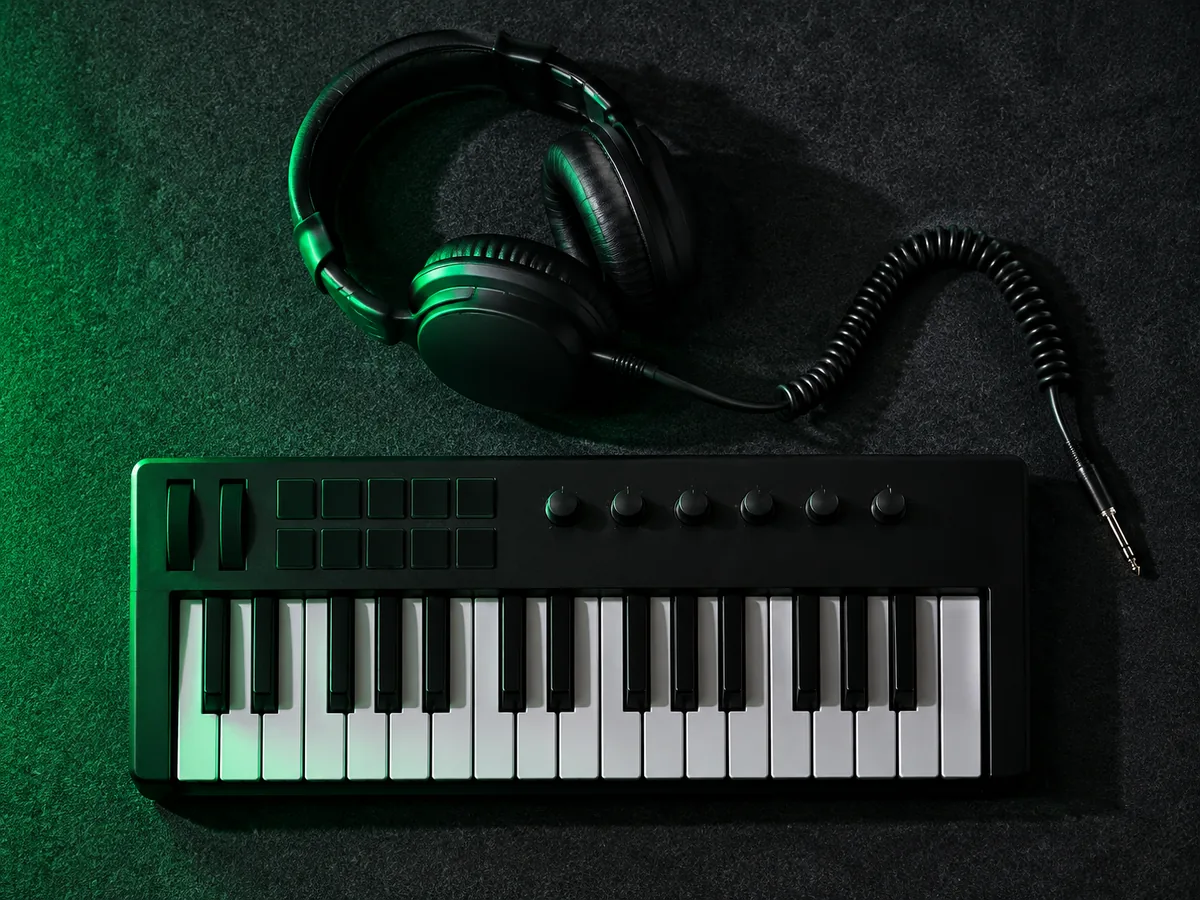
Top-down view of a compact MIDI keyboard, headphones and a coiled cable on dark felt with side light

Start from notes

You have a chord idea or a riff in your head. Open a blank session in the AI MIDI Editor, add a track per instrument and sketch the parts. Open a .mid file from another program with File, Open, and the track names, instruments and tempo come with it.

Close-up of mixing console faders backlit by a soft green glow

Start from a finished song

You have a full song, maybe one written with the AI Music Generator, which makes songs up to 8 minutes long. Split it into stems to rebuild or remix the parts, then master the new mix against a reference you like.

Arrangement view

AI DAW Session Steps, Lane by Lane

Each lane below is one move in the session. They overlap on purpose, because you will often jump back a lane before you finish.

  1. Lane1
    Sketch the partsAdd Track in the AI MIDI Editor, choose an instrument and draw notes in the Piano Roll.
  2. Lane2
    Add a drum laneAdd a track, tick Rhythm Track, choose a kit and place hits with the pencil.
  3. Lane3
    Shape and exportUse the Velocity and Expression curves, then Download MIDI File or Export a WAV or MP3.
  4. Lane4
    Master the mixLoad the mix as Target Music, add a Reference Music track, sign in and master.

If the session starts from a finished song, run it through the AI Stem Splitter before lane one and import the parts you want to keep into your own DAW. Double-click the time signature marker at the start of the timeline to change the meter, for example to 7/8 for an odd-time groove.

Fit check

Who an AI DAW in the Browser Suits

A browser session suits quick sketches and finishing steps. It does not replace every corner of a full desktop studio, so check both lists before you plan a whole record around it.

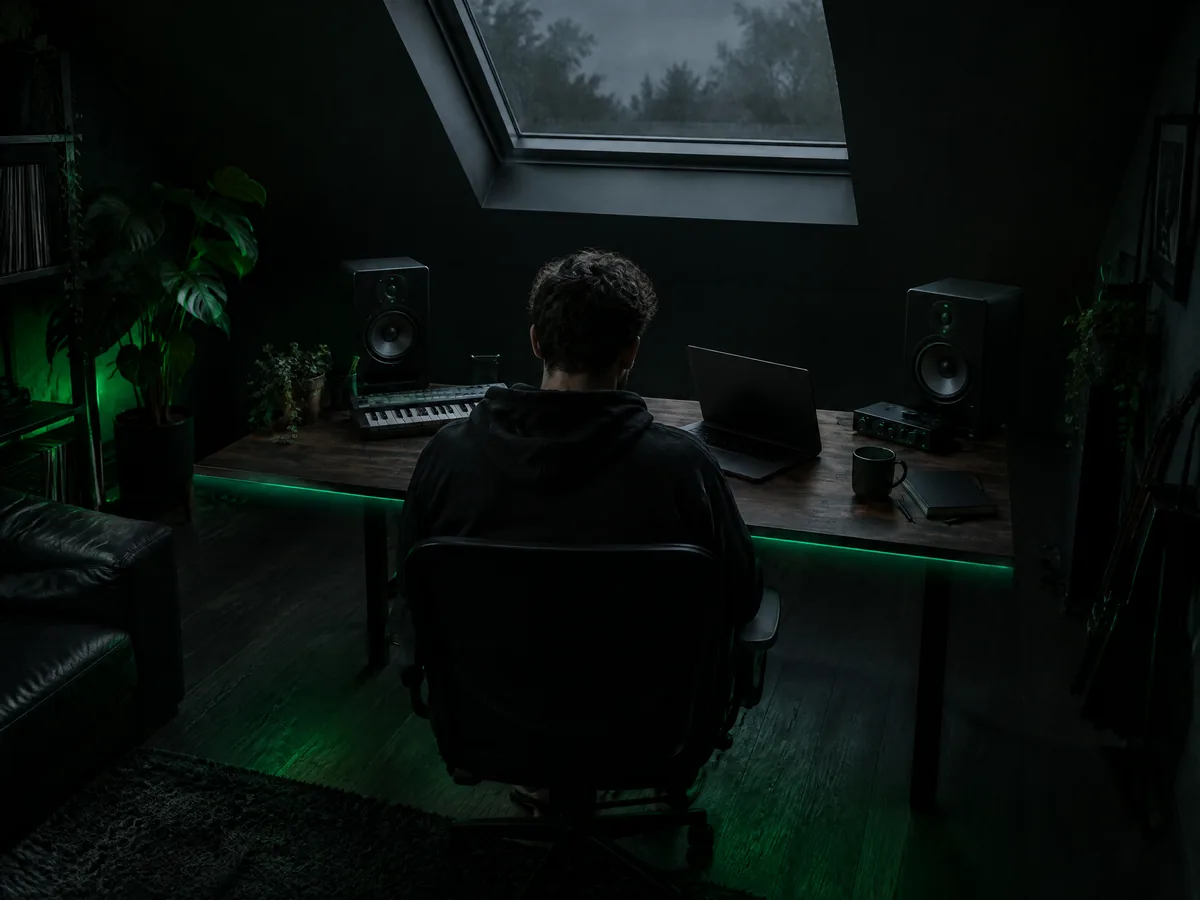
Producer seen from behind at a desk with studio monitors and a small keyboard in a dark loft under a skylight
Good fit
  • Sketching MIDI parts and drums to finish in your main DAW
  • Pulling stems from a song to remix, practise or rebuild
  • Mastering a mix against a reference you like
Look elsewhere
  • Sheet music, since the editor has no staff or score view
  • More than six parts from an uploaded song, since the 12-stem option is for MusicCreator songs
  • A desktop app, since everything runs in a browser tab
Questions

AI DAW FAQ

AIs there a free AI DAW?

The AI MIDI Editor can be used without signing in, and you can still download the MIDI file or export the session as an MP3. The AI tools that generate or process audio need an account and use credits.

The Free plan includes 30 credits a year, and unused credits reset when the plan renews. If a generation fails, the credits are usually refunded automatically. Paid plans download songs as MP3, WAV or FLAC.

BCan I use it with the DAW I already have?

Yes, by moving files. From the AI MIDI Editor, use Download MIDI File for notes and Export for a WAV or MP3 bounce, then import those into your own DAW. Going the other way, File, Open loads a .mid file and keeps its track names, instruments and tempo, so you can sketch on a laptop and keep working at home. Nothing installs inside another program; every tool runs in the browser.

CWhere does the AI come in?

In three places. The AI Music Generator writes a full song from a prompt or from your own lyrics, up to 8 minutes long. The AI Stem Splitter separates a song into vocals, drums, bass and other parts. AI Mastering finishes a mix and can aim at a reference track you upload. The AI MIDI Editor itself is a hands-on editor, where you place and shape every note.

DCan I split my own upload into 12 stems?

Not an upload. For a file you upload, choose 4-Stem Split for vocals, drums, bass and others, or 6-Stem Split to add guitar and piano. The option for up to 12 stems is limited to songs made on MusicCreator, so if you need more parts, start the song in the AI Music Generator and split it from your library with From My Music.

ECan I release music made in an AI DAW session?

Monthly and annual plans include commercial rights within the scope of the Commercial License for songs made on MusicCreator. Downloading the commercial license PDF for a song is included with annual plans only, and songs made on the free plan can get their PDF after an upgrade to an annual plan. For parts you played or wrote yourself in the AI MIDI Editor, keep your project files so you can show where each part came from.
  • Notes firstTracks, drums and curves in the AI MIDI Editor.
  • Take it homeDownload MIDI or export WAV and MP3.
Next step

Open Your AI DAW Session Now

Start a blank track in the AI MIDI Editor, add a drum lane and export the parts you want to carry into your main DAW.

  • Song firstSplit stems from a finished song.
  • FinishMaster against a reference track.
AI DAW