An acoustic cover of an upbeat song
Take a bright pop track from My Music and ask for an acoustic cover: fingerpicked guitar, soft brushes and a warm, close feel. Keep Vocal Gender as it suits the song, or set it to Random.
Your songs, in a genre you have not tried yet
An AI cover maker gives a song a new genre, mood or voice. Here the starting point is a song you already made in MusicCreator: pick it from My Music, write the genre you want to hear in Styles, choose a Vocal Gender or switch on Instrumental, and generate the cover. Each song in your workspace can lead to a new genre cover, then another.
An ai cover maker for your own songs can start from one clear reason per cover. Here are four places to begin.
Take a bright pop track from My Music and ask for an acoustic cover: fingerpicked guitar, soft brushes and a warm, close feel. Keep Vocal Gender as it suits the song, or set it to Random.
Turn a quiet ballad around with 1970s disco, four-on-the-floor drums and strings in Styles. Keep the original Title in the cover name so the cover stays easy to match with its song.
For an ai cover maker instrumental take, switch on Instrumental and describe the lead instrument in Styles, such as solo piano or a jazz trio with upright bass.
Cover a song you made with the opposite setting under Vocal Gender. Combine the change with a genre shift, or keep Styles close to the original genre so the voice is the main difference.
These steps take you through how to cover a song you made, from picking the track to listening to the result.
| # | Do this | Where |
|---|---|---|
| 1 | Choose My Music and select a song you made. A cover from My Music starts from audio already in your workspace. | Add Music |
| 2 | Write a genre, a mood and a few instruments. A chip such as Jazz or Sad can open the entry, and Styles takes up to 1000 characters. | Styles |
| 3 | Pick Random, Male or Female, or switch on Instrumental for a cover without a lead voice. | Vocal Gender / Instrumental |
| 4 | Name the cover after the song and its new genre, for example Harbor Song Disco, within 80 characters. | Title (optional) |
| 5 | Leave Weirdness, Style Influence and Audio Influence at 50% for a first cover, and add any genre you want kept out under Exclude styles. | Advanced |
| 6 | Log in, generate the cover and listen to it, then compare it with the song you started from. | Panel |
These crops come from the AI Music Remixer panel, where the cover settings live. Each caption names the fields shown in it.
Read them in order when you cover a song: the first crop is where the song comes in, the second is where the new genre is written, and the third holds the name, the voice setting and the Advanced row. Lyrics also sits on the panel, for a cover that needs new words.
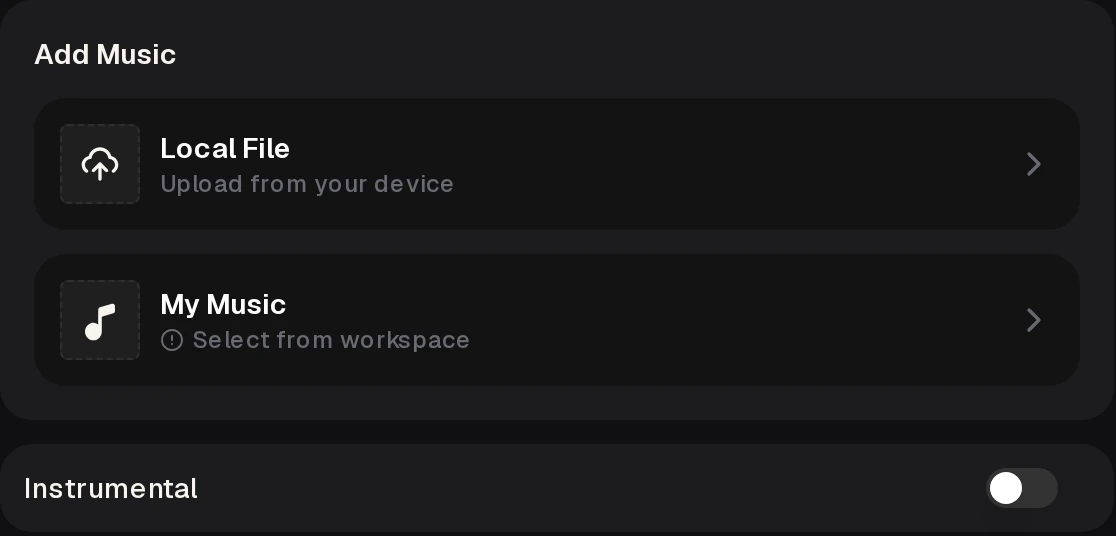
1 Add Music, with Local File and My Music, and the Instrumental switch.
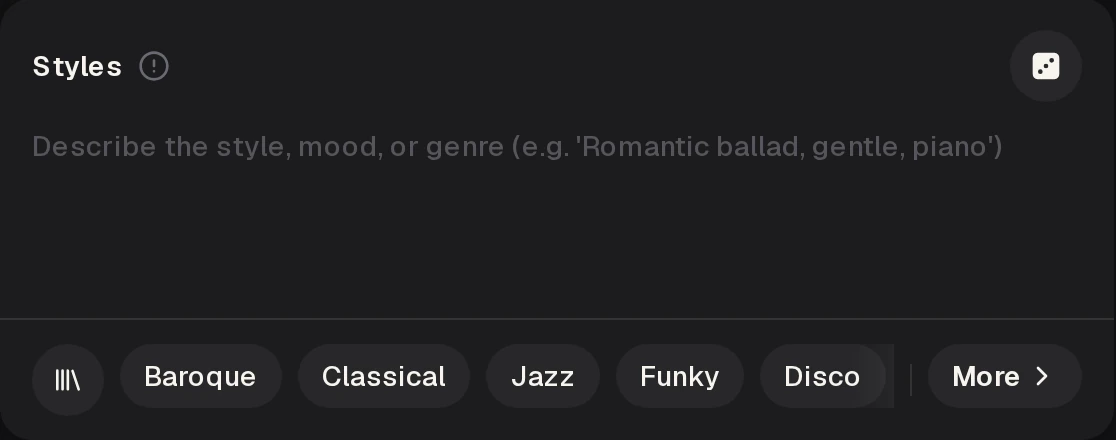
2 Styles, the required box for the new direction, with chips such as Jazz.
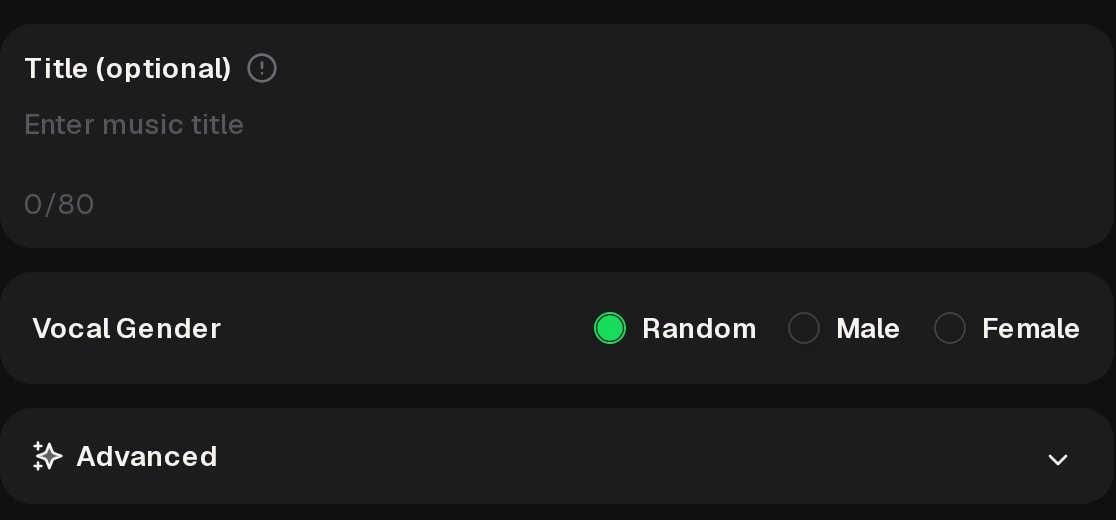
3 Title (optional) with its 0/80 counter, Vocal Gender and Advanced.
Add Music offers My Music and Local File. The table shows when each one suits the song you want to cover.
| Choose My Music when | Choose Local File when |
|---|---|
| The song was made in MusicCreator and is already in your workspace. | The song is a file on your device that you wrote or have permission to use. |
| You plan several covers of the same track and want to select it again each time. | The file is between 3 seconds and 8 minutes long, in MP3, WAV, OGG, M4A, AAC, FLAC or WMA. |
| You want to compare covers against an original you can find in My Workspace. | You are ready to confirm your rights in the Copyright Notice, with Cancel and I Confirm. |
| My Music and Local File lead to the same Styles, Vocal Gender, Title and Advanced fields. | |
Play the examples below.
Before you write a Styles entry, listen for the parts of a song that define it: the melody, the tempo, the lead instrument and the space around the voice. Those details tell you what a new genre should keep in view and what it can change.
After the examples, write down the details you want a cover to keep and the ones it can change, then turn those notes into your first Styles entry.
Each tile pairs a common starting genre with a Styles entry for the cover. Swap in the instruments you hear in your own song.
Styles: acoustic folk, warm, fingerpicked guitar, soft brushes, close vocal. For a gentle acoustic take on a fast song.
Styles: 1970s disco, upbeat, four-on-the-floor drums, strings, bass guitar. Add ballad under Exclude styles.
Styles: jazz trio, upright bass, brushed drums, piano, relaxed swing. Add heavy metal under Exclude styles.
Styles: synthwave, analog synths, steady drum machine, night drive mood. Keep the Title close to the original name.
Files, plans, downloads and licensing for the covers you make. For a free ai cover maker plan, start with these lines.
Sources, cost, instrumentals, files, phones and rights.
It takes a song you add, either from My Music or as a Local File, and builds a cover in the direction you write into Styles. You choose a Vocal Gender or switch on Instrumental, and you can give the cover a Title of up to 80 characters.
Advanced holds Exclude styles, Weirdness, Style Influence and Audio Influence; the last three start at 50%. After logging in, generate the cover, listen, and adjust the Styles entry for the next one.
You need to log in before a cover generates. The free plan comes with 30 credits a year, which works out to 15 generations at 2 credits per song.
Free accounts can download a limited number of songs, and paid plans download MP3, WAV or FLAC. If you plan a whole set of genre covers for one song, write the Styles entries first so each attempt has a clear direction.
Yes. Switch on Instrumental before you generate, then use Styles to describe the instruments that should carry the melody, such as solo piano, a string quartet or a jazz trio with upright bass and brushed drums.
Name the cover with the song title and the word instrumental, so the cover and the original are easy to tell apart when you compare them later in your workspace.
Local File takes audio between 3 seconds and 8 minutes in MP3, WAV, OGG, M4A, AAC, FLAC or WMA. Local File comes with a Copyright Notice that asks you to confirm you hold the rights or a license, with Cancel and I Confirm as the choices.
For a song you made in MusicCreator, My Music selects it from your workspace.
Yes. A phone browser is enough for MusicCreator, the same as a laptop or desktop. On a phone, a cover starts the same way: pick a song from My Music and write a Styles entry.
A short Styles entry, such as a genre, a mood and a lead instrument, fits a small screen. Save longer entries, where you describe the whole arrangement and name a style to keep out, for a session at a larger screen.
Songs made on a monthly or yearly plan can be released within the scope of the Commercial License. The certificate costs 0 credits per song on yearly plans and 5 credits per song on monthly plans and Pay Once, within the scope of the Commercial License.
Only cover songs you wrote, made in MusicCreator or have permission to use. Local File asks you to confirm this in a Copyright Notice, with Cancel and I Confirm as the choices.
Pick a song from My Music, write a new genre into Styles and choose a Vocal Gender or Instrumental before you generate.