9:16 is selected here for a vertical feed, with 16:9 beside it for wide players. Pick the shape first, because caption position and image choice both depend on it.
Finished track · sized canvas · on-screen captions
AI Music Video Generator From Audio
The mix is signed off, yet the upload form still asks for a video. This AI music video generator from audio starts with the file you already have, sets it on a 16:9 or 9:16 canvas in a Photo Style you choose, and lets you decide how the on-screen captions look and where they sit, with a Sound Wave switch you can turn on or off.
- Add audio
- Shape canvas
- Place captions
What the AI Music Video Generator From Audio Builds
Four groups of settings decide how the clip looks, and each one maps to a single question you can answer before the first run.
Sound first
Upload Music takes MP3, WAV, OGG, M4A, AAC, FLAC or WMA, and From My Music pulls in a song you made earlier on MusicCreator.
A frame for the feed
Video Size switches between 16:9 for wide players and 9:16 for phone feeds, so the shape is settled before anything else.
Captions you place
Captions Settings has its own switch, a Style menu that opens on Simple Outline, and Alignment at Top, Middle or Bottom.
Motion over the image
Sound Wave has its own switch, worth testing when the picture is calm and the clip needs a visible pulse.
One song, one clear visual plan
Think of the panel as a short brief you fill in once. Display Mode offers Single Image and Multiple Images. Photo Style begins at Auto until you pick another look.
Settle those two choices first, then spend your attention on the captions, because they are the part viewers read while the song plays. A clip with a steady image and well-placed text usually holds attention better than one where every setting was changed at once.
- Shape 16:9 for wide players, 9:16 for phone feeds
- Pictures Single Image or Multiple Images, Photo Style on Auto or a chosen look
- Text caption Style plus Top, Middle or Bottom alignment
- Motion Sound Wave on or off
Reading the AI Music Video Generator From Audio Panel
The capture below shows the canvas and caption groups set for a phone post: 9:16, Multiple Images, and captions moved to the top of the frame.
Multiple Images is selected, with Single Image beside it. Photo Style sits below on Auto; open its menu only when you want a different look.
The switch is on, Style shows Simple Outline, and Alignment is set to Top. On a phone post, Top keeps the text clear of the controls most apps draw along the bottom edge.
Its switch is on in this capture. Leave it on for a calm image that needs a visible pulse, and turn it off when the frame already feels busy.
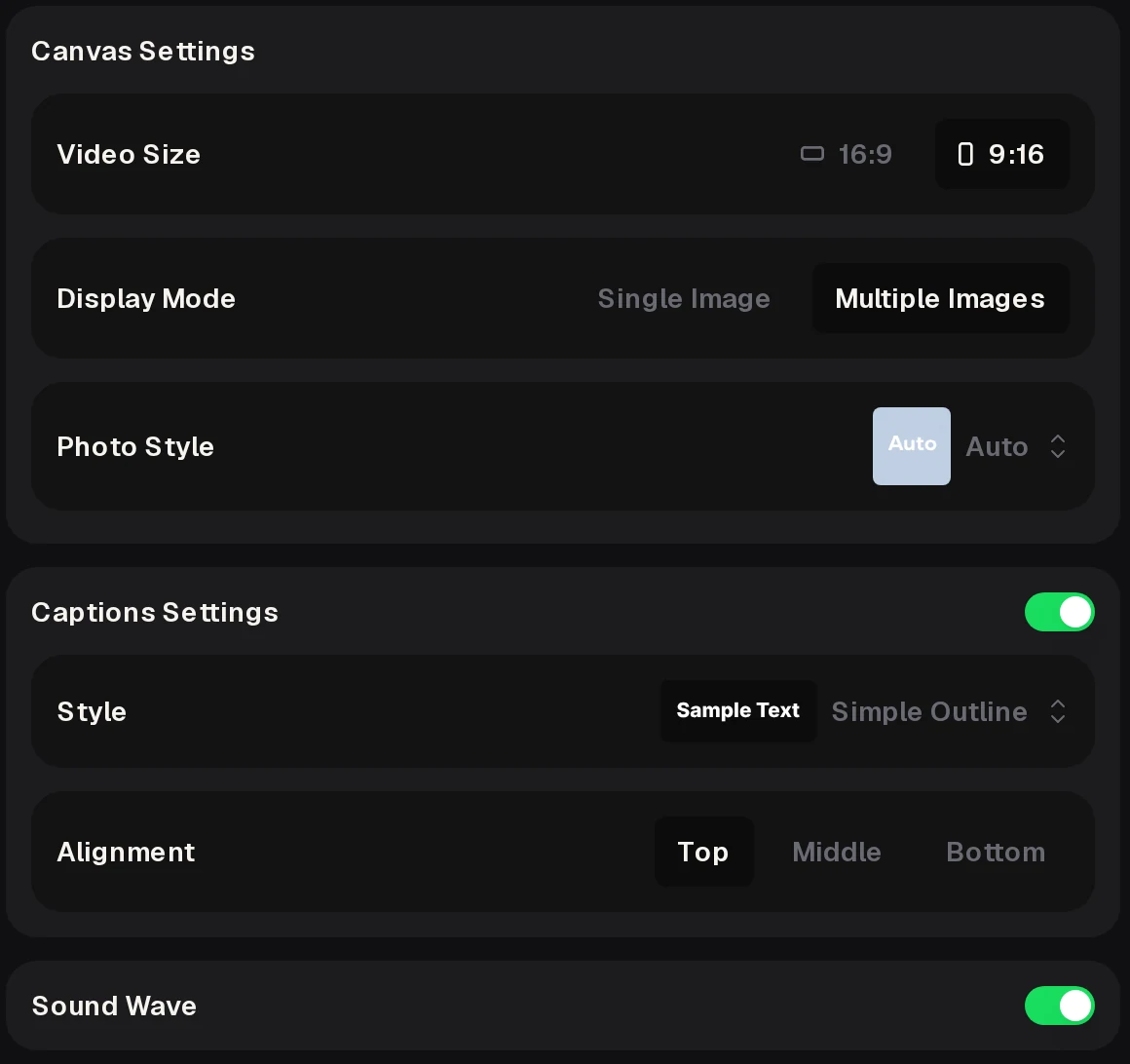
Above these groups the panel holds Video Audio, where the track comes in, and the generate button sits below Sound Wave. Searches for an ai video generator from audio for music usually start at this exact point: the master is done, the platform wants pictures, and the only open questions are shape, captions and motion.
Four Steps Through the AI Music Video Generator From Audio
A single focused pass covers the whole panel. Keep notes on what you chose so a second pass changes one thing at a time.
- Add the track through Upload Music, or choose a saved song in From My Music.Audio
- Choose Video Size and Display Mode for the place the clip will be posted.Canvas
- Leave Photo Style on Auto or pick a look, then set caption Style and Alignment.Captions
- Decide on Sound Wave, sign in, and press the generate button under the panel.Run
When the result comes back, watch it on the screen your audience uses. If the captions crowd the image, move them before touching anything else; that one change is often the difference between a busy frame and a clean one.
A practical first pass uses the defaults for Photo Style and caption Style, so you see the plain result before adding your own taste. From there, change Display Mode or alignment on the next pass and watch the clips side by side on the same phone.
Where an AI Music Video Generator From Audio Earns a Slot
Three weekly jobs where the sound is ready and the platform wants moving pictures. Each one points to different canvas and caption choices.
A vertical teaser for the new single
Pick 9:16 and Multiple Images for a phone feed, and set the captions to Top to leave the lower part of the screen clear for the platform's own buttons. Post the teaser a few days before release and reuse the same settings for the launch-day clip.
A podcast or interview excerpt
Upload the audio excerpt, choose 16:9 for a wide player, and choose Single Image with Sound Wave switched on. Pick the strongest minute of the conversation, since that part is the one most likely to make a listener open the full episode.
A rehearsal recap for students
A choir director or band coach can turn a run-through recording into one short clip for the group chat. Middle alignment with a plain caption style keeps the text easy to follow on small screens.
People comparing apps to make videos with music tend to describe the same need: an ai music video generator with audio that is already finished, where the remaining work is choosing a frame and a caption position. Each job above follows that pattern, so note which row matches your week and start from its settings.
Who Opens an AI Music Video Generator From Audio
Anyone holding a finished recording and a deadline. Many of them arrive after looking for an ai music video generator based on audio, because the song is the main asset they hold.
ARIndependent artists
A release-day clip for each platform → one caption layout kept across every size.
PCPodcast producers
Short excerpts that need an ai music video generator using audio from the episode itself → a wide clip with Sound Wave on.
EDMusic educators
Rehearsal takes for students → a short clip they can watch on a phone or a classroom screen.
What links the three groups is a habit of reuse. A saved song in From My Music, a caption layout that already works, and a size chosen per platform turn each new release or episode into a short checklist, which keeps a weekly posting rhythm realistic for one person working alone.
Caption Habits for the AI Music Video Generator From Audio
Captions are the part of the frame viewers read, so most fixes in an ai music video generator from audio online session start there. Each rule opens a short note on why it helps.
- Try Top alignment on a vertical post.
Why
Phone apps often lay their own controls across the lower part of the screen, so captions placed at Top on 9:16 stay readable.
- Choose the image look before the caption style.
Why
Settle Photo Style first, then pick the caption Style that stays readable against it.
- Change one setting per run.
Why
When size, style and captions move together, you lose track of which change improved the clip.
- Judge Sound Wave against the picture.
Why
With Multiple Images, check whether the wave adds to the frame or competes with it, and switch it off if it competes.
- Name files after the song, size and date.
Why
A filename that carries the song title, size and date makes a later pass easy to find in your folder.
AI Music Video Generator From Audio FAQ
Answers on files, frame shape, captions, accounts and licensing for a first session.
Files, frame and captions
Which audio files can I start from?
Upload Music takes the seven audio file types listed in the first section, so an export from a DAW, a phone recorder or a podcast editor is a good place to start. If the song was made on MusicCreator, pick it through From My Music, so you can skip the download and upload round trip.
Bring the mix you intend to share, since that recording is the one you are about to publish.
Should I choose 16:9 or 9:16?
Choose the shape of the screen where most people will watch. 16:9 suits wide players on a laptop or TV and embeds on a website. 9:16 fills a phone held upright and suits short vertical feeds.
If a release needs both shapes, keep Photo Style and captions the same and change only Video Size between runs, so every cut still looks like one campaign.
How much control do I have over captions?
Captions Settings has three controls: a switch that turns captions on or off, a Style menu that opens on Simple Outline, and Alignment with Top, Middle and Bottom positions.
Choose the style after the image, so the text contrasts with the picture behind it. Then pick the alignment that keeps the text clear of anything the platform draws over the video, such as buttons or a progress bar.
Motion, credits and rights
When is Sound Wave worth turning on?
Try Sound Wave first on clips where the picture stays calm, such as a podcast excerpt or a slow ballad, where a little extra motion on screen can help the eye stay with the track.
When the frame already looks busy, compare one run with the switch on and one with it off, then keep the version that reads more clearly on a phone.
How do credits work for a first session?
Sign in before your first run; your profile page shows your credit balance. After sign-up the free plan gives 30 credits a year, which is about 15 song generations at 2 credits per song if you also write the track itself on MusicCreator.
You can also buy Pay Once credits as a one-time purchase. Unused credits reset at renewal, so plan song generations inside each period.
Can I post the finished clip on my channels?
Monthly and annual plans both include commercial rights within the scope of the Commercial License. Within the scope of the Commercial License, the certificate costs 5 credits per song on monthly plans and Pay Once credits, and 0 credits on annual plans.
Keep the certificate in the same folder as the clip and the audio file, so the paperwork travels with the release. For audio made elsewhere, upload only recordings you hold the rights to.
Next step
Try the AI Music Video Generator From Audio
Bring a finished track, set the canvas and caption position, and generate a clip shaped for the feed you post to.
- Wide or vertical16:9 or 9:16
- Captions placedTop, Middle or Bottom