The Light Is on Its Way · 2:59
Gospel choir, Hammond organ, piano and handclaps, slow build, soulful female lead with choir response.
For worship teams with their own songs
Your team wrote a new song, and Sunday should not be the first time the congregation hears it. This worship-video path turns your recording into a sing-along video people can watch midweek. Upload the track, pick a calm scene and caption placement, then share it in the group chat or on the hall screen.
Creators reach for this this worship-video path path when they need a listen-ready draft without rebuilding a session from scratch.
A 9:16 video sent on Wednesday gives people two or three listens before Sunday, on the phone they already check.
Play the 16:9 video while people arrive, so the chorus is familiar by the time the band starts.
Post it with the other service videos so newcomers can find the song after their first visit.
New team members can learn the melody and the order of sections at home before their first rehearsal.
One reader on r/worshipleaders put it bluntly: “If the only way the congregation learns the song is through the people up front, the system is broken.” A learning video spreads that job across the week.
Creators reach for this this worship-video path path when they need a listen-ready draft without rebuilding a session from scratch.
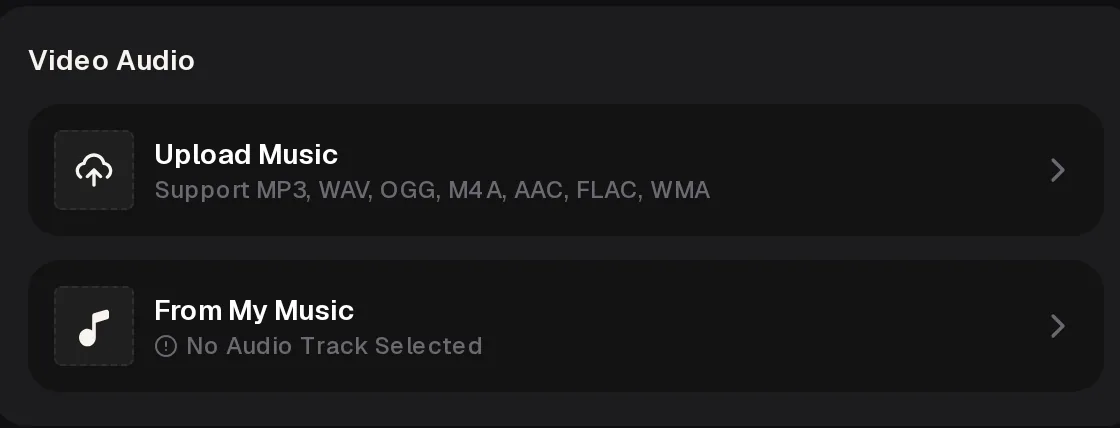
Upload the team's mix as MP3, WAV, OGG, M4A, AAC, FLAC or WMA, or pick a song you made on MusicCreator from My Music.
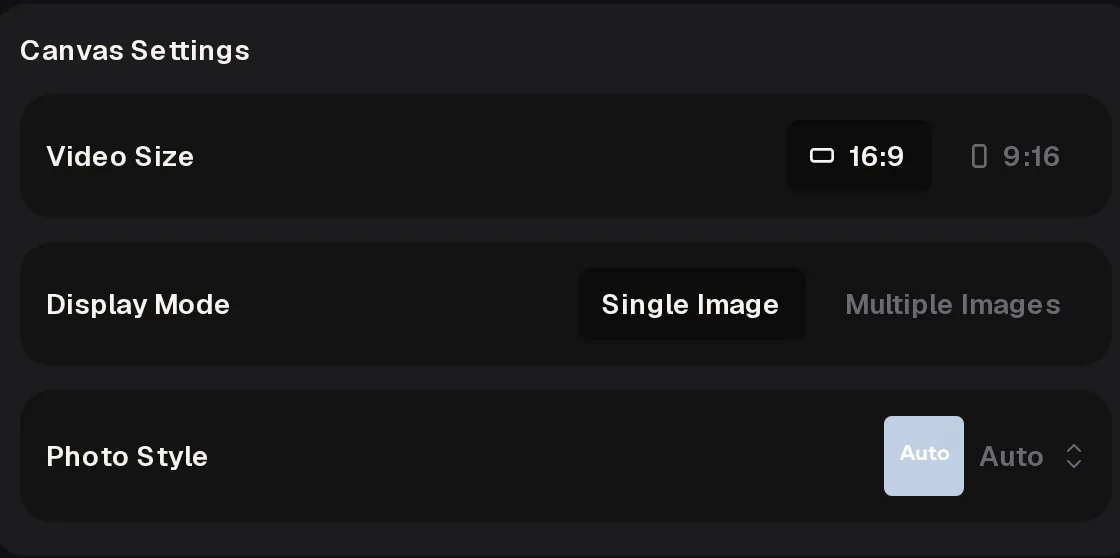
Choose 16:9 for screens and channels or 9:16 for phones, then Single Image for a still scene or Multiple Images for changing scenes.
Keep captions on, pick a style and set Top, Middle or Bottom. Sound Wave adds a wave graphic you can switch off for a cleaner screen.
You don't type lyrics or add your own photos here. This worship-video path generates the scenes, so watch the finished video and check every caption line before you share it.
Creators reach for this this worship-video path path when they need a listen-ready draft without rebuilding a session from scratch.
| Group chat | Hall screen | Church channel | |
|---|---|---|---|
| Video Size 16:9 | – No | ✓ Yes | ✓ Yes |
| Video Size 9:16 | ✓ Yes | – No | – Teaser only |
| Captions on | ✓ Yes | ✓ Yes | ✓ Yes |
| Captions in the middle | ✓ Yes | – Bottom | ✓ Yes |
| Sound Wave | – Off | – Off | ✓ Optional |
On a hall screen, bottom captions stay clear of the scene and read well from the back row. On a phone, middle captions sit where the thumb won't cover them.
Creators reach for this this worship-video path path when they need a listen-ready draft without rebuilding a session from scratch.
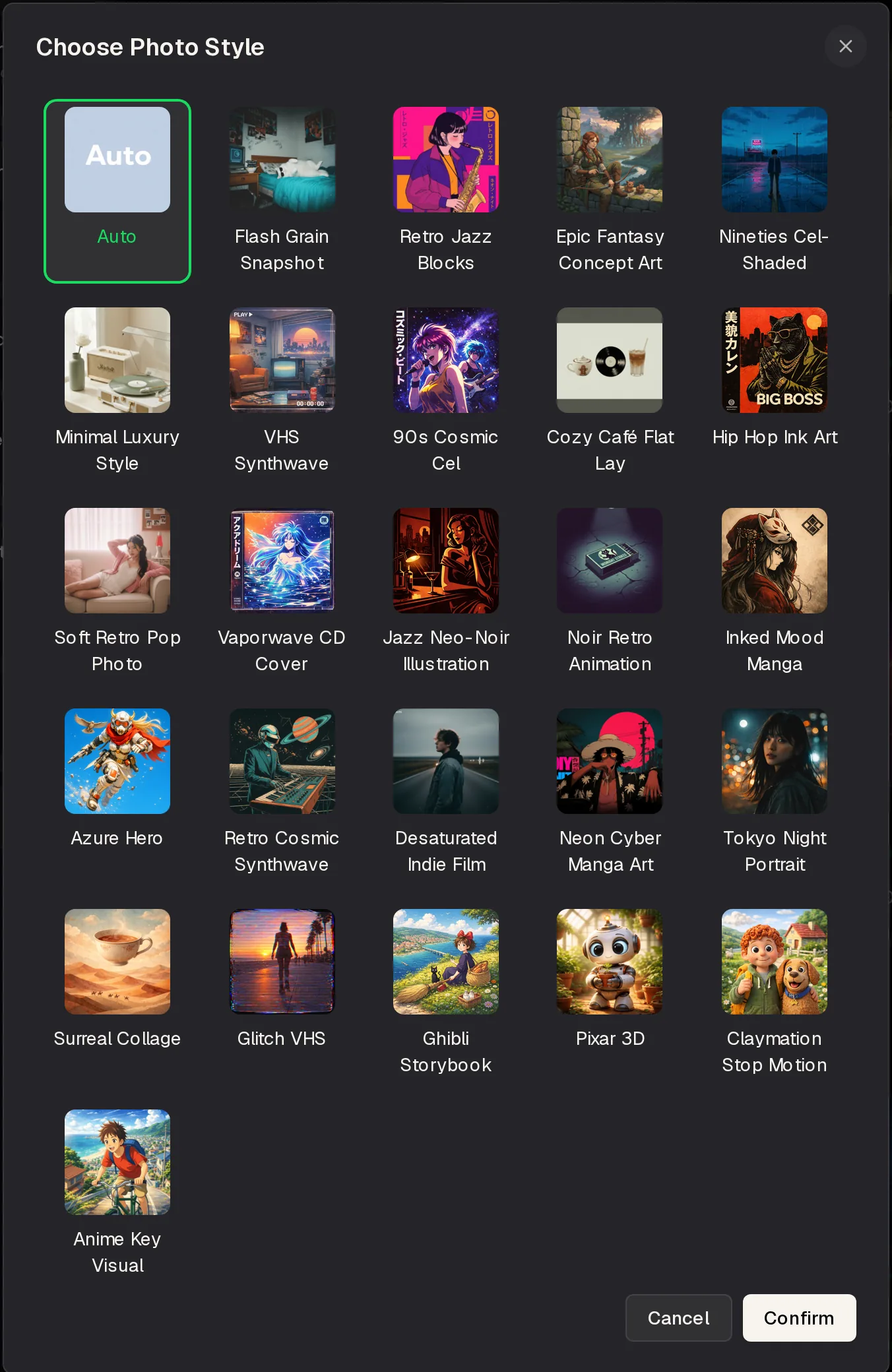
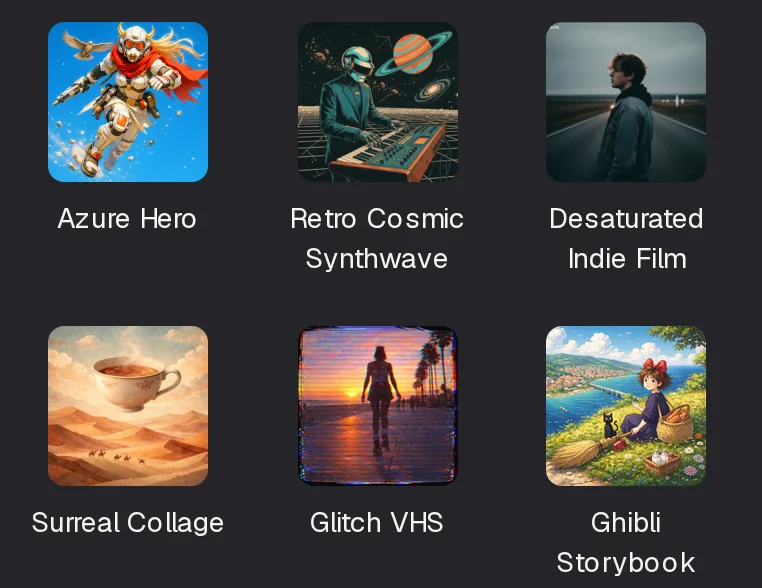
Desaturated Indie Film, Minimal Luxury Style and Ghibli Storybook give soft, uncluttered scenes that suit a reflective song.
Save the bright presets, like Azure Hero or Glitch VHS, for a youth night anthem. Auto leaves the look to this worship-video path.
Whichever you pick, preview the first seconds on the screen it will play on. A scene that looks calm on a laptop can feel busy on a big hall screen, so test before Sunday.
Creators reach for this this worship-video path path when they need a listen-ready draft without rebuilding a session from scratch.
Gospel choir, Hammond organ, piano and handclaps, slow build, soulful female lead with choir response.
16:9, Single Image, Desaturated Indie Film, captions at the bottom.
9:16, Multiple Images, Ghibli Storybook, captions in the middle.
16:9, Minimal Luxury Style, captions in the middle, Sound Wave on.
The chorus repeats one short line, which is ideal for a learning video: people catch it on the second listen.
About this example: it was made with the MusicCreator AI Music Generator from an original lyric we wrote, so your songs will sound different. The settings are suggestions, not a rendered video.
Creators reach for this this worship-video path path when they need a listen-ready draft without rebuilding a session from scratch.
Watch the whole video on the screen it is meant for. Check that each caption line matches what is sung, especially names and words that sound alike.
If a line is wrong, try a cleaner mix with the lead vocal a little louder, then run it again. Send the video on Tuesday or Wednesday, not Saturday night.
Upload the team's mix to this worship-video path, choose 16:9 or 9:16 and a calm Photo Style, then check the captions before sending it out midweek.
Creators reach for this this worship-video path path when they need a listen-ready draft without rebuilding a session from scratch.
A hymn whose words and tune are in the public domain is different again, but the recording you use must still be one your team made.
Creators reach for this ai music video creator path when they need a listen-ready draft without rebuilding a session from scratch.
No. The AI music video creator generates every scene from the Photo Style you choose, and it takes audio only, not your own photos or footage. If you want the building or the team on screen, film that separately in a video editor. A quiet generated scene often works better for learning, because nothing on screen competes with the words people are following.
You don't type the lyrics in, so the captions follow the recording itself. That makes the mix matter: a clear lead vocal over the band gives the best chance of correct lines. Always watch the finished video through before sharing it. If a word comes out wrong, a cleaner mix or a short re-recording of that section is usually quicker than explaining it later.
You sign in to generate, and you get free credits after a quick sign-up: 30 credits a year, which is 15 songs at 2 credits per song if you also make music on MusicCreator. Unused credits reset on your renewal date. Free users can download a limited number of files, while paid plans download songs as MP3, WAV and FLAC, which suits a team that keeps every song it writes.
Monthly and yearly plans include commercial rights within the scope of the Commercial License. On a monthly plan the license certificate costs 5 credits per song, yearly plans include it at no extra cost, and Pay Once credits can get it for 5 credits per song. Licenses already obtained remain valid if you cancel. Check which plan you are on before the channel goes live.
A clean stereo mix from rehearsal or a simple home recording is enough. Keep the lead vocal clear and avoid long spoken intros, since people want to reach the chorus quickly. Trim count-ins and noise before you upload. If the song has a long instrumental ending, consider fading it earlier, so the learning video ends while people are still singing along rather than drifting off.
Upload your team's recording to the AI music video creator, choose a calm scene and caption placement, and send the learning video early in the week so the.
A/B two takes before you share.
Free credits after a quick sign-up.